

Step 1: Prerequisites
Get Your SiliconFlow API Key
Before you begin, ensure you have a valid SiliconFlow account:- Register a SiliconFlow account at https://cloud.siliconflow.com/. You can sign up with Google or GitHub.
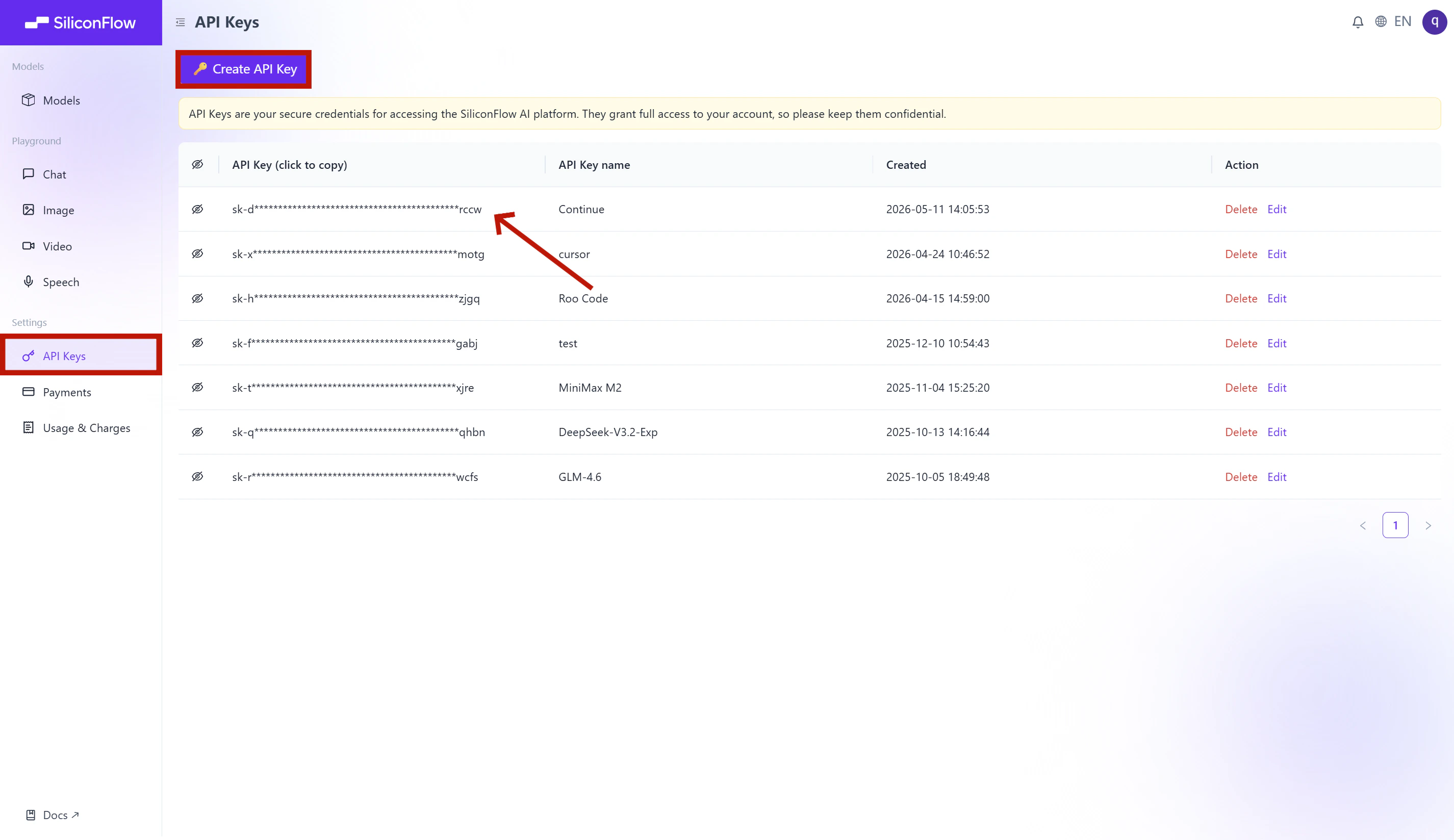
- Log in and navigate to
API Keysin the dashboard. - Click
🔑Create API Keyand add a name to your key to help you identify it later, then confirm to create it. - Click the API key to copy it automatically.
Step 2: Install Continue
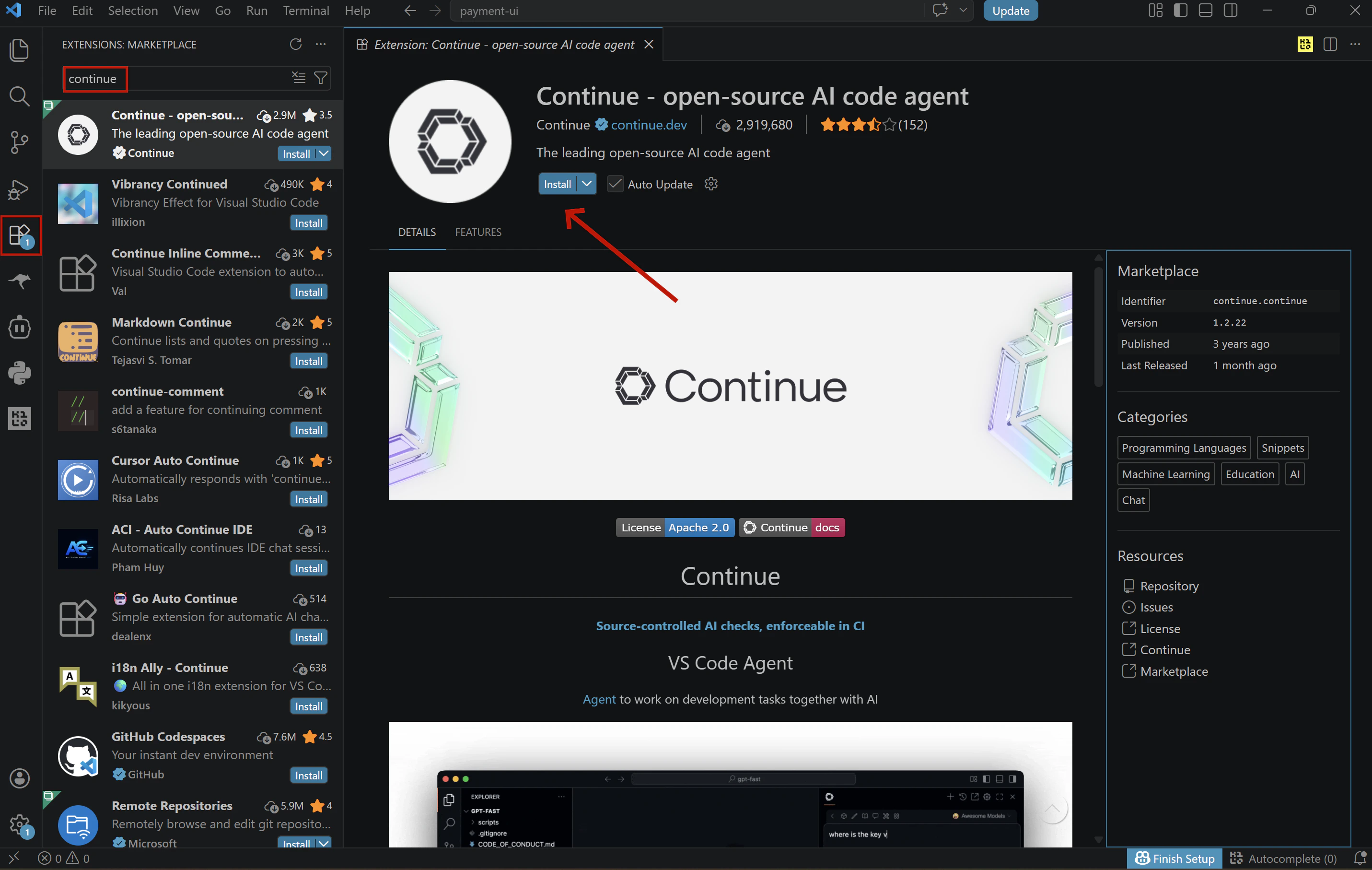
Open VS Code, click the Extensions icon in the left Activity Bar (Ctrl+Shift+X / Cmd+Shift+X), search for “Continue”, and click Install.
💡 You can also open the extension page directly from the Visual Studio Marketplace, clicking Install there will redirect you to VS Code, where you’ll complete the installation the same way.
Step 3: Configure SiliconFlow APIs
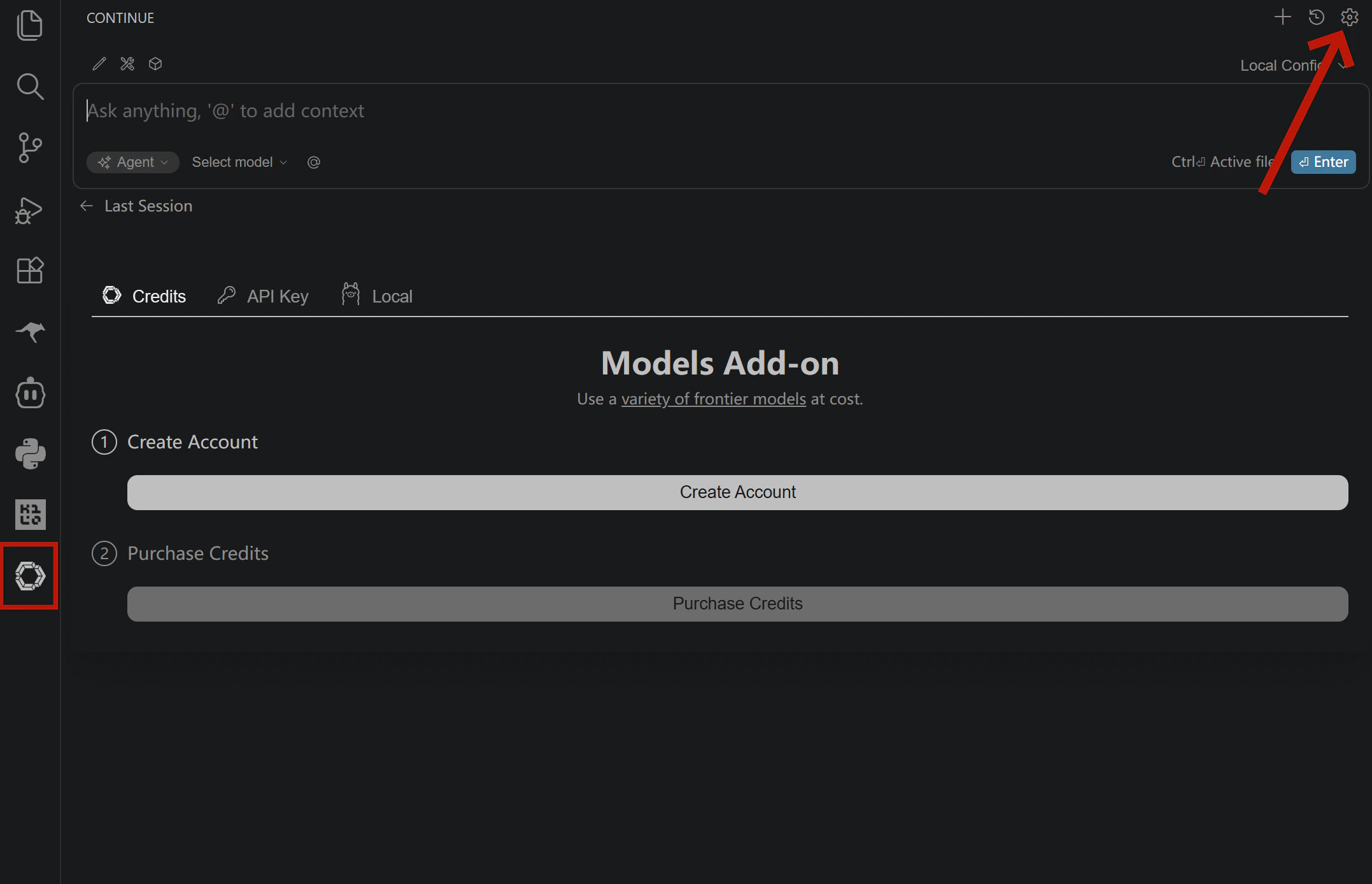
Once Continue is installed, open the configuration file to set up your SiliconFlow models:- Click the Continue icon in the Activity Bar on the left
- Click the settings icon in the top right corner of the Continue panel
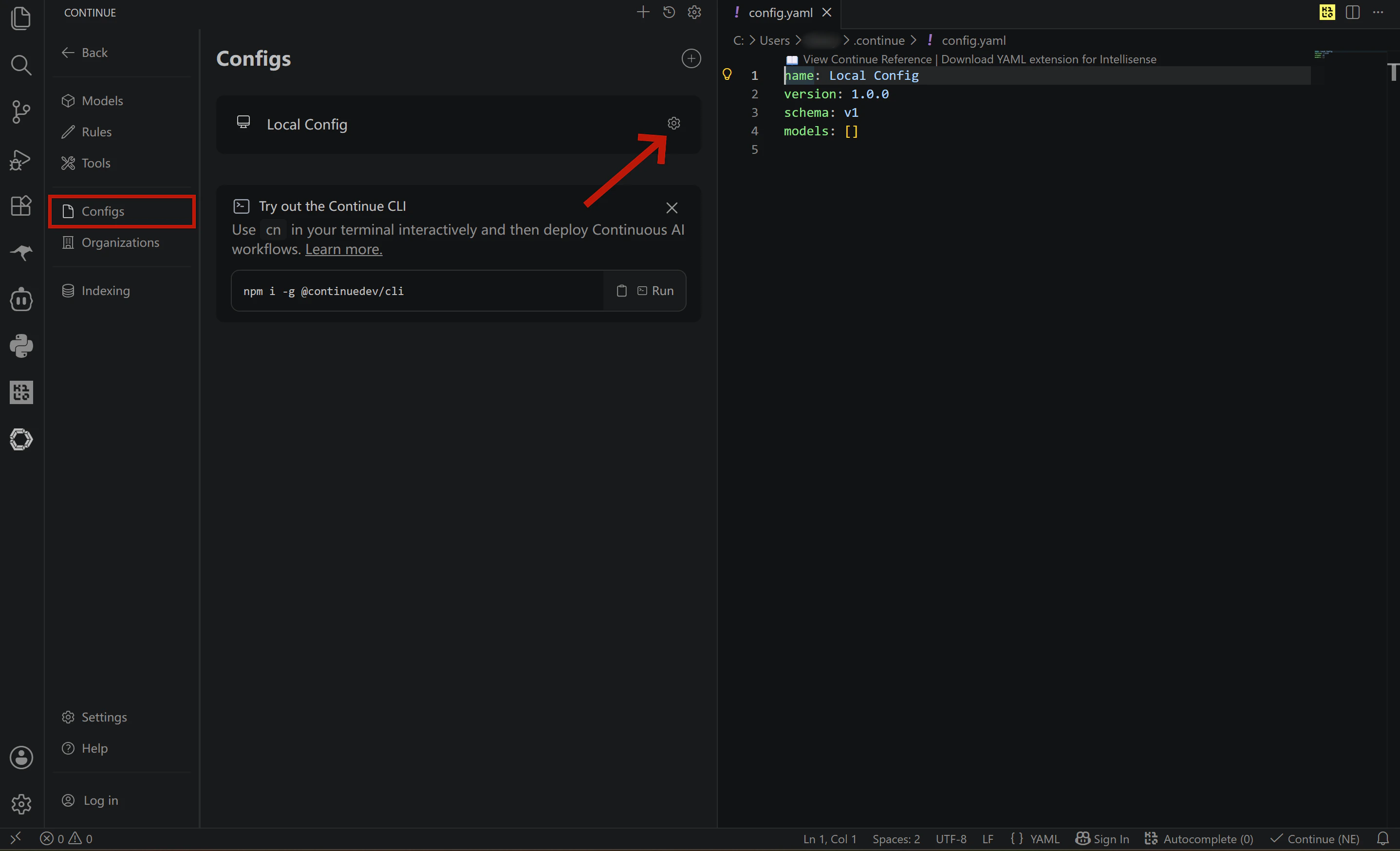
- In the left sidebar of settings, select Config
- Click the settings icon next to Local Config and your
config.yamlwill open automatically
Configure your chat models
Add your SiliconFlow models to themodels list in config.yaml. You can configure multiple models and API keys in a single file. The example below sets up four models: deepseek-ai/DeepSeek-V4-Flash, deepseek-ai/DeepSeek-V4-Pro, zai-org/GLM-5.1, moonshotai/Kimi-K2.6.
Not sure which model to pick?
Cache More, Spend Less
All four models above are hosted on SiliconFlow with context caching enabled. SiliconFlow consistently delivers high cache hit rates across models — for example, according to OpenRouter’s provider performance data, SiliconFlow achieves the highest cache hit rate among all GLM-5.1 providers at 88.6%, significantly ahead of the competition. For you as a developer, this translates directly to faster response times and lower inference costs on repeated contexts. Looking for more models? Browse the full model library at SiliconFlow Models or stay up to date with the latest releases on the SiliconFlow Blog.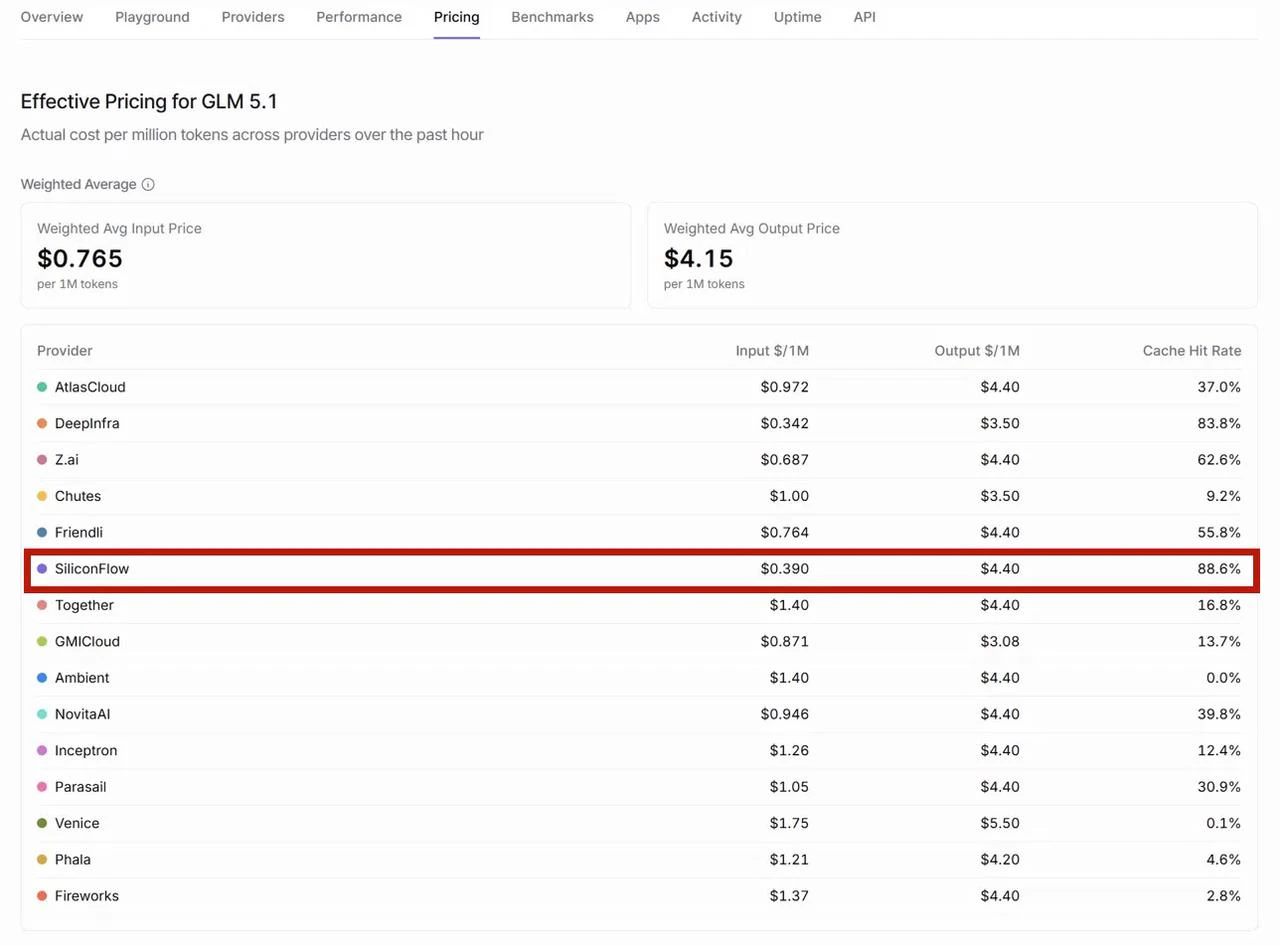
Configure Tab Autocomplete
To enable GitHub Copilot-style Tab completion, add the autocomplete model to yourmodels list with roles: - autocomplete.
We recommend Qwen/Qwen3-Coder-30B-A3B-Instruct for its fast response time — as a MoE model that activates only 3B parameters per token, it delivers low-latency completions without sacrificing code quality.
Note: Avoid using large thinking-mode models for autocomplete — they generate more slowly and are not suited for real-time completion scenarios.
Complete config.yaml Example
To get started quickly, replace your existingconfig.yaml with the full template below.
Note: Replace all instances of YOUR_SILICONFLOW_API_KEY with your actual API key before saving.
Step 4: Verify Your Setup
- Save and reload
config.yaml. Continue reloads configuration automatically in most cases. If changes don’t take effect, restart your IDE.
- Test chat
"Hello", and confirm you receive a response.
- Test autocomplete
def quick_sort(arr):, and pause for a moment. If a grey inline suggestion appears after your cursor, Tab autocomplete is working correctly.
Already Using OpenRouter?
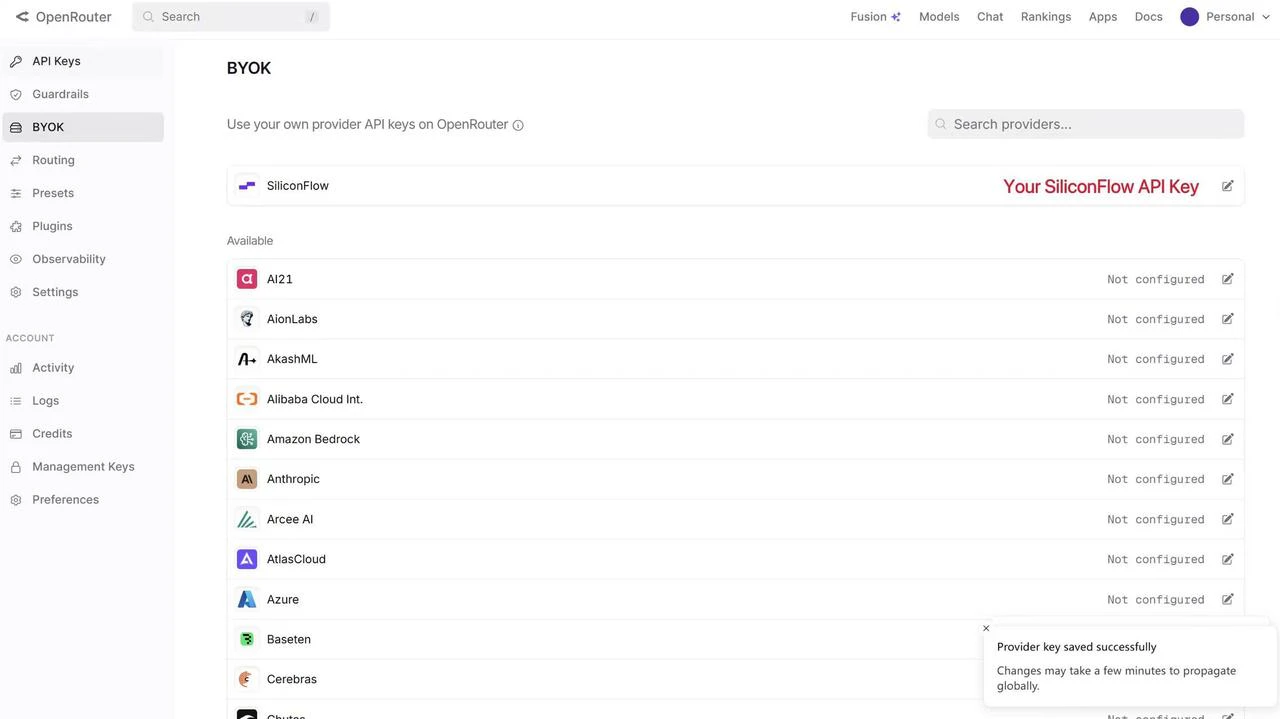
If you already have an OpenRouter account, you can connect your SiliconFlow API key via BYOK. Once connected:- Requests draw from your SiliconFlow balance first
- Billing and rate limits stay in your SiliconFlow account
- OpenRouter’s fallback routing still works to improve reliability
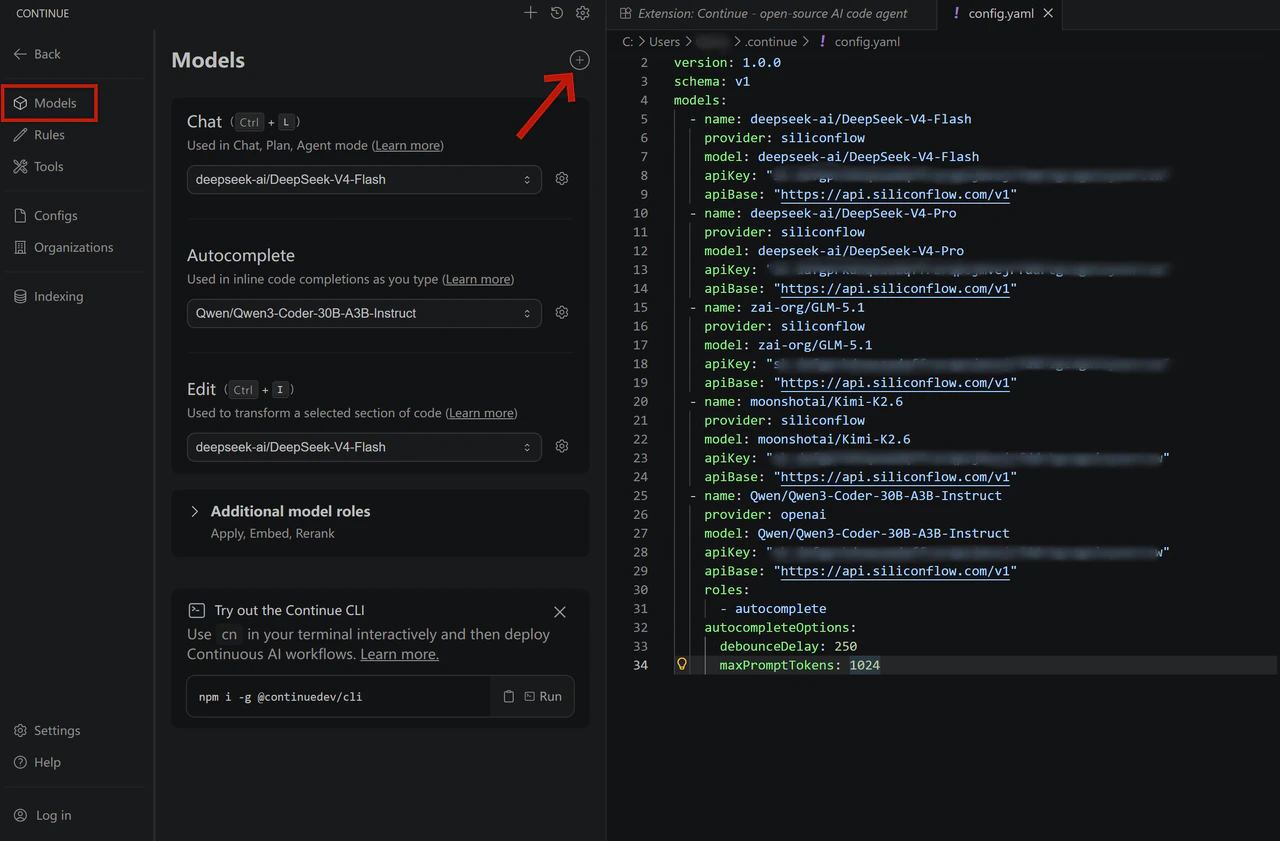
- Open the Continue panel and click the settings icon in the top right corner
- In the left sidebar, select Models
- Click the
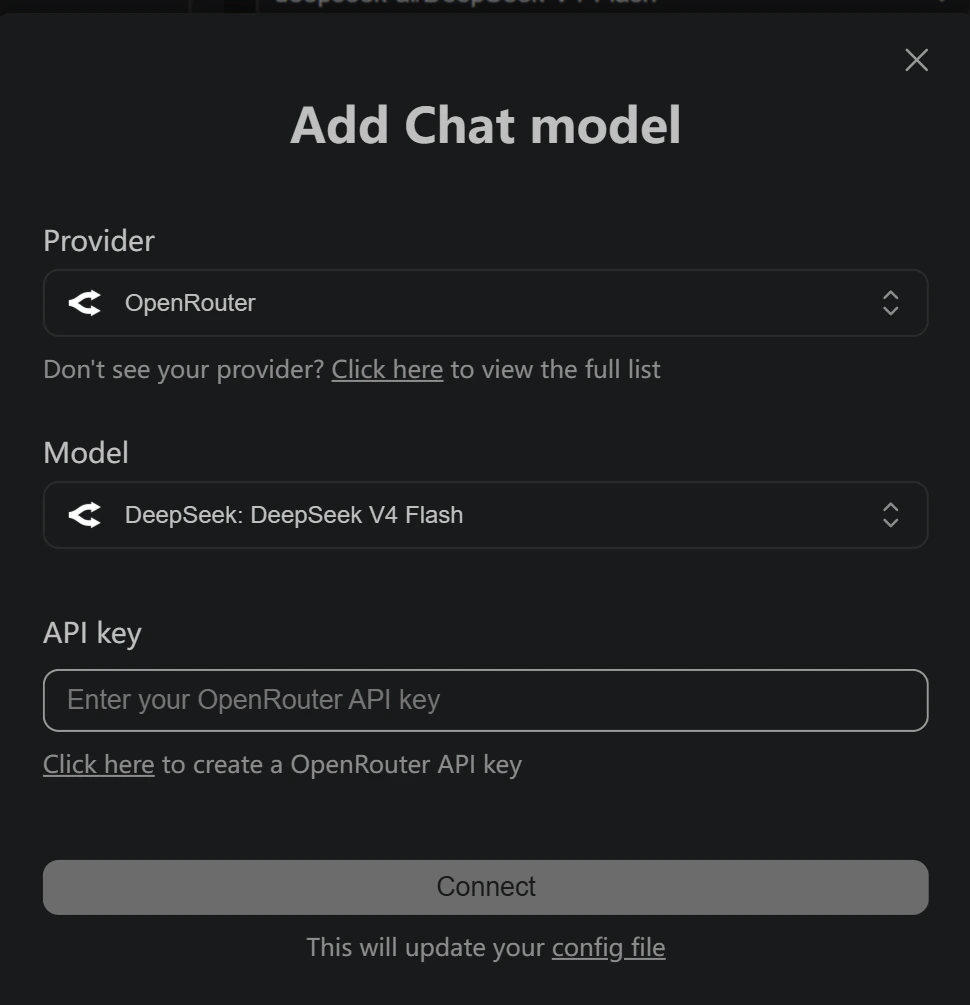
+icon next to Models - Select OpenRouter as the provider
- Choose your desired model and enter your OpenRouter API key
Resources
Continue
- Website: https://continue.dev/
- Docs: https://docs.continue.dev/
- Github: https://github.com/continuedev/continue
OpenRouter
- BYOK Setting: https://openrouter.ai/workspaces/default/byok
- SiliconFlow on OpenRouter: https://openrouter.ai/provider/siliconflow
SiliconFlow
- Website: https://siliconflow.com
- API Documentation: https://docs.siliconflow.com
- Model Library: https://siliconflow.com/models
- Discord: https://discord.com/invite/7Ey3dVNFpT
- X: https://x.com/SiliconFlowAI