

Documentation Index

Fetch the complete documentation index at: https://docs.siliconflow.com/llms.txt

Use this file to discover all available pages before exploring further.

This integration guide is compatible with macOS and Linux systems. Windows users should use WSL (Windows Subsystem for Linux).

Overview

Claude Code is a command-line AI assistant that helps with coding tasks. By integrating it with SiliconFlow, you can access powerful AI models for code generation, debugging, and analysis directly from your terminal.

Prerequisites

  • macOS or Linux operating system (or WSL on Windows)
  • Terminal access with bash shell
  • Valid SiliconFlow API key (Get your API key)
  • Internet connection for downloading the setup script

Step 1: Run the Installation Script

Execute the automated setup script in your terminal:
bash -c "$(curl -fsSL https://sf-maas.s3.us-east-1.amazonaws.com/sample/ccsf_v251226.sh)"
Always review scripts from external sources before execution. This script will configure your environment variables and Claude Code settings.

Step 2: Configure API Authentication

When prompted, enter your SiliconFlow API key:
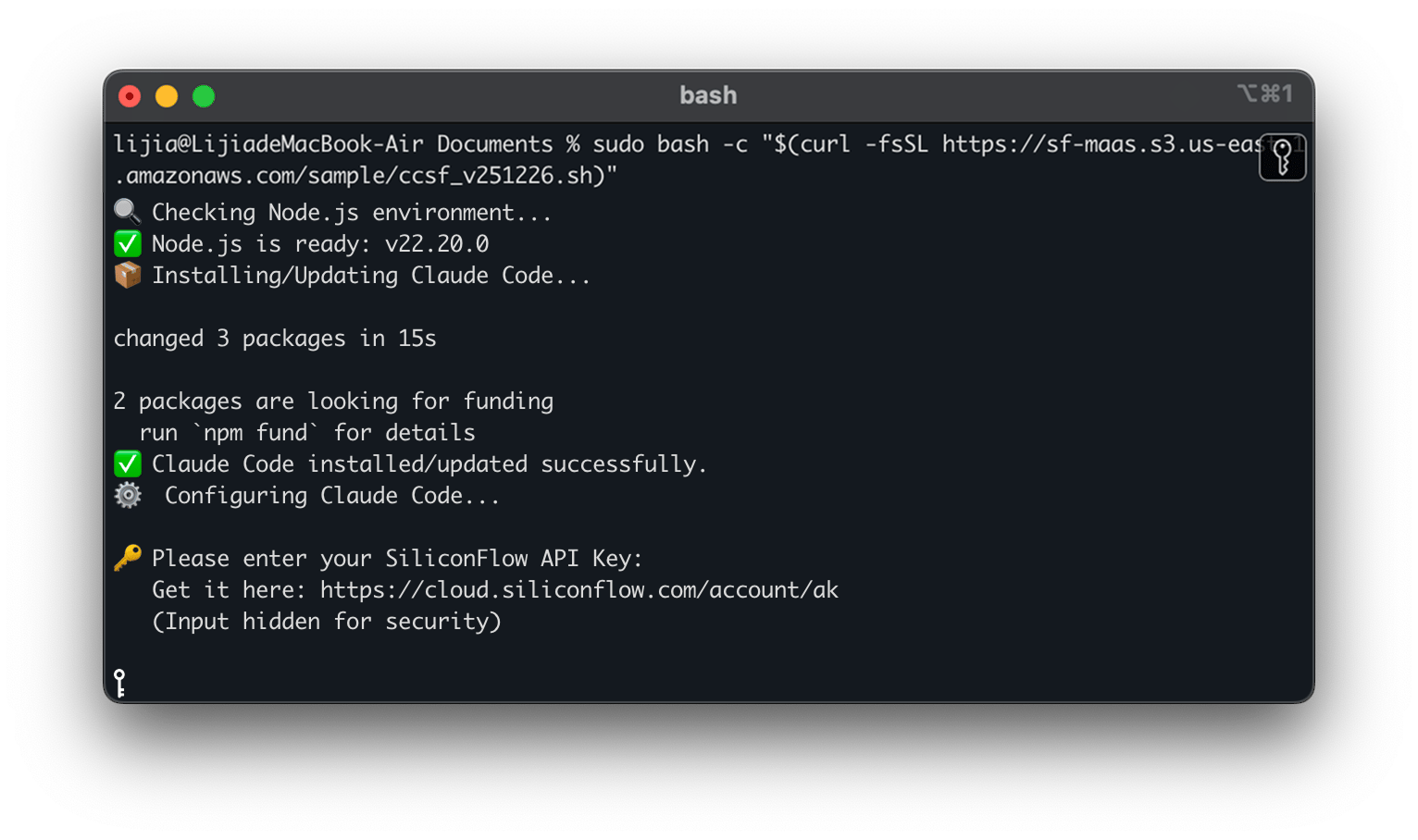
API key input prompt
You can find your API key in the SiliconFlow Console. Keep it secure and never share it publicly.

Step 3: Select AI Model

Choose your preferred model using the arrow keys, or select Custom to specify your own model:
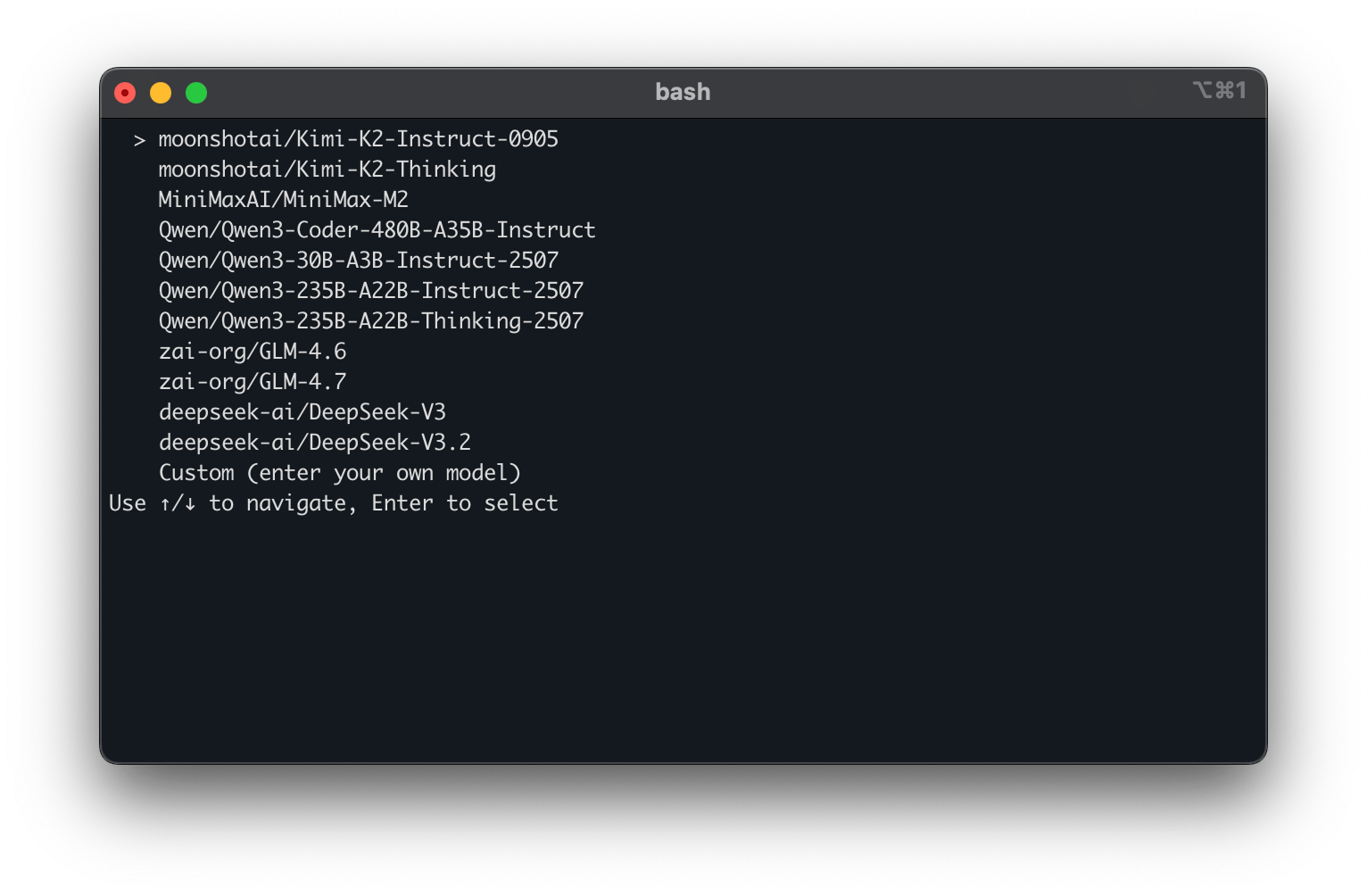
Model selection interface

Step 4: Apply Configuration

Follow the on-screen instructions to finalize the setup:
  1. Copy the provided command
  2. Restart your terminal session
  3. Run the copied command to apply the configuration
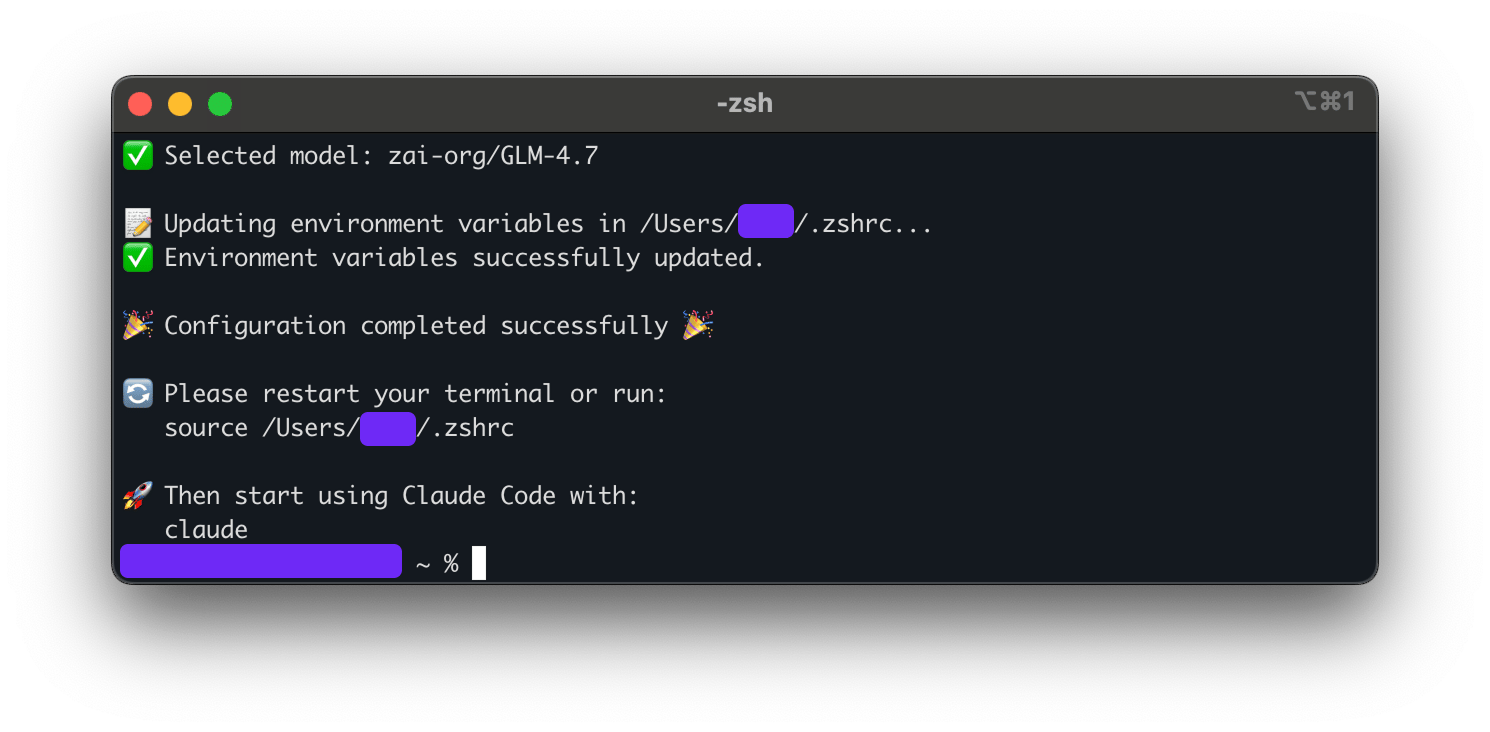
Configuration completion steps

Step 5: Start Using Claude Code

Launch Claude Code with the following command:
claude
You can now interact with your selected AI model directly from the terminal for coding assistance.

Method 2: Manual Configuration

For advanced users who prefer manual setup or need custom configurations:

Environment Variables Setup

Configure the required environment variables in your shell profile (.bashrc, .zshrc, or .profile):
# SiliconFlow API Configuration
export ANTHROPIC_BASE_URL="https://api.siliconflow.com/"
export ANTHROPIC_MODEL="your-preferred-model"     # Replace with your preferred model
export ANTHROPIC_API_KEY="sk-your-api-key-here"   # Replace with your actual API key

Apply Configuration

Reload your shell configuration:
# For bash users
source ~/.bashrc

# For zsh users  
source ~/.zshrc

Model Management

Switching Models

Claude Code currently supports one active model at a time. To change models: Option A: Re-run the automated setup
bash -c "$(curl -fsSL https://sf-maas.s3.us-east-1.amazonaws.com/sample/ccsf_v251226.sh)"
Option B: Update environment variable manually
export ANTHROPIC_MODEL="new-model-name"

Available Models

Explore available models at cloud.siliconflow.com/models to find the one that best fits your needs.

Usage Tips

Best Practices:
  • Use specific, detailed prompts for better code suggestions
  • Break complex tasks into smaller, manageable requests
  • Review generated code before implementation
  • Monitor your usage in the SiliconFlow Console

Troubleshooting

Common Issues

Authentication Error:
# Verify your API key is correctly set
echo $ANTHROPIC_API_KEY
Model Not Found:
# Check if the model name is correct
echo $ANTHROPIC_MODEL
Connection Issues:
# Test API connectivity
curl -H "Authorization: Bearer $ANTHROPIC_API_KEY" https://api.siliconflow.com/v1/models