> ## Documentation Index
> Fetch the complete documentation index at: https://docs.siliconflow.com/llms.txt
> Use this file to discover all available pages before exploring further.
# Using in Claude Code
> Integrate SiliconFlow's AI models with Claude Code for enhanced development experience
This integration guide is compatible with macOS and Linux systems. Windows users should use WSL (Windows Subsystem for Linux).
## Overview
Claude Code is a command-line AI assistant that helps with coding tasks. By integrating it with SiliconFlow, you can access powerful AI models for code generation, debugging, and analysis directly from your terminal.
## Prerequisites
* macOS or Linux operating system (or WSL on Windows)
* Terminal access with bash shell
* Valid SiliconFlow API key ([Get your API key](https://cloud.siliconflow.com/account/ak))
* Internet connection for downloading the setup script
## Method 1: Automated Setup (Recommended)
### Step 1: Run the Installation Script
Execute the automated setup script in your terminal:
```bash theme={null}
bash -c "$(curl -fsSL https://sf-maas.s3.us-east-1.amazonaws.com/sample/ccsf_v251226.sh)"
```
Always review scripts from external sources before execution. This script will configure your environment variables and Claude Code settings.
### Step 2: Configure API Authentication
When prompted, enter your SiliconFlow API key:
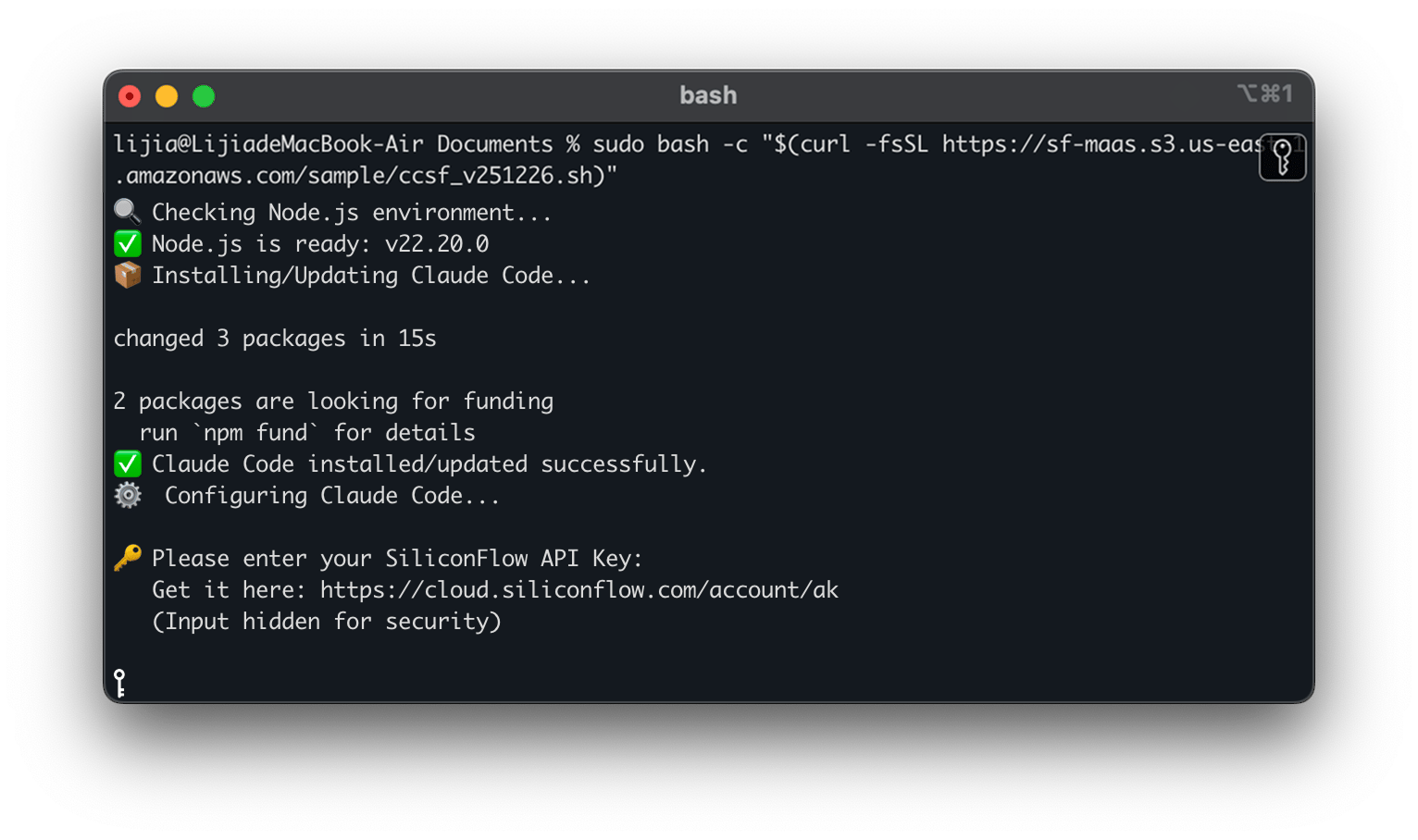 You can find your API key in the [SiliconFlow Console](https://cloud.siliconflow.com/account/ak). Keep it secure and never share it publicly.
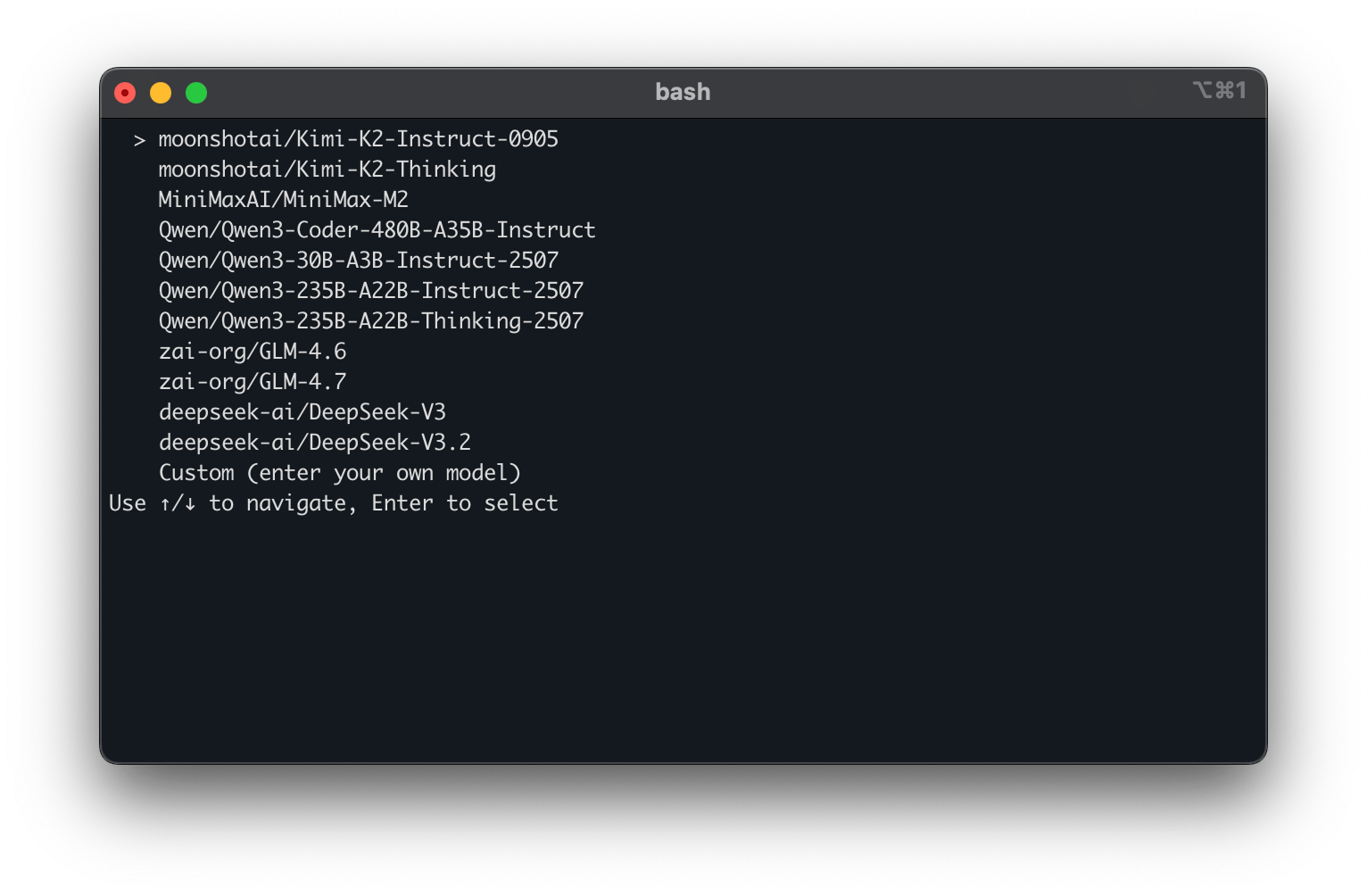
### Step 3: Select AI Model
Choose your preferred model using the arrow keys, or select **Custom** to specify your own model:
You can find your API key in the [SiliconFlow Console](https://cloud.siliconflow.com/account/ak). Keep it secure and never share it publicly.
### Step 3: Select AI Model
Choose your preferred model using the arrow keys, or select **Custom** to specify your own model:
 ### Step 4: Apply Configuration
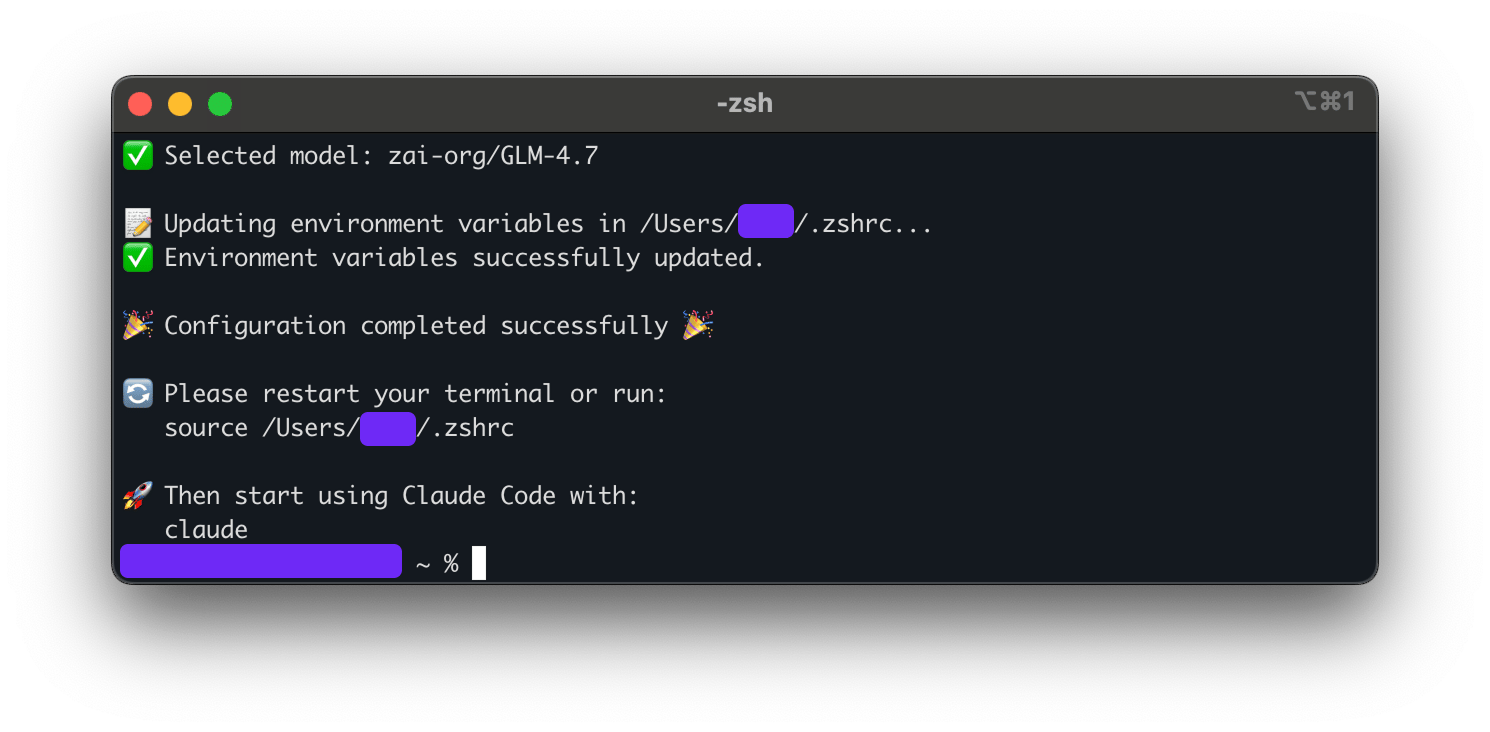
Follow the on-screen instructions to finalize the setup:
1. Copy the provided command
2. Restart your terminal session
3. Run the copied command to apply the configuration
### Step 4: Apply Configuration
Follow the on-screen instructions to finalize the setup:
1. Copy the provided command
2. Restart your terminal session
3. Run the copied command to apply the configuration
 ### Step 5: Start Using Claude Code
Launch Claude Code with the following command:
```bash theme={null}
claude
```
You can now interact with your selected AI model directly from the terminal for coding assistance.
## Method 2: Manual Configuration
For advanced users who prefer manual setup or need custom configurations:
### Environment Variables Setup
Configure the required environment variables in your shell profile (`.bashrc`, `.zshrc`, or `.profile`):
```bash theme={null}
# SiliconFlow API Configuration
export ANTHROPIC_BASE_URL="https://api.siliconflow.com/"
export ANTHROPIC_MODEL="your-preferred-model" # Replace with your preferred model
export ANTHROPIC_API_KEY="sk-your-api-key-here" # Replace with your actual API key
```
### Apply Configuration
Reload your shell configuration:
```bash theme={null}
# For bash users
source ~/.bashrc
# For zsh users
source ~/.zshrc
```
## Model Management
### Switching Models
Claude Code currently supports one active model at a time. To change models:
**Option A: Re-run the automated setup**
```bash theme={null}
bash -c "$(curl -fsSL https://sf-maas.s3.us-east-1.amazonaws.com/sample/ccsf_v251226.sh)"
```
**Option B: Update environment variable manually**
```bash theme={null}
export ANTHROPIC_MODEL="new-model-name"
```
### Available Models
Explore available models at [cloud.siliconflow.com/models](https://cloud.siliconflow.com/models) to find the one that best fits your needs.
## Usage Tips
**Best Practices:**
* Use specific, detailed prompts for better code suggestions
* Break complex tasks into smaller, manageable requests
* Review generated code before implementation
* Monitor your usage in the [SiliconFlow Console](https://cloud.siliconflow.com/console)
## Troubleshooting
### Common Issues
**Authentication Error:**
```bash theme={null}
# Verify your API key is correctly set
echo $ANTHROPIC_API_KEY
```
**Model Not Found:**
```bash theme={null}
# Check if the model name is correct
echo $ANTHROPIC_MODEL
```
**Connection Issues:**
```bash theme={null}
# Test API connectivity
curl -H "Authorization: Bearer $ANTHROPIC_API_KEY" https://api.siliconflow.com/v1/models
```
### Step 5: Start Using Claude Code
Launch Claude Code with the following command:
```bash theme={null}
claude
```
You can now interact with your selected AI model directly from the terminal for coding assistance.
## Method 2: Manual Configuration
For advanced users who prefer manual setup or need custom configurations:
### Environment Variables Setup
Configure the required environment variables in your shell profile (`.bashrc`, `.zshrc`, or `.profile`):
```bash theme={null}
# SiliconFlow API Configuration
export ANTHROPIC_BASE_URL="https://api.siliconflow.com/"
export ANTHROPIC_MODEL="your-preferred-model" # Replace with your preferred model
export ANTHROPIC_API_KEY="sk-your-api-key-here" # Replace with your actual API key
```
### Apply Configuration
Reload your shell configuration:
```bash theme={null}
# For bash users
source ~/.bashrc
# For zsh users
source ~/.zshrc
```
## Model Management
### Switching Models
Claude Code currently supports one active model at a time. To change models:
**Option A: Re-run the automated setup**
```bash theme={null}
bash -c "$(curl -fsSL https://sf-maas.s3.us-east-1.amazonaws.com/sample/ccsf_v251226.sh)"
```
**Option B: Update environment variable manually**
```bash theme={null}
export ANTHROPIC_MODEL="new-model-name"
```
### Available Models
Explore available models at [cloud.siliconflow.com/models](https://cloud.siliconflow.com/models) to find the one that best fits your needs.
## Usage Tips
**Best Practices:**
* Use specific, detailed prompts for better code suggestions
* Break complex tasks into smaller, manageable requests
* Review generated code before implementation
* Monitor your usage in the [SiliconFlow Console](https://cloud.siliconflow.com/console)
## Troubleshooting
### Common Issues
**Authentication Error:**
```bash theme={null}
# Verify your API key is correctly set
echo $ANTHROPIC_API_KEY
```
**Model Not Found:**
```bash theme={null}
# Check if the model name is correct
echo $ANTHROPIC_MODEL
```
**Connection Issues:**
```bash theme={null}
# Test API connectivity
curl -H "Authorization: Bearer $ANTHROPIC_API_KEY" https://api.siliconflow.com/v1/models
```