> ## Documentation Index
> Fetch the complete documentation index at: https://docs.siliconflow.com/llms.txt
> Use this file to discover all available pages before exploring further.
# How to use Hermes Agent with SiliconFlow APIs
Released in February 2026 by Nous Research, Hermes Agent represents a shift toward a truly autonomous AI Agent. Unlike IDE-tethered coding copilots or simple chatbot wrappers, Hermes lives on your server, remembers what it learns, and gets more capable the longer it runs.
In this guide, we'll walk you through how to connect SiliconFlow's APIs to Hermes Agent, so you can power your agent with 100+ SOTA AI models in just a few steps.
# **Prerequisites**
### **Get Your SiliconFlow API Key**
Before you begin, ensure you have a valid SiliconFlow account:
* Get your SiliconFlow account: [https://cloud.siliconflow.com/](https://cloud.siliconflow.com/)
* Get Your SiliconFlow API Key: [https://cloud.siliconflow.com/account/ak](https://cloud.siliconflow.com/account/ak)
You will need this key when configuring Hermes Agent.
# Step 1: Install Hermes Agent
Hermes Agent can be installed using a single command.
Run the following command in your terminal:
```text theme={null}
curl -fsSL https://raw.githubusercontent.com/NousResearch/hermes-agent/main/scripts/install.sh | bash
```
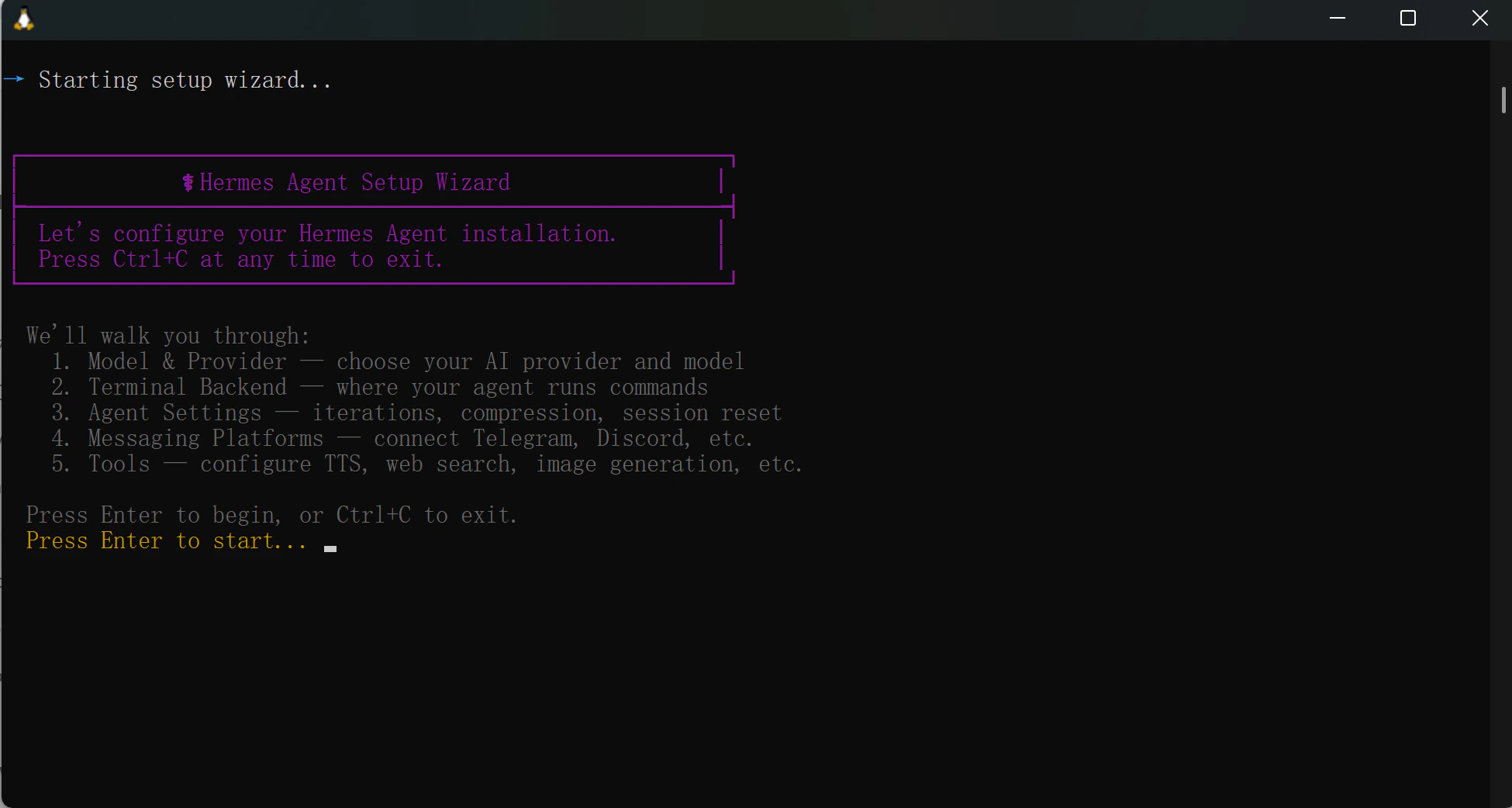
Once the installation completes, the **Hermes Setup Wizard** will launch automatically.
Press **Enter** to continue.
 # **Step 2: Configure SiliconFlow APIs**
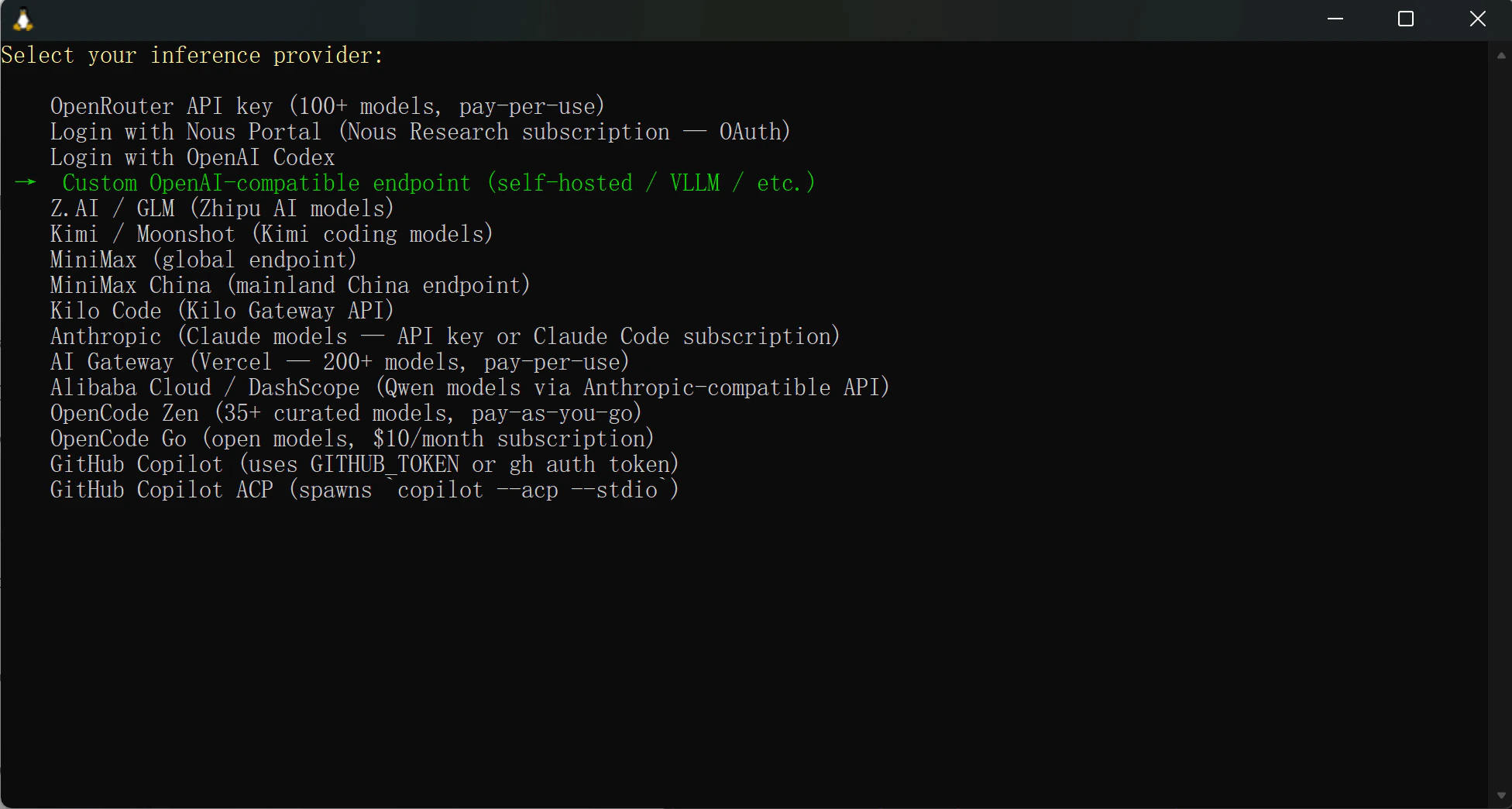
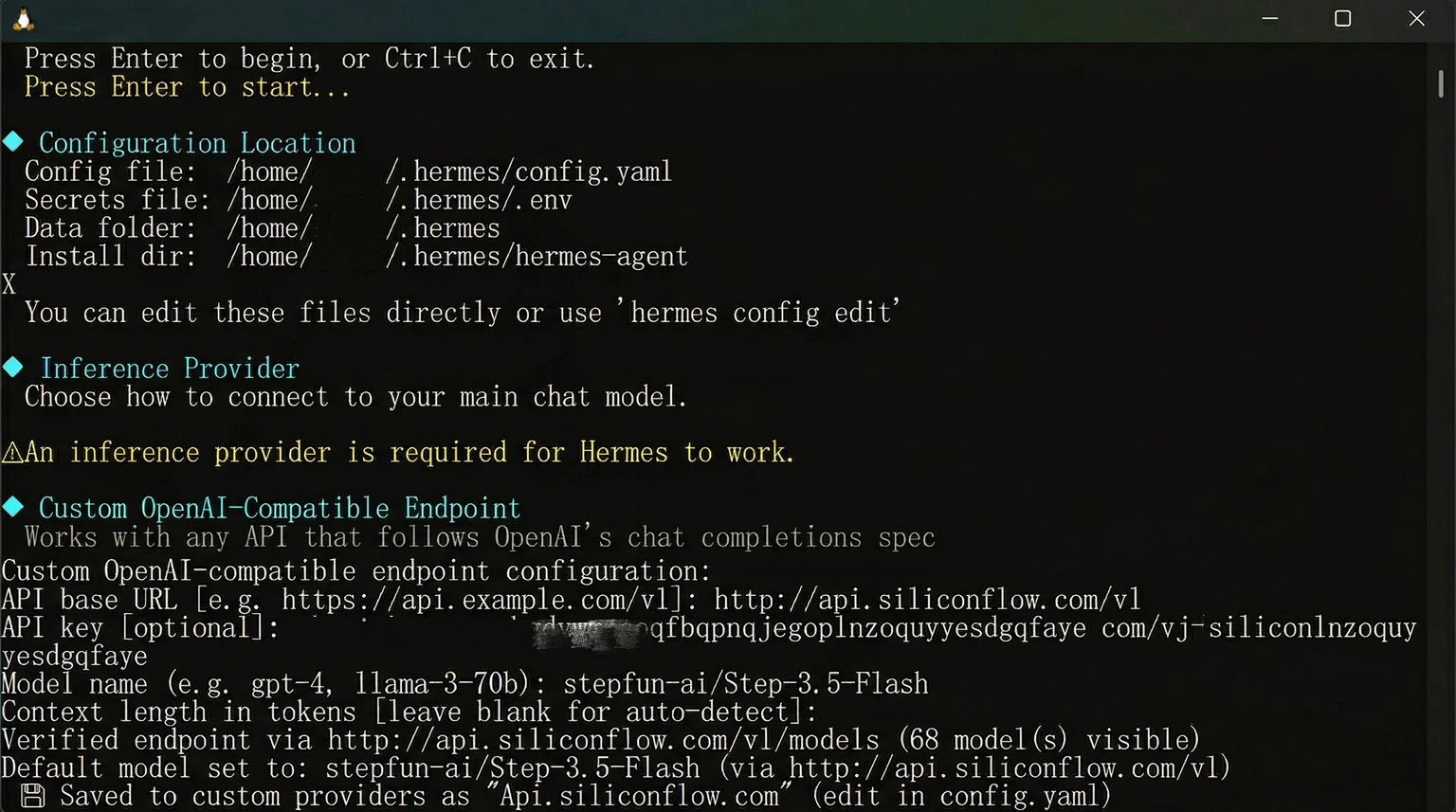
* Select your inference provider: `Custom OpenAI-compatible endpoint (self-hosted/VLLM/ect.)`
* API base URL: [http://api.siliconflow.com/v1](http://api.siliconfloe.com/v1)
* API Key: Paste Your SiliconFlow API Key
* Model name: Enter the model you want to use. You can select from the models available in the [SiliconFlow model library](https://www.siliconflow.com/models).
After entering the required information, press **Enter** to save your configuration.
# **Step 2: Configure SiliconFlow APIs**
* Select your inference provider: `Custom OpenAI-compatible endpoint (self-hosted/VLLM/ect.)`
* API base URL: [http://api.siliconflow.com/v1](http://api.siliconfloe.com/v1)
* API Key: Paste Your SiliconFlow API Key
* Model name: Enter the model you want to use. You can select from the models available in the [SiliconFlow model library](https://www.siliconflow.com/models).
After entering the required information, press **Enter** to save your configuration.
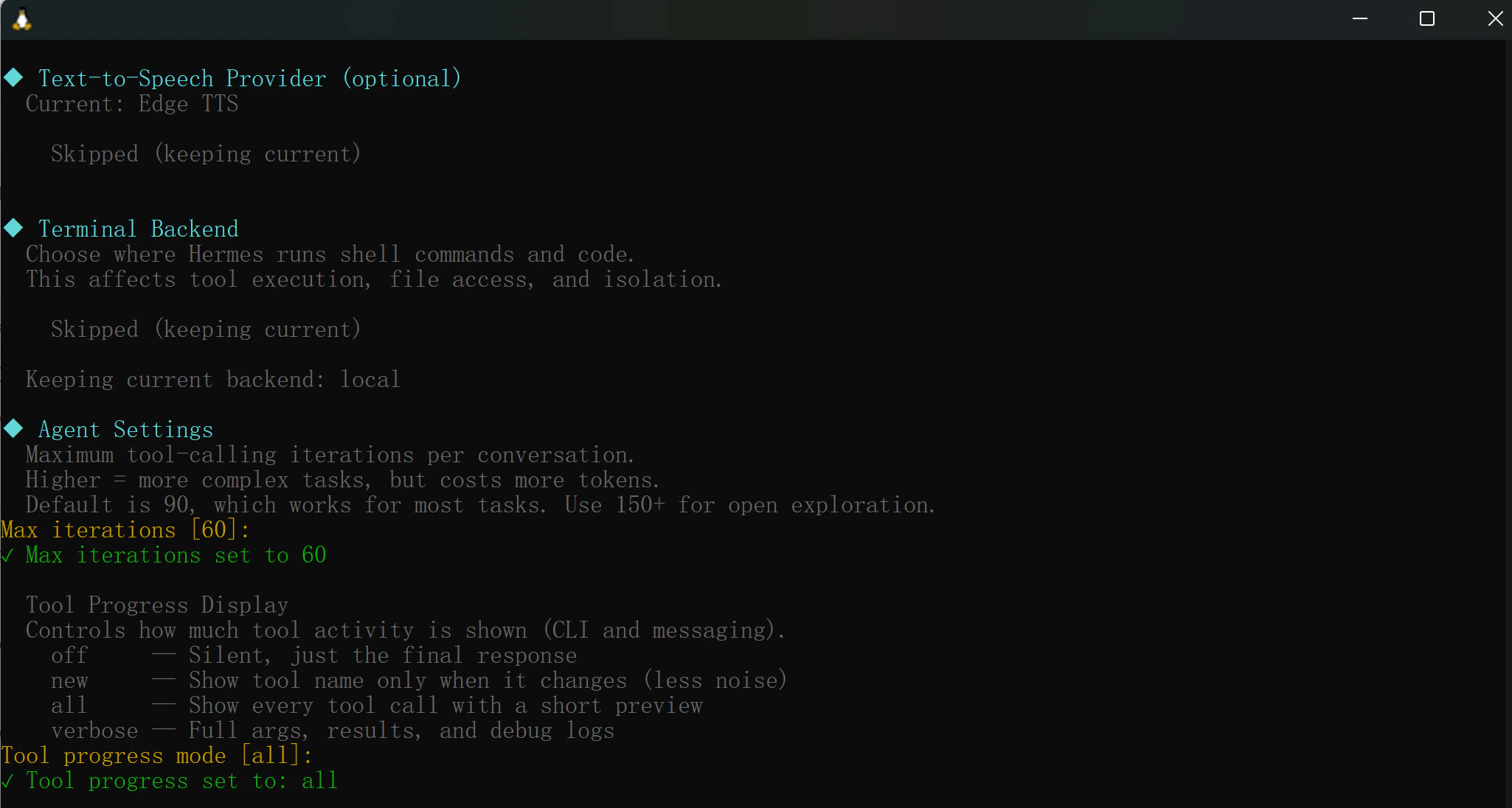
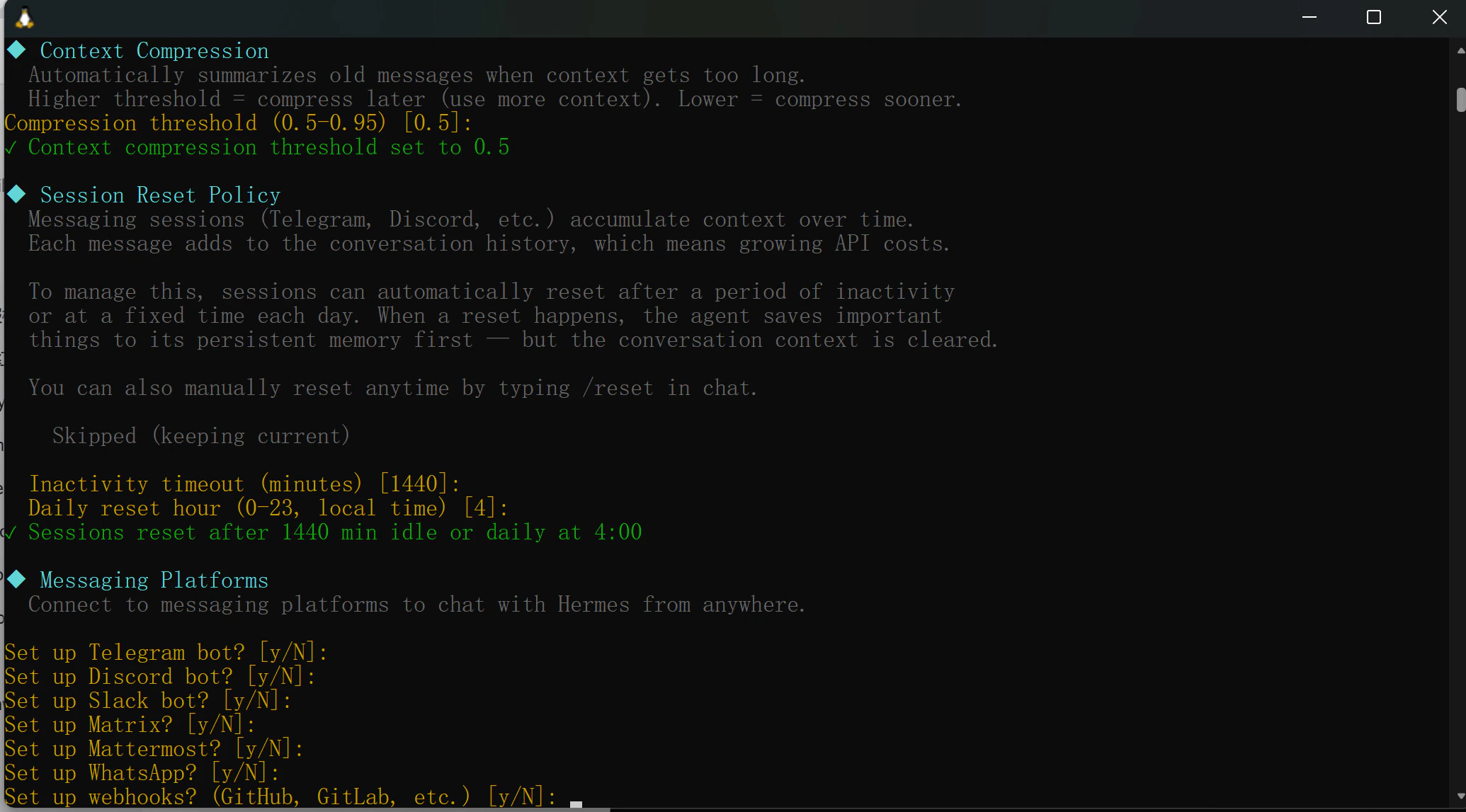
 Hermes Agent will continue guiding you through additional configuration steps, including:
* **TTS Provider (Text-to-Speech)**
* **Terminal Backend**
* **Agent Behavior Settings**
These options can be configured based on your own environment and use case. If you're unsure, you can keep the default settings and modify them later.
Hermes Agent will continue guiding you through additional configuration steps, including:
* **TTS Provider (Text-to-Speech)**
* **Terminal Backend**
* **Agent Behavior Settings**
These options can be configured based on your own environment and use case. If you're unsure, you can keep the default settings and modify them later.
 # **Step 3:** Start Using Hermes Agent
Once the configuration is complete, start Hermes by running: `hermes`
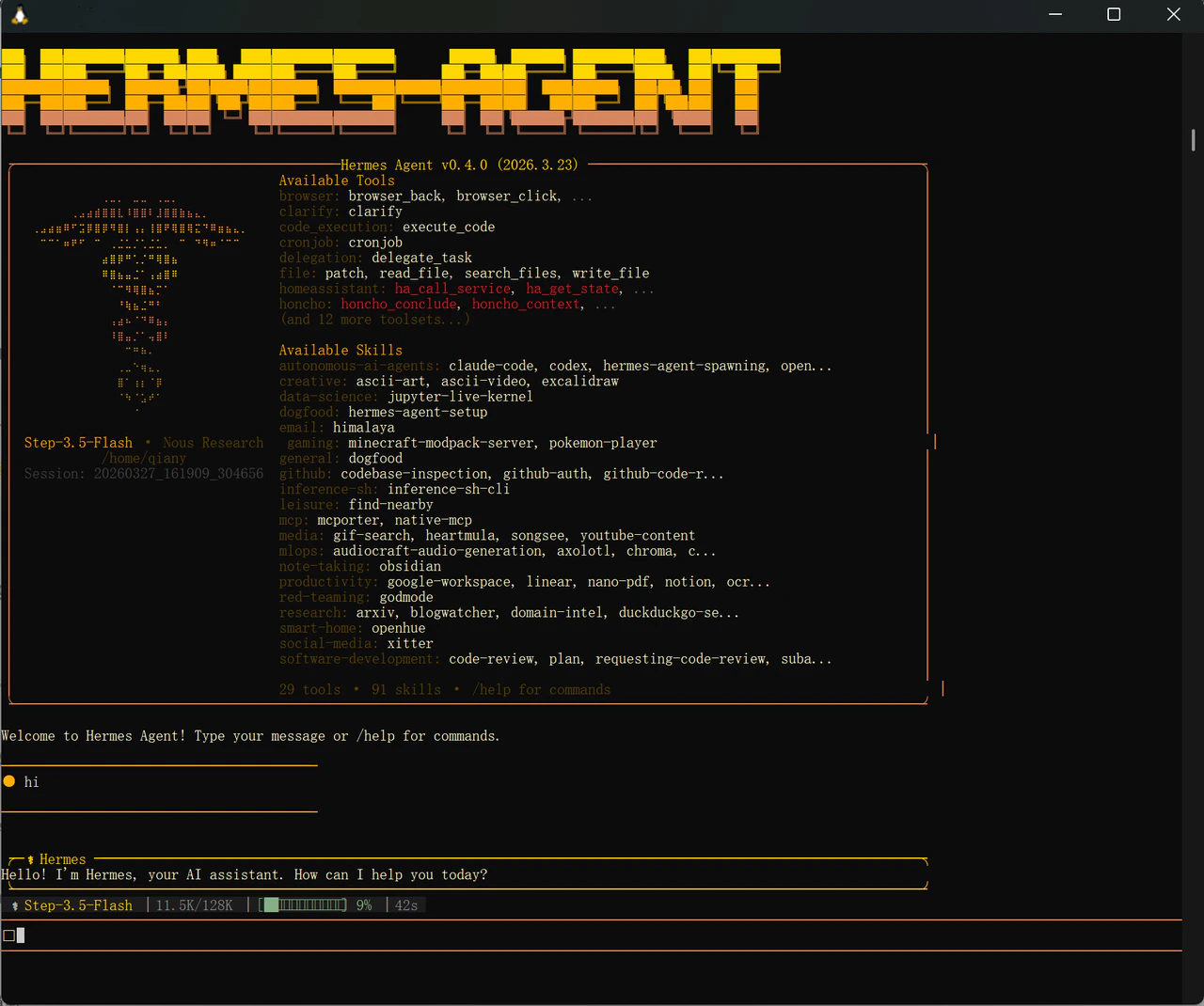
You'll see the Hermes Agent interface launch in your terminal, showing available tools and skills.
Type your message and press `Enter` to start chatting. At the bottom of the screen, you can see which model is currently active, along with token usage and response time — confirming your SiliconFlow API is connected and working.
# **Step 3:** Start Using Hermes Agent
Once the configuration is complete, start Hermes by running: `hermes`
You'll see the Hermes Agent interface launch in your terminal, showing available tools and skills.
Type your message and press `Enter` to start chatting. At the bottom of the screen, you can see which model is currently active, along with token usage and response time — confirming your SiliconFlow API is connected and working.
 # Quick Reference: Useful Hermes Commands
| **Command** | **Description** |
| :-------------------: | :--------------------------: |
| hermes | Start a new chat session |
| hermes "your message" | Send a single message |
| hermes -c | Resume your last session |
| hermes model | Switch to a different model |
| hermes config | View your current config |
| hermes tools | Manage available tools |
| hermes update | Update to the latest version |
| hermes doctor | Diagnose connection issues |
# **Resources**
### **Hermes Agent**
* Website: [https://hermes-agent.nousresearch.com/](https://hermes-agent.nousresearch.com/)
* Docs: [https://hermes-agent.nousresearch.com/docs](https://hermes-agent.nousresearch.com/docs)
* Discord: [https://discord.gg/NousResearch](https://discord.gg/NousResearch)
* Github: [https://github.com/NousResearch/hermes-agent](https://github.com/NousResearch/hermes-agent)
### **SiliconFlow**
* Website: [https://siliconflow.com](https://siliconflow.com)
* API Documentation: [https://docs.siliconflow.com](https://docs.siliconflow.com)
* Model Library: [https://siliconflow.com/models](https://siliconflow.com/models)
* Discord: [https://discord.com/invite/7Ey3dVNFpT](https://discord.com/invite/7Ey3dVNFpT)
* X: [https://x.com/SiliconFlowAI](https://x.com/SiliconFlowAI)
# Quick Reference: Useful Hermes Commands
| **Command** | **Description** |
| :-------------------: | :--------------------------: |
| hermes | Start a new chat session |
| hermes "your message" | Send a single message |
| hermes -c | Resume your last session |
| hermes model | Switch to a different model |
| hermes config | View your current config |
| hermes tools | Manage available tools |
| hermes update | Update to the latest version |
| hermes doctor | Diagnose connection issues |
# **Resources**
### **Hermes Agent**
* Website: [https://hermes-agent.nousresearch.com/](https://hermes-agent.nousresearch.com/)
* Docs: [https://hermes-agent.nousresearch.com/docs](https://hermes-agent.nousresearch.com/docs)
* Discord: [https://discord.gg/NousResearch](https://discord.gg/NousResearch)
* Github: [https://github.com/NousResearch/hermes-agent](https://github.com/NousResearch/hermes-agent)
### **SiliconFlow**
* Website: [https://siliconflow.com](https://siliconflow.com)
* API Documentation: [https://docs.siliconflow.com](https://docs.siliconflow.com)
* Model Library: [https://siliconflow.com/models](https://siliconflow.com/models)
* Discord: [https://discord.com/invite/7Ey3dVNFpT](https://discord.com/invite/7Ey3dVNFpT)
* X: [https://x.com/SiliconFlowAI](https://x.com/SiliconFlowAI)