> ## Documentation Index
> Fetch the complete documentation index at: https://docs.siliconflow.com/llms.txt
> Use this file to discover all available pages before exploring further.
# How to use Cline with SiliconFlow APIs to Build Your Projects
[Cline ](https://cline.bot/)is an AI coding agent that lives in your editor and terminal. It can read files, write code, run terminal commands, use a browser, and help you build features through natural conversation, ensuring you're always in control, as every action requires your explicit approval.
It works across all major coding environments, [VS Code](https://code.visualstudio.com/), [Cursor](https://www.google.com/aclk?sa=L\&pf=1\&ai=DChsSEwi1wNW-6u6TAxUWlWYCHcJwFPkYACICCAEQABoCc20\&co=1\&ase=2\&gclid=Cj0KCQjwy_fOBhC6ARIsAHKFB7_kwIQCwh-SQVD3JvHvIENiu-xrJKDfJ4wSp-LKcc3wZsmmkVEACzoaAulYEALw_wcB\&cid=CAASuwHkaDg0PCVmYrbXNbL0IU1NLaXOMUk8JdHIk__kVZH-hmIY8X6f_YupgXGX_TZqWgKbXitIEq2gb06pUryTK-kBac9aYi_T1MOM7_7wWlo86FtG2hI1fvzXu9DT_UNiBn-7wCdjW7WBpkt65bUAmM7Ip-5hmmJ77eUqp3H5gu14qrKpLsLqhi2m2RYARwtZq5N8xunbCbKKKVpmDah84YkGPwDHk5_Z7OhlJ1r36ySKjPqPo-rNnY4KPTwi\&cce=2\&category=acrcp_v1_32\&sig=AOD64_3LWDoKPSKRcF2Ax3FESW8XHs8cvQ\&q\&nis=4\&adurl=https://cursor.com/get-started?utm_source%3Dgoogle_paid%26utm_campaign%3D%5BSearch%5D%2520%5BBrand%5D%2520%5BEN%5D%2520%5BAPAC%2520T1%5D%2520%5BBroad%5D%2520%5BVBB%5D%2520%5BSally%27s%5D%2520Brand%26utm_term%3Dcursor%26utm_medium%3Dpaid%26utm_content%3D799681480444%26cc_platform%3Dgoogle%26cc_campaignid%3D23639215328%26cc_adgroupid%3D194817004980%26cc_adid%3D799681480444%26cc_keyword%3Dcursor%26cc_matchtype%3Db%26cc_device%3Dc%26cc_network%3Dg%26cc_placement%3D%26cc_location%3D2702%26cc_adposition%3D%26gad_source%3D1%26gad_campaignid%3D23639215328%26gbraid%3D0AAAABAkdGgRVTmSs-5MyLRgfwCqT_X0cR%26gclid%3DCj0KCQjwy_fOBhC6ARIsAHKFB7_kwIQCwh-SQVD3JvHvIENiu-xrJKDfJ4wSp-LKcc3wZsmmkVEACzoaAulYEALw_wcB\&ved=2ahUKEwi3y9C-6u6TAxVpQ2cHHQ0DFUUQ0Qx6BAgMEAE), [Windsurf](https://windsurf.com/), [Void](https://voideditor.com/), [JetBrains](https://www.jetbrains.com/), and the [Cline CLI](https://cline.bot/cli), so you can keep your existing stack without switching.
To get started, you'll need to connect Cline to an external LLM API. In this guide, we'll show you how to integrate SiliconFlow's APIs into Cline, giving you access to [frontier coding models](https://www.siliconflow.com/models) like [GLM-5.1](https://www.siliconflow.com/models/glm-5-1), [MiniMax M2.5](https://www.siliconflow.com/models/minimax-m2-5), and [Kimi K2.5](https://www.siliconflow.com/models/kimi-k2-5) at cost-effective pricing.
# **Step 1: Prerequisites**
## **Get Your SiliconFlow API Key**
Before you begin, ensure you have a valid SiliconFlow account:
* Register a SiliconFlow account at [https://cloud.siliconflow.com/](https://cloud.siliconflow.com/). You can sign up with Google or GitHub.
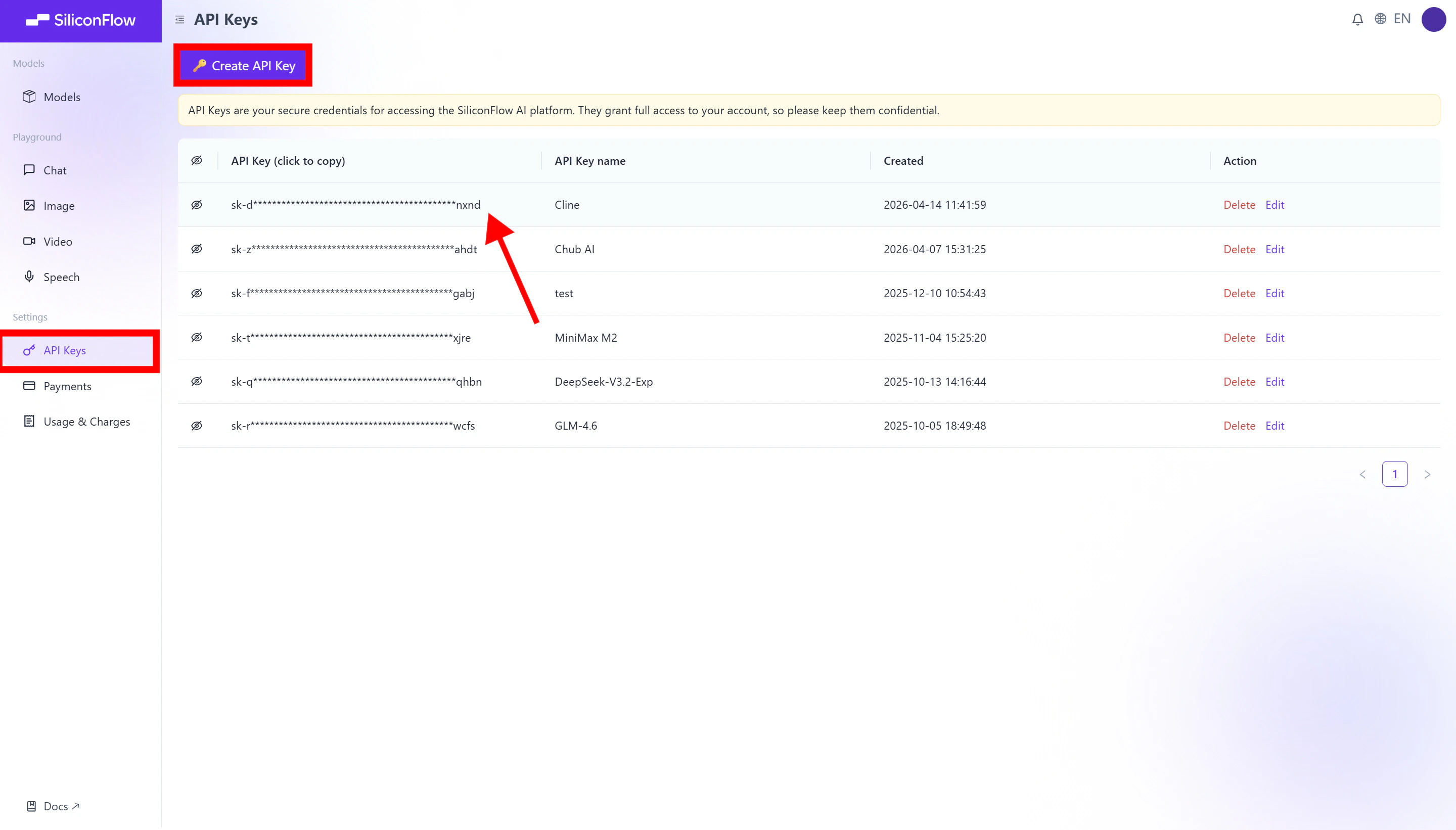
* Log in and navigate to `API Keys` in the dashboard.
* Click `🔑Create API Key `and add a name to your key to help you identify it later, then confirm to create it.
* Click the API key to copy it automatically.
Please keep your API key in a safe place, as you'll need it to configure Cline in the next step.
 # Step 2: Install Cline
Next, install the Cline extension in your development environment.
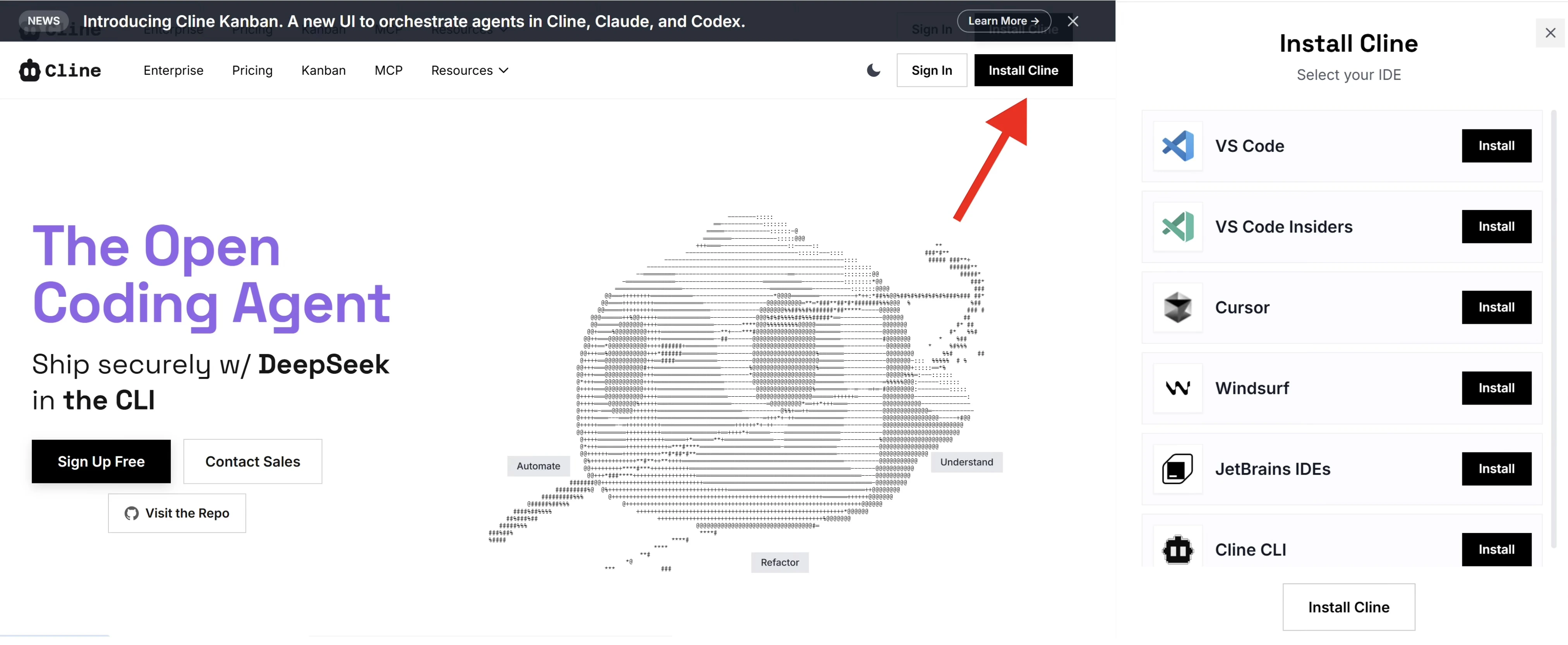
1. Visit the official Cline website: [https://cline.bot](https://cline.bot)
2. Click `Install Cline` in the top-right corner.
3. Choose your preferred IDE (e.g., **VS Code**) and proceed with installation.
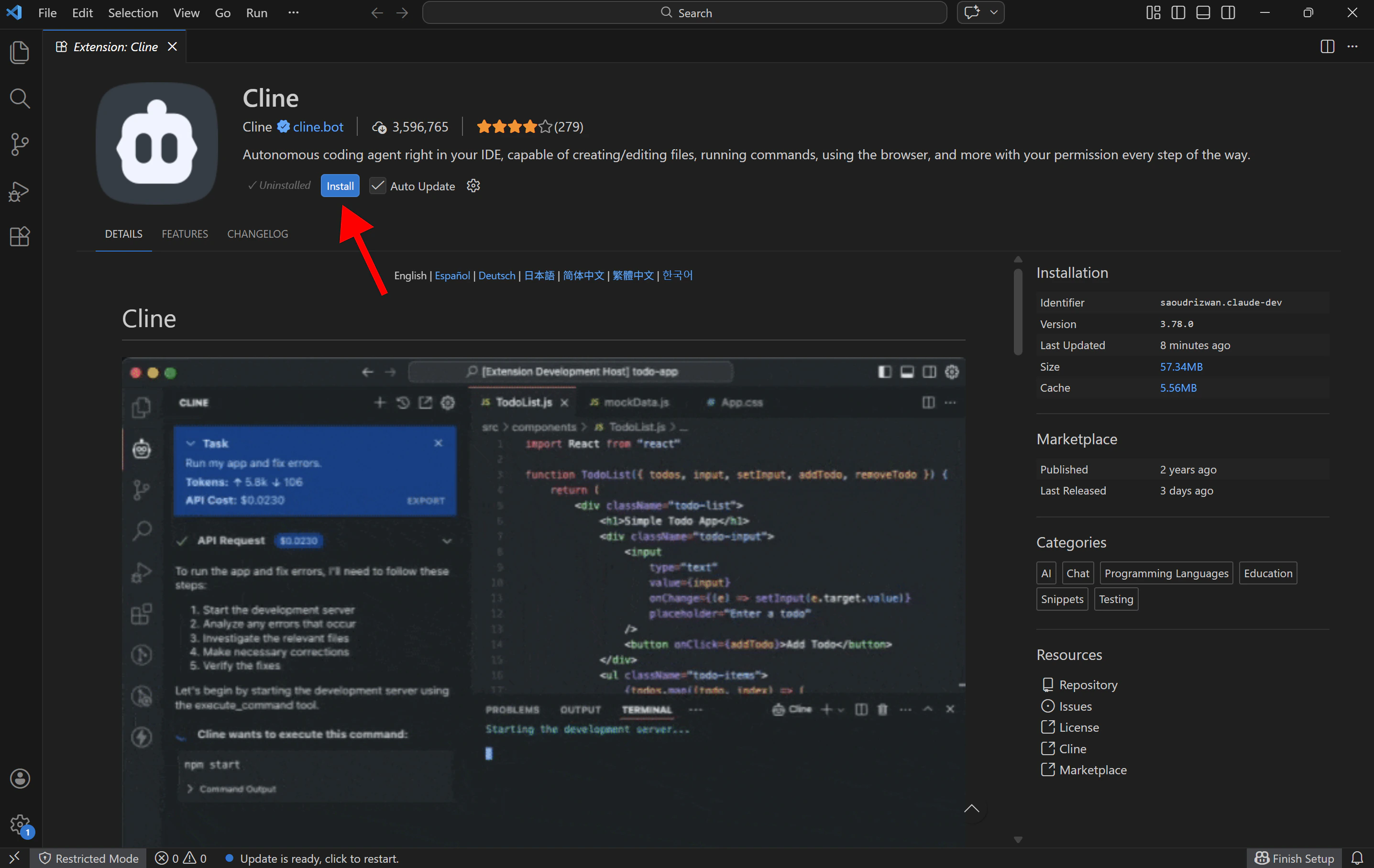
4. When prompted, allow the link to open in the associated application.
5. The VS Code extension page will open automatically; Click `Install`to proceed.
In this guide, we demonstrate the setup process using **VS Code**. For installation details on other environments like Cursor, Windsurf, JetBrains, etc., please refer to the official Cline documentation: [https://docs.cline.bot/getting-started/installing-cline](https://docs.cline.bot/getting-started/installing-cline)
# Step 2: Install Cline
Next, install the Cline extension in your development environment.
1. Visit the official Cline website: [https://cline.bot](https://cline.bot)
2. Click `Install Cline` in the top-right corner.
3. Choose your preferred IDE (e.g., **VS Code**) and proceed with installation.
4. When prompted, allow the link to open in the associated application.
5. The VS Code extension page will open automatically; Click `Install`to proceed.
In this guide, we demonstrate the setup process using **VS Code**. For installation details on other environments like Cursor, Windsurf, JetBrains, etc., please refer to the official Cline documentation: [https://docs.cline.bot/getting-started/installing-cline](https://docs.cline.bot/getting-started/installing-cline)
 # Step 3: Configure SiliconFlow APIs
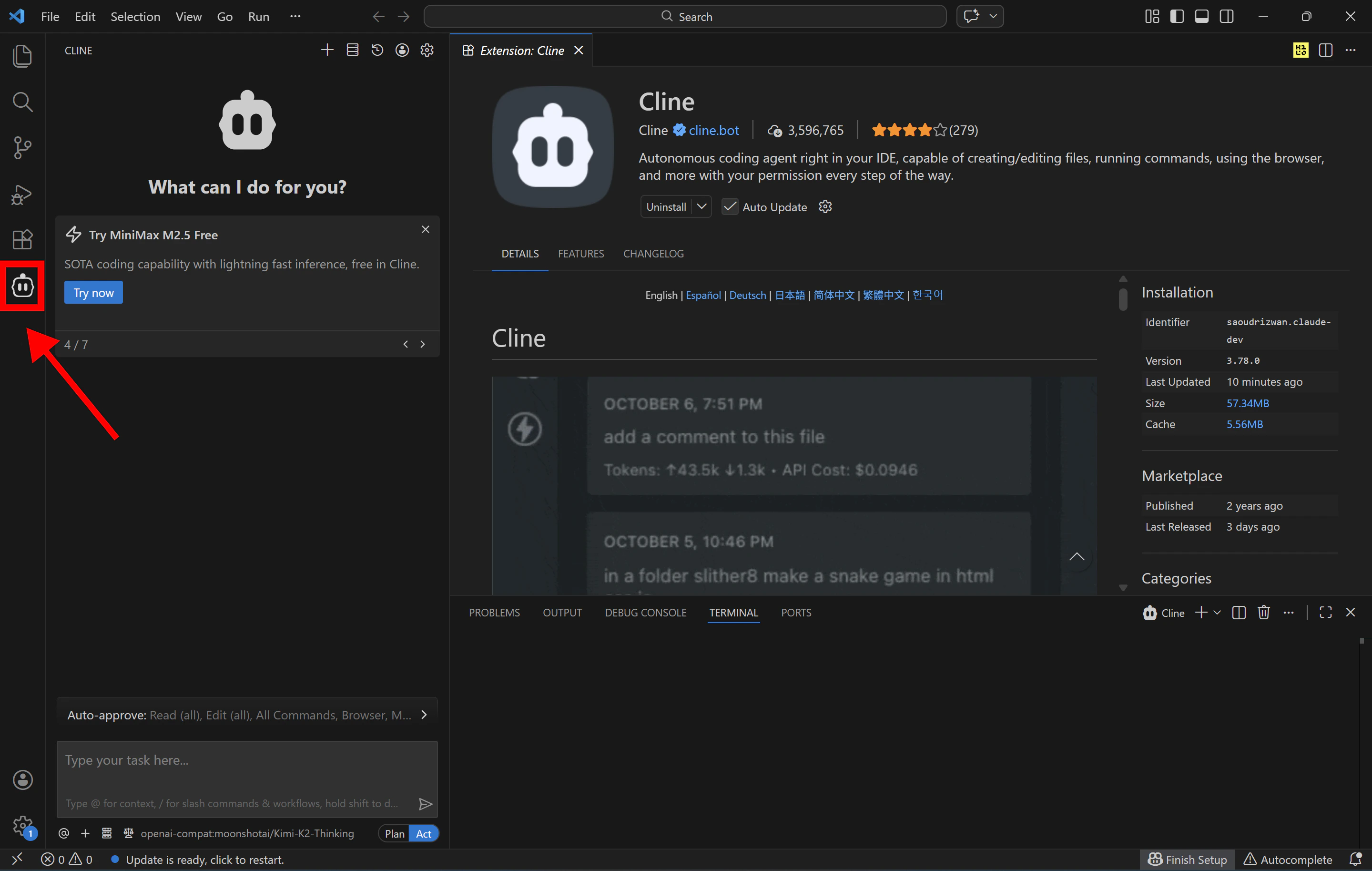
1. Open Cline in VS Code: After installing the Cline extension, you will find the **Cline icon** in the **Activity Bar** on the left side of VS Code and click the icon to open the **Cline chat interface.**
# Step 3: Configure SiliconFlow APIs
1. Open Cline in VS Code: After installing the Cline extension, you will find the **Cline icon** in the **Activity Bar** on the left side of VS Code and click the icon to open the **Cline chat interface.**
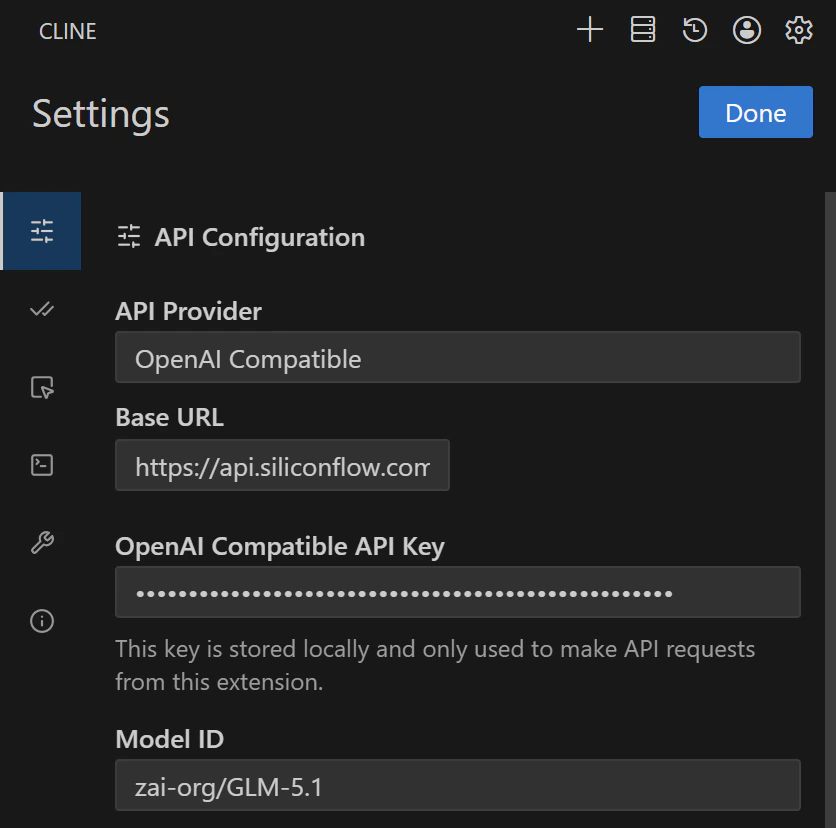
 2. Click the **⚙️ Settings (gear icon)** in the top-right corner to configure your API provider
* API Provider: `OpenAI Compatible`
* Base URL: `https://api.siliconflow.com/v1`
* OpenAI Compatible API Key: **Paste Your SiliconFlow API Key Here**
* Model ID: Enter the model you want to use, for example, `zai-org/GLM-5.1`. You can browse the full model list at[ SiliconFlow's model library ](https://www.siliconflow.com/model)
2. Click the **⚙️ Settings (gear icon)** in the top-right corner to configure your API provider
* API Provider: `OpenAI Compatible`
* Base URL: `https://api.siliconflow.com/v1`
* OpenAI Compatible API Key: **Paste Your SiliconFlow API Key Here**
* Model ID: Enter the model you want to use, for example, `zai-org/GLM-5.1`. You can browse the full model list at[ SiliconFlow's model library ](https://www.siliconflow.com/model)
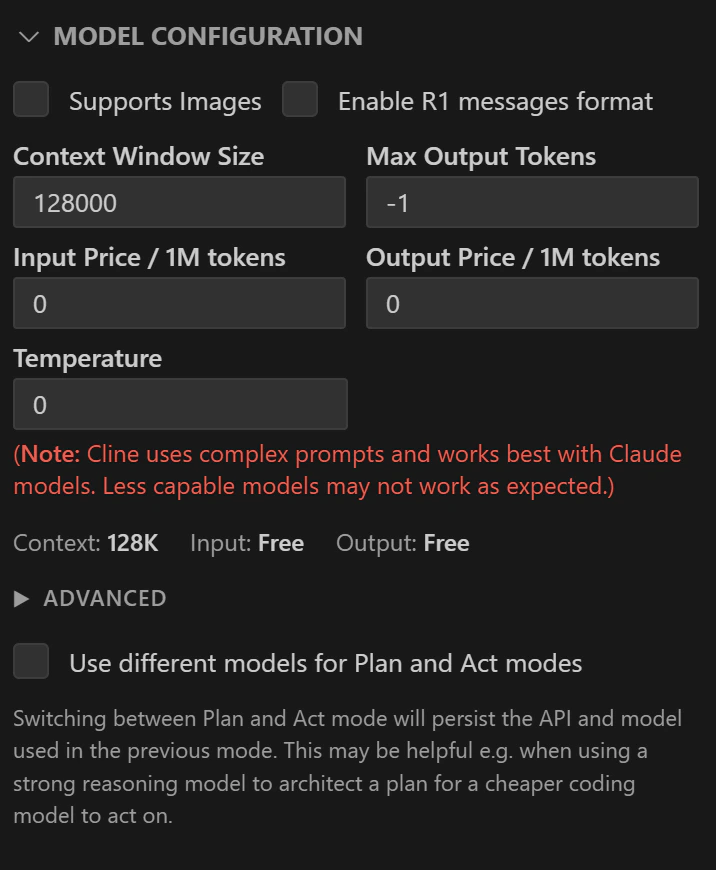
 3. Customize model configuration (optional)
Cline allows you to customize model behavior further. For example, you can configure:
* **Support Images**
* **Enable R1 message format**
* **Context window size**
* **Max output tokens**
* **Temperature**
* **Input and output pricing reference**
It also supports **different models for different modes**:
* **Plan Mode model**
* **Act Mode model**
This allows you to use a **cheaper planning model** and a **stronger coding model** for execution.
3. Customize model configuration (optional)
Cline allows you to customize model behavior further. For example, you can configure:
* **Support Images**
* **Enable R1 message format**
* **Context window size**
* **Max output tokens**
* **Temperature**
* **Input and output pricing reference**
It also supports **different models for different modes**:
* **Plan Mode model**
* **Act Mode model**
This allows you to use a **cheaper planning model** and a **stronger coding model** for execution.
 # Step 4: Start Building with Cline
Once your SiliconFlow API is configured, you're ready to start building with Cline.
## Before Using: Two Things You Need to Know
### **Plan Mode vs Act Mode**
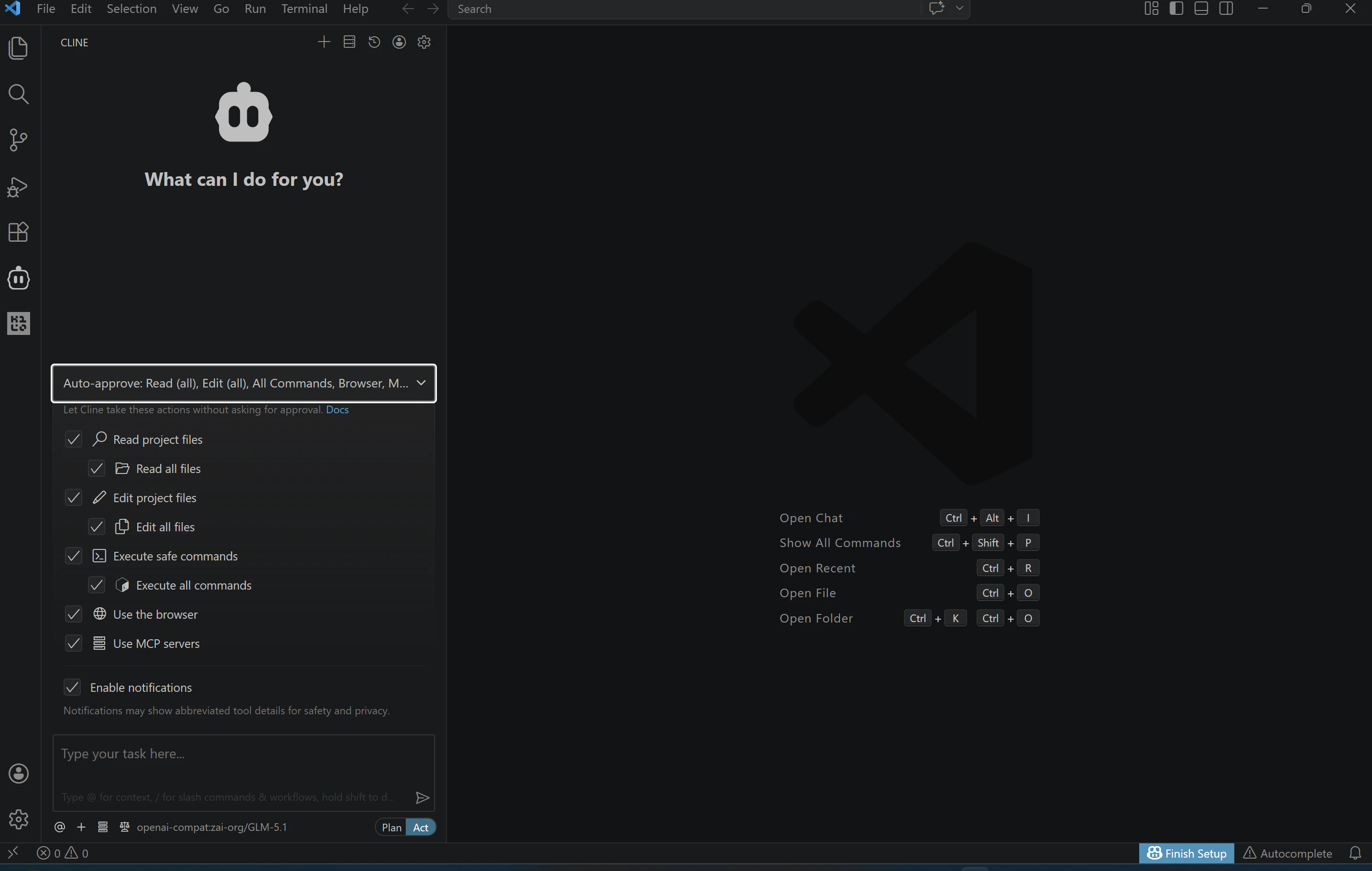
At the bottom of the Cline panel, you'll see a toggle button that switches between two modes:
* **Plan mode:** In this mode, Cline only "talks". It analyzes your request and walks you through its approach, but won't create or modify any files. Use this when you want to discuss requirements or clarify your idea before writing any code.
* **Act mode:** Cline starts creating files and writing code. Once you've aligned on the approach in Plan mode, click the toggle to switch to Act and Cline will begin proposing actual file changes.
### **Auto-Approve Settings**
By default, Cline asks for your explicit approval before every file creation, file edit, or terminal command. If you'd like Cline to handle certain actions autonomously, you can configure this in the auto-approve settings, for example, allowing Cline to read files or run terminal commands without prompting you each time.
Now, you're good to go! Start building your projects with Cline powered by SiliconFlow APIs.
# Step 4: Start Building with Cline
Once your SiliconFlow API is configured, you're ready to start building with Cline.
## Before Using: Two Things You Need to Know
### **Plan Mode vs Act Mode**
At the bottom of the Cline panel, you'll see a toggle button that switches between two modes:
* **Plan mode:** In this mode, Cline only "talks". It analyzes your request and walks you through its approach, but won't create or modify any files. Use this when you want to discuss requirements or clarify your idea before writing any code.
* **Act mode:** Cline starts creating files and writing code. Once you've aligned on the approach in Plan mode, click the toggle to switch to Act and Cline will begin proposing actual file changes.
### **Auto-Approve Settings**
By default, Cline asks for your explicit approval before every file creation, file edit, or terminal command. If you'd like Cline to handle certain actions autonomously, you can configure this in the auto-approve settings, for example, allowing Cline to read files or run terminal commands without prompting you each time.
Now, you're good to go! Start building your projects with Cline powered by SiliconFlow APIs.
 # Which Model Should I Start With?
Based on [Cline OpenRouter monthly usage](https://openrouter.ai/apps/cline), here are the most-used models by Cline users right now:
# Which Model Should I Start With?
Based on [Cline OpenRouter monthly usage](https://openrouter.ai/apps/cline), here are the most-used models by Cline users right now:
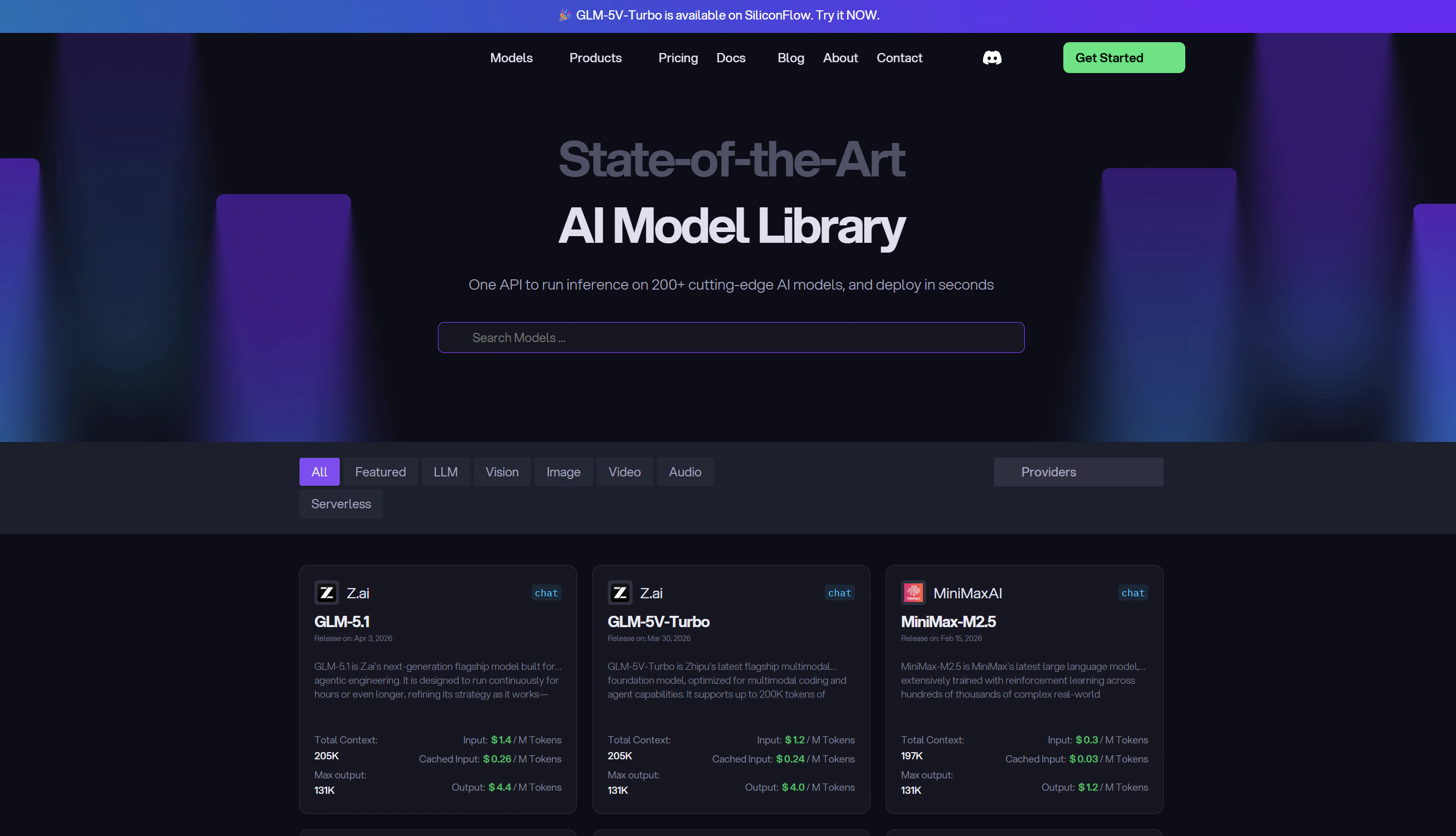
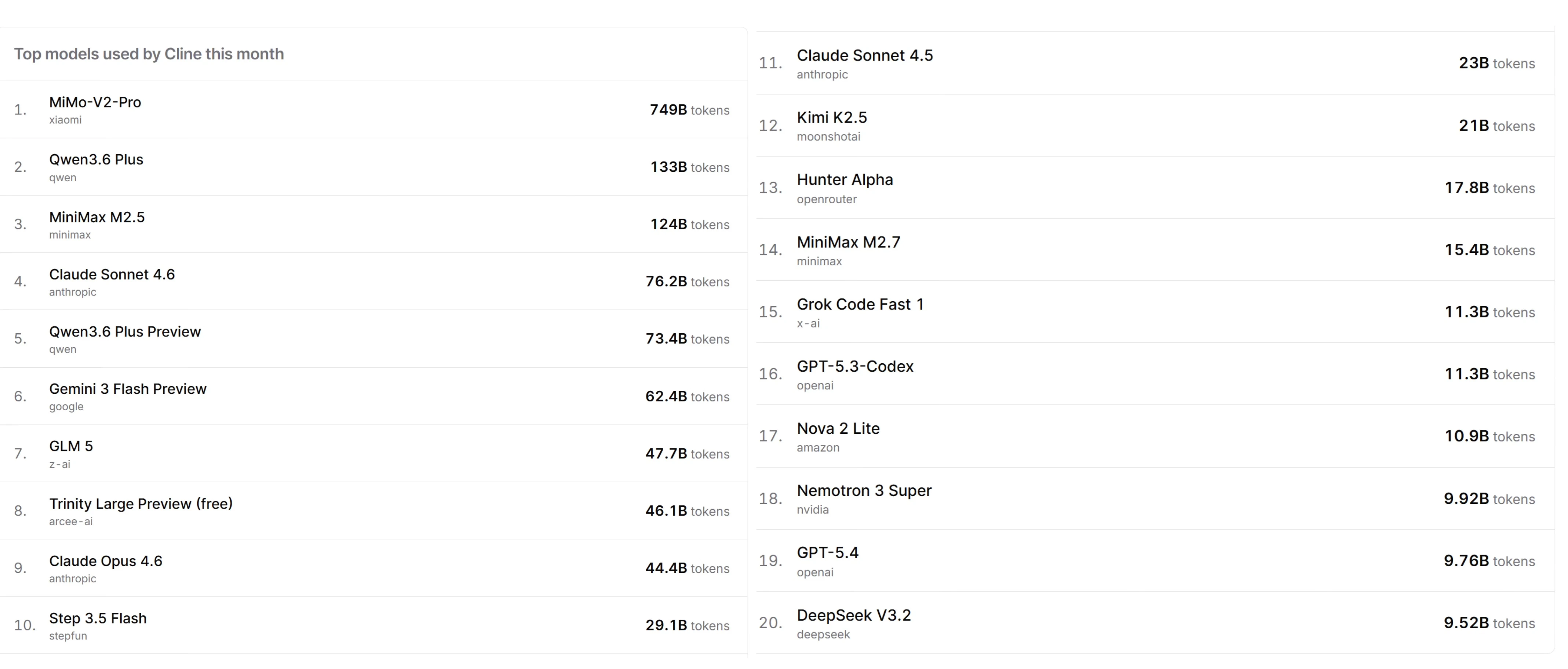 Top open-source models on this list are available directly on SiliconFlow, including [**MiniMax M2.5**](https://www.siliconflow.com/models/minimax-m2-5)**, [GLM 5](https://www.siliconflow.com/models/glm-5), [Step 3.5 Flash](https://www.siliconflow.com/models/step-3-5-flash), [Kimi K2.5](https://www.siliconflow.com/models/kimi-k2-5), and [DeepSeek V3.2](https://www.siliconflow.com/models/deepseek-v3-2),** so you can start with what the Cline community is already using at cost-effective pricing.
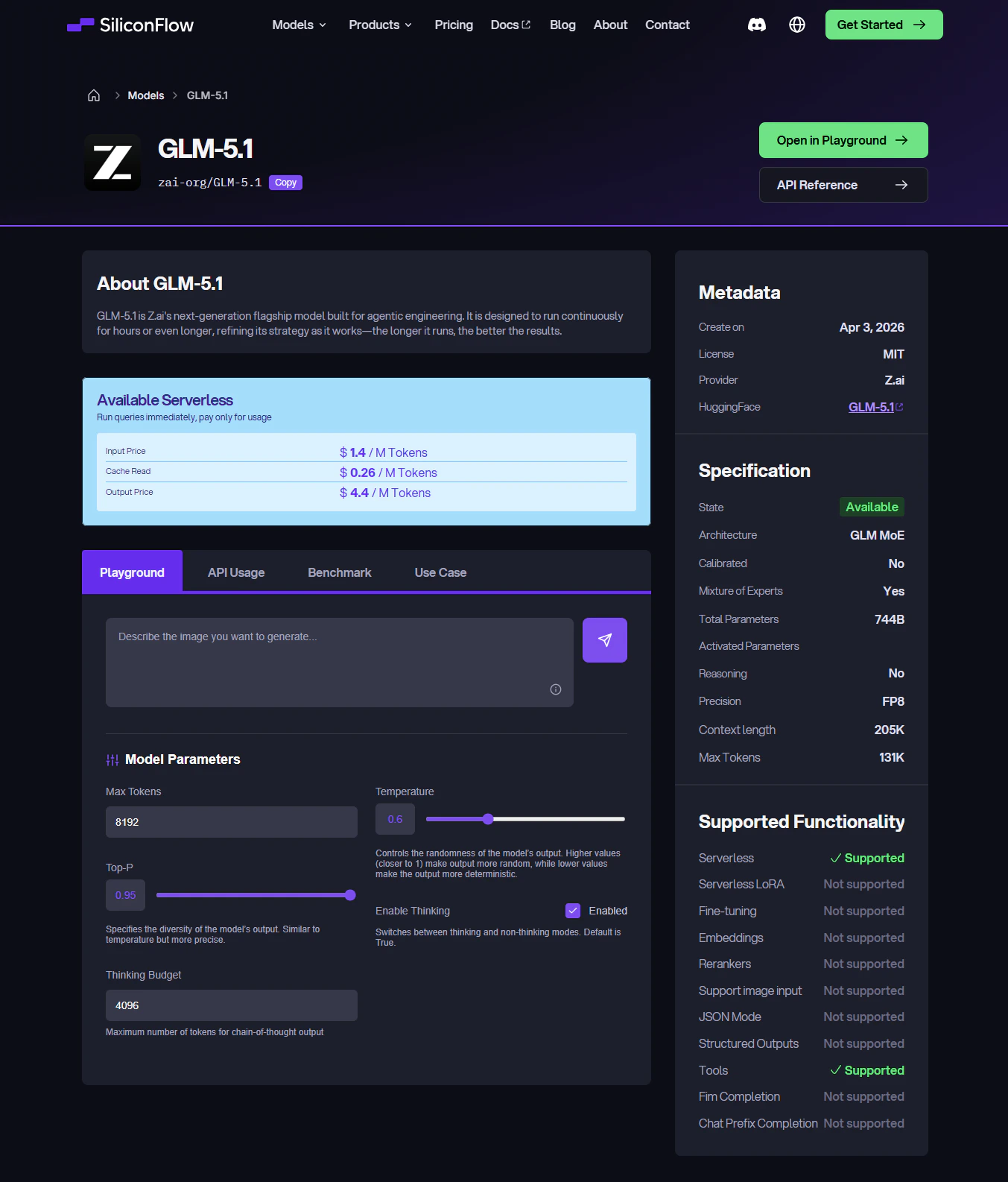
Also, each model card provides key information such as: Context window, Pricing, Precision, Supported modalities, Feature capabilities, etc., to help you find the best fit for your project.
Top open-source models on this list are available directly on SiliconFlow, including [**MiniMax M2.5**](https://www.siliconflow.com/models/minimax-m2-5)**, [GLM 5](https://www.siliconflow.com/models/glm-5), [Step 3.5 Flash](https://www.siliconflow.com/models/step-3-5-flash), [Kimi K2.5](https://www.siliconflow.com/models/kimi-k2-5), and [DeepSeek V3.2](https://www.siliconflow.com/models/deepseek-v3-2),** so you can start with what the Cline community is already using at cost-effective pricing.
Also, each model card provides key information such as: Context window, Pricing, Precision, Supported modalities, Feature capabilities, etc., to help you find the best fit for your project.
 # **Already Using OpenRouter?**
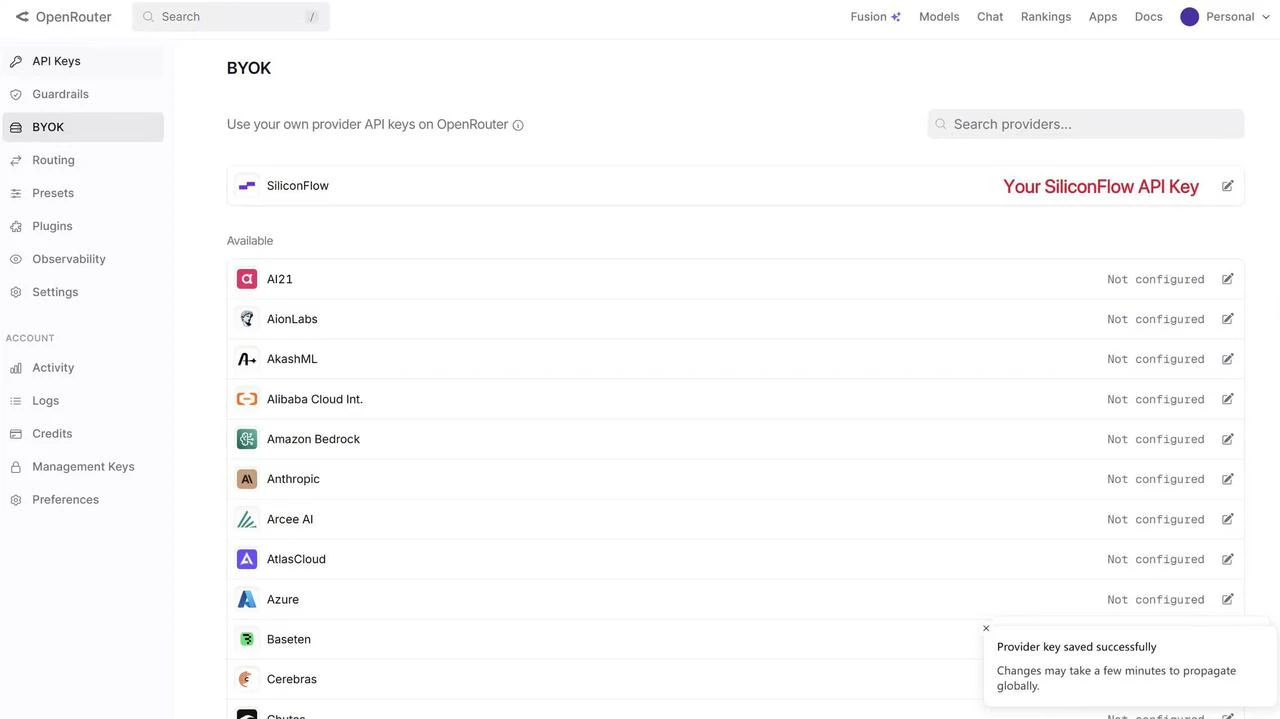
If you're managing models across multiple platforms, you can now connect your SiliconFlow API key to [OpenRouter using BYOK](https://openrouter.ai/workspaces/default/byok) to get a unified workflow without switching between accounts.
Once connected:
* Requests draw from your SiliconFlow balance first
* Billing and rate limits stay in your SiliconFlow account
* OpenRouter's fallback routing still works to improve reliability
**Bonus:** OpenRouter waives platform fees on your first 1M BYOK requests per month.
# **Already Using OpenRouter?**
If you're managing models across multiple platforms, you can now connect your SiliconFlow API key to [OpenRouter using BYOK](https://openrouter.ai/workspaces/default/byok) to get a unified workflow without switching between accounts.
Once connected:
* Requests draw from your SiliconFlow balance first
* Billing and rate limits stay in your SiliconFlow account
* OpenRouter's fallback routing still works to improve reliability
**Bonus:** OpenRouter waives platform fees on your first 1M BYOK requests per month.
 # Resources
### **Cline**
* Website: [https://cline.bot/](https://cline.bot/)
* Docs: [https://docs.cline.bot/](https://docs.cline.bot/)
* Github: [https://github.com/cline/cline](https://github.com/cline/cline)
* Discord: [https://discord.gg/cline](https://discord.gg/cline)
* X: [https://x.com/cline](https://x.com/cline)
### OpenRouter
* BYOK Setting: [https://openrouter.ai/workspaces/default/byok](https://openrouter.ai/workspaces/default/byok)
* Cline OpenRouter Usage: [https://openrouter.ai/apps/cline](https://openrouter.ai/apps/cline)
* SiliconFlow on OpenRouter: [https://openrouter.ai/provider/siliconflow](https://openrouter.ai/provider/siliconflow)
### **SiliconFlow**
* Website: [https://siliconflow.com](https://siliconflow.com)
* API Documentation: [https://docs.siliconflow.com](https://docs.siliconflow.com)
* Model Library: [https://siliconflow.com/models](https://siliconflow.com/models)
* Discord: [https://discord.com/invite/7Ey3dVNFpT](https://discord.com/invite/7Ey3dVNFpT)
* X: [https://x.com/SiliconFlowAI](https://x.com/SiliconFlowAI)
# Resources
### **Cline**
* Website: [https://cline.bot/](https://cline.bot/)
* Docs: [https://docs.cline.bot/](https://docs.cline.bot/)
* Github: [https://github.com/cline/cline](https://github.com/cline/cline)
* Discord: [https://discord.gg/cline](https://discord.gg/cline)
* X: [https://x.com/cline](https://x.com/cline)
### OpenRouter
* BYOK Setting: [https://openrouter.ai/workspaces/default/byok](https://openrouter.ai/workspaces/default/byok)
* Cline OpenRouter Usage: [https://openrouter.ai/apps/cline](https://openrouter.ai/apps/cline)
* SiliconFlow on OpenRouter: [https://openrouter.ai/provider/siliconflow](https://openrouter.ai/provider/siliconflow)
### **SiliconFlow**
* Website: [https://siliconflow.com](https://siliconflow.com)
* API Documentation: [https://docs.siliconflow.com](https://docs.siliconflow.com)
* Model Library: [https://siliconflow.com/models](https://siliconflow.com/models)
* Discord: [https://discord.com/invite/7Ey3dVNFpT](https://discord.com/invite/7Ey3dVNFpT)
* X: [https://x.com/SiliconFlowAI](https://x.com/SiliconFlowAI)