> ## Documentation Index
> Fetch the complete documentation index at: https://docs.siliconflow.com/llms.txt
> Use this file to discover all available pages before exploring further.
# How to use CC Switch with SiliconFlow APIs
> Use SiliconFlow as your AI provider, across [Claude Code](https://code.claude.com/docs/en/overview), [Gemini CLI](https://geminicli.com/), [Codex](https://developers.openai.com/codex/cli), [OpenCode](https://opencode.ai/), [OpenClaw](https://openclaw.ai/), and [Hermes Agent](https://hermes-agent.nousresearch.com/) — managed from a single interface powered by CC Switch.
# What is CC Switch?
[**CC Switch**](https://github.com/farion1231/cc-switch) is a cross-platform desktop application (Windows / macOS / Linux) designed for the centralized management of supplier configurations for six major AI coding CLI tools: [Claude Code](https://code.claude.com/docs/en/overview), [Gemini CLI](https://geminicli.com/), [Codex](https://developers.openai.com/codex/cli), [OpenCode](https://opencode.ai/), [OpenClaw](https://openclaw.ai/), and [Hermes Agent](https://hermes-agent.nousresearch.com/)
If you've used these tools, you're likely familiar with the tedious process of manually editing configuration files like `settings.json`, `auth.json`, and `.env`. Just select SiliconFlow preset, input your API key, and enable configurations with a single click.
## Key Features
| **Feature** | **Description** |
| :----------------------: | :-------------------------------------------------------------------: |
| Provider management | 50+ built-in presets, one-click switching from main UI or system tray |
| MCP management | Manage MCP server configs across 4 apps — edit once, sync everywhere |
| Prompt management | Markdown editor synced to CLAUDE.md / AGENTS.md / GEMINI.md |
| Skills management | Browse GitHub repos, install skill extensions with one click |
| Usage stats | Token consumption tracking, cost monitoring, trend charts |
| Local routing + failover | Auto-failover, circuit breaker, request throttling |
| Session management | Browse and search conversation history across apps |
| Cloud sync | Sync configurations across devices via WebDAV |
> 💡 CC Switch is open source. If you find it useful, consider giving it a ⭐️ on [GitHub](https://github.com/farion1231/cc-switch).
This guide will walk you through connecting SiliconFlow to CC Switch and powering your agentic workflows with 200+ frontier models in just a few steps.
# **Step 1: Prerequisites**
## **Get Your SiliconFlow API Key**
Before you begin, ensure you have a valid SiliconFlow account:
* Register a SiliconFlow account at [https://cloud.siliconflow.com/](https://cloud.siliconflow.com/). You can sign up with Google or GitHub.
* Log in and navigate to `API Keys` in the dashboard.
* Click `🔑Create API Key `and add a name to your key to help you identify it later, then confirm to create it.
* Click the API key to copy it automatically.
⚠️ **Note:** Keep your API key secure; you will need it for the configuration in Step 3.
.jpg?fit=max&auto=format&n=_2RrnaMfZZPJt9Z5&q=85&s=3aceb8394aad557b15783c51793f4741) # Step 2: Install CC Switch
Visit [**GitHub Releases**](https://github.com/farion1231/cc-switch/releases) to download the latest version of CC Switch.
## **macOS**
* **Option 1: Homebrew (Recommended)**
```Python theme={null}
brew tap farion1231/ccswitch
brew install --cask cc-switch
```
* **Option 2: Manual Installation**
* Download `CC-Switch-v{version}-macOS.dmg` (Recommended). Open the DMG and drag **CC Switch.app** into your **Applications** folder.
* Alternatively, download `CC-Switch-v{version}-macOS.zip` and extract it to use.
## **Windows**
* **Option 1: MSI Installer**
* Download `CC-Switch-v{version}-Windows.msi` and run the installer.
* **Option 2: Portable Version (No Installation Required)**
* Download`CC-Switch-v{version}-Windows-Portable.zip`, extract, and run `CC-Switch.exe`.
## **Linux**
* **Arch Linux**
```Plain theme={null}
paru -S cc-switch-bin
```
* **Debian / Ubuntu**
```Plain theme={null}
sudo dpkg -i CC-Switch-v{version}-Linux.deb
```
* **AppImage (Universal)**
```Plain theme={null}
chmod +x CC-Switch-v{version}-Linux.AppImage
./CC-Switch-v{version}-Linux.AppImage
```
# Step 3: Configure SiliconFlow APIs
1. Select your CLI tool
Open CC Switch and select the CLI tool you want to configure from the top selector (e.g., Claude Code).
# Step 2: Install CC Switch
Visit [**GitHub Releases**](https://github.com/farion1231/cc-switch/releases) to download the latest version of CC Switch.
## **macOS**
* **Option 1: Homebrew (Recommended)**
```Python theme={null}
brew tap farion1231/ccswitch
brew install --cask cc-switch
```
* **Option 2: Manual Installation**
* Download `CC-Switch-v{version}-macOS.dmg` (Recommended). Open the DMG and drag **CC Switch.app** into your **Applications** folder.
* Alternatively, download `CC-Switch-v{version}-macOS.zip` and extract it to use.
## **Windows**
* **Option 1: MSI Installer**
* Download `CC-Switch-v{version}-Windows.msi` and run the installer.
* **Option 2: Portable Version (No Installation Required)**
* Download`CC-Switch-v{version}-Windows-Portable.zip`, extract, and run `CC-Switch.exe`.
## **Linux**
* **Arch Linux**
```Plain theme={null}
paru -S cc-switch-bin
```
* **Debian / Ubuntu**
```Plain theme={null}
sudo dpkg -i CC-Switch-v{version}-Linux.deb
```
* **AppImage (Universal)**
```Plain theme={null}
chmod +x CC-Switch-v{version}-Linux.AppImage
./CC-Switch-v{version}-Linux.AppImage
```
# Step 3: Configure SiliconFlow APIs
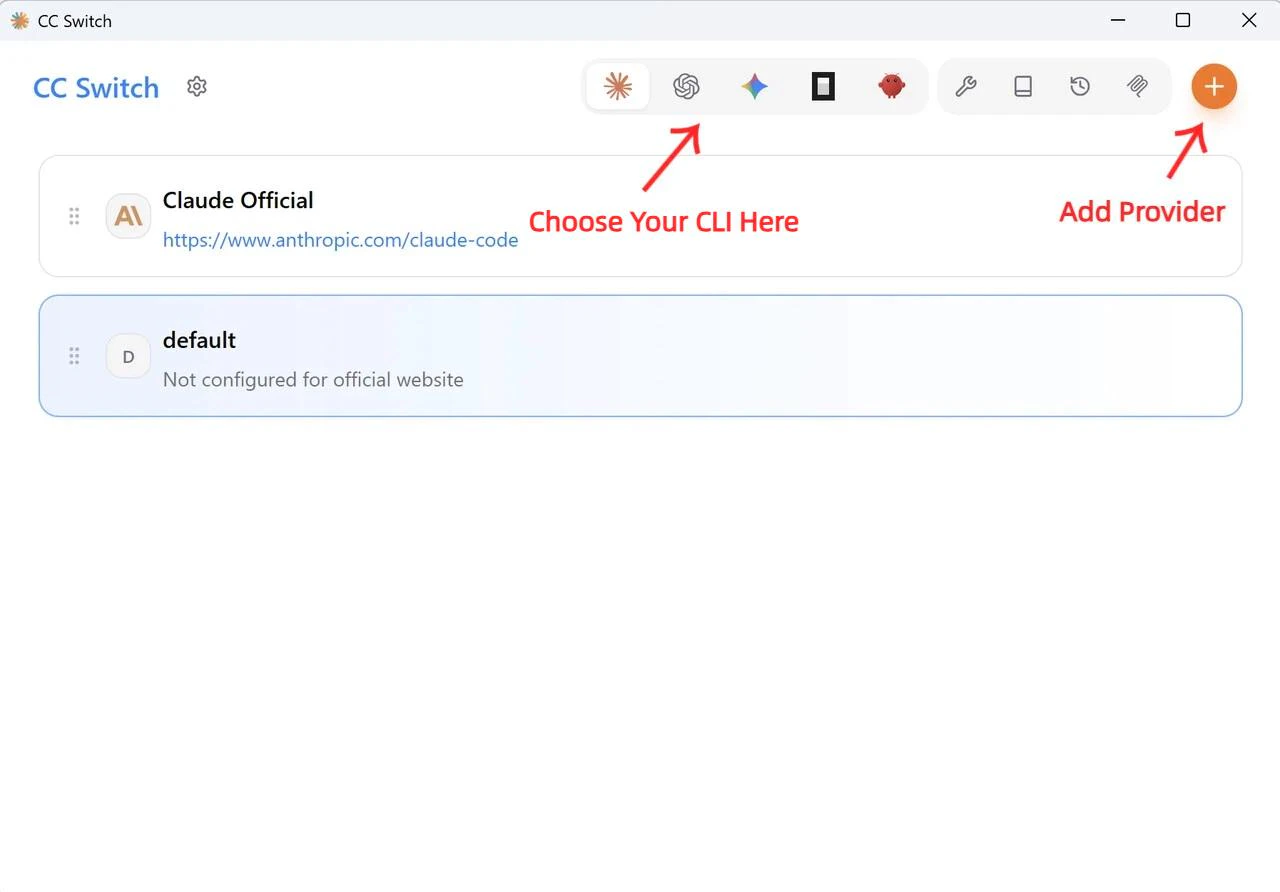
1. Select your CLI tool
Open CC Switch and select the CLI tool you want to configure from the top selector (e.g., Claude Code).
 2. Add SiliconFlow as a provider
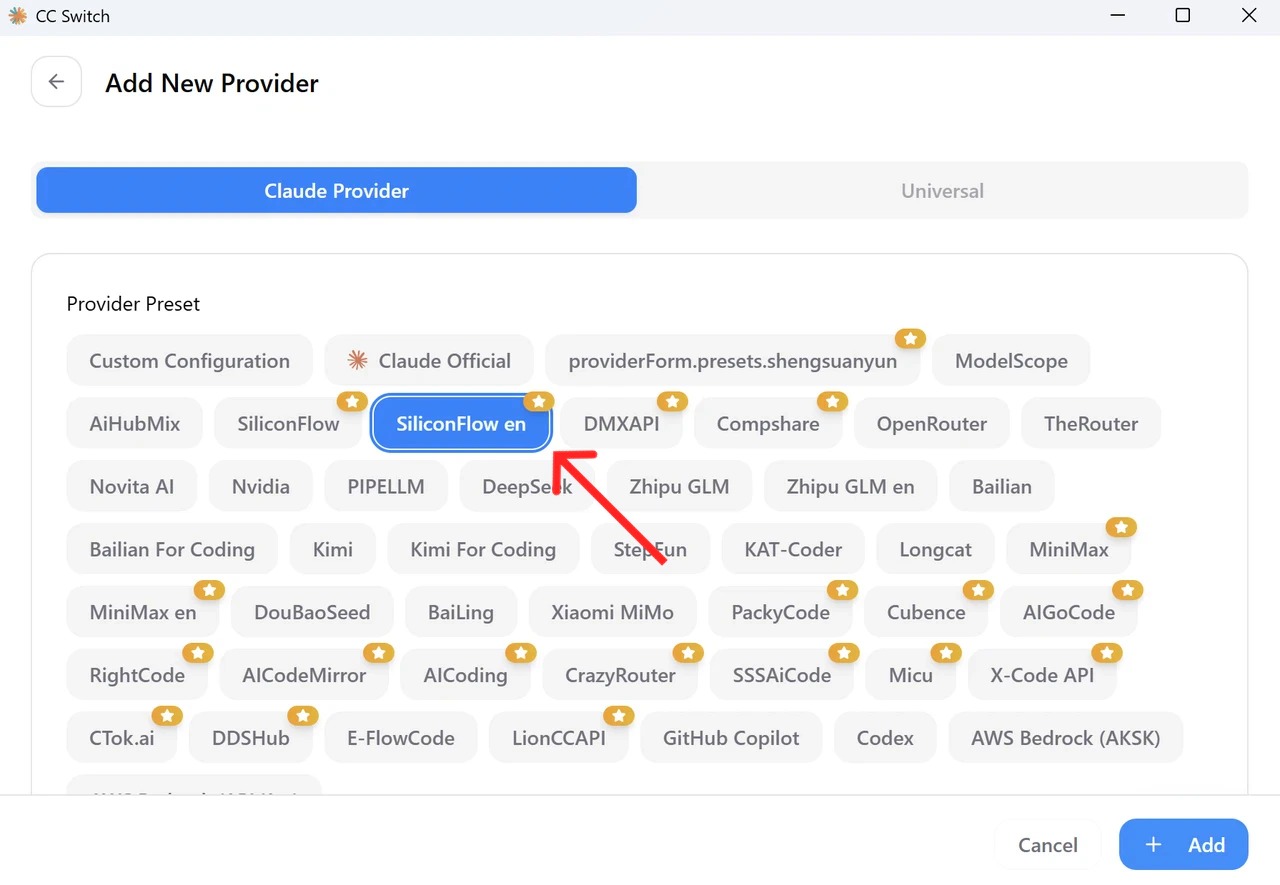
Click **Add Provider** and select `SiliconFlow en` from the preset list.
2. Add SiliconFlow as a provider
Click **Add Provider** and select `SiliconFlow en` from the preset list.
 3. Paste your API key
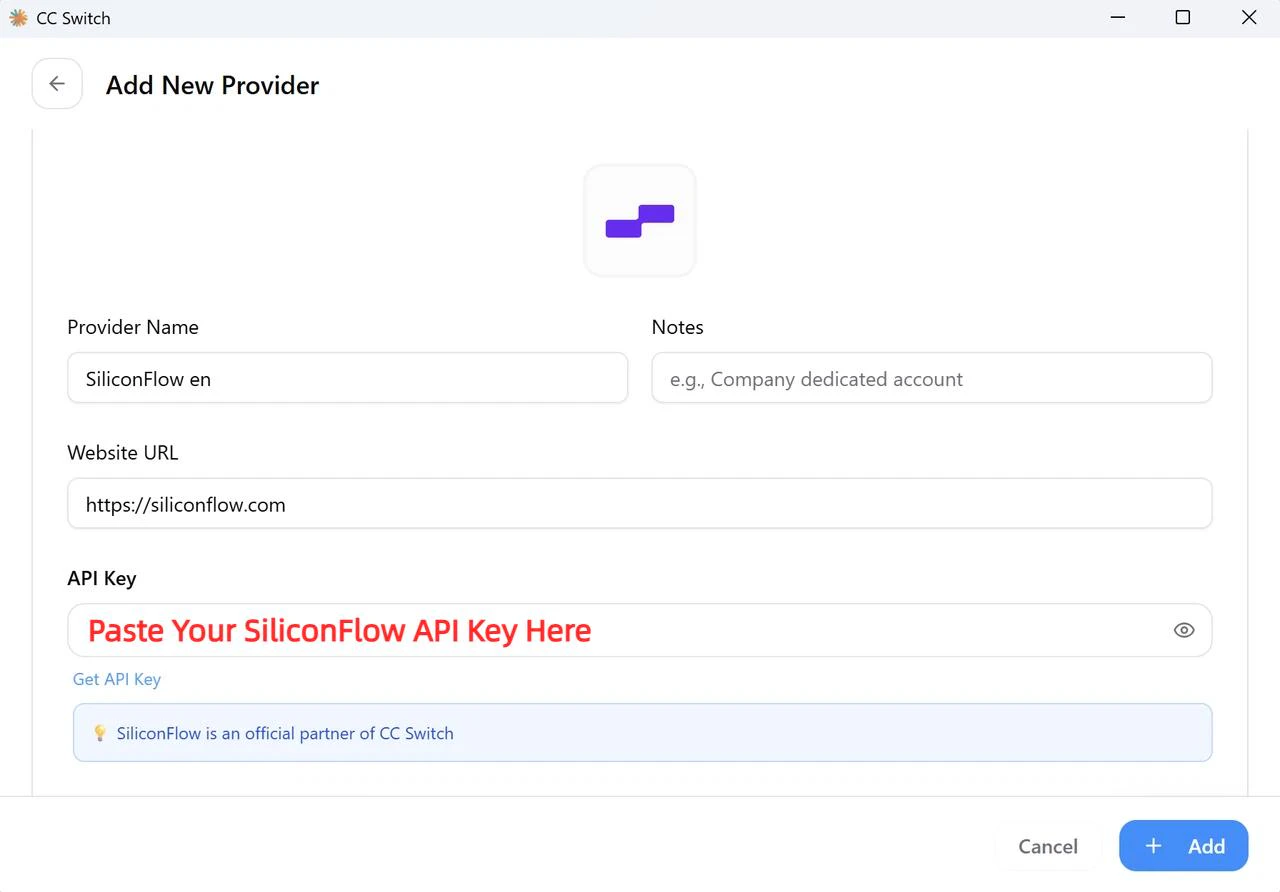
Enter your SiliconFlow API key in the API Key field.
> The **API Format** and **Auth Field** settings do not need to be changed — the preset handles this automatically.
3. Paste your API key
Enter your SiliconFlow API key in the API Key field.
> The **API Format** and **Auth Field** settings do not need to be changed — the preset handles this automatically.
 4. Fetch the latest models
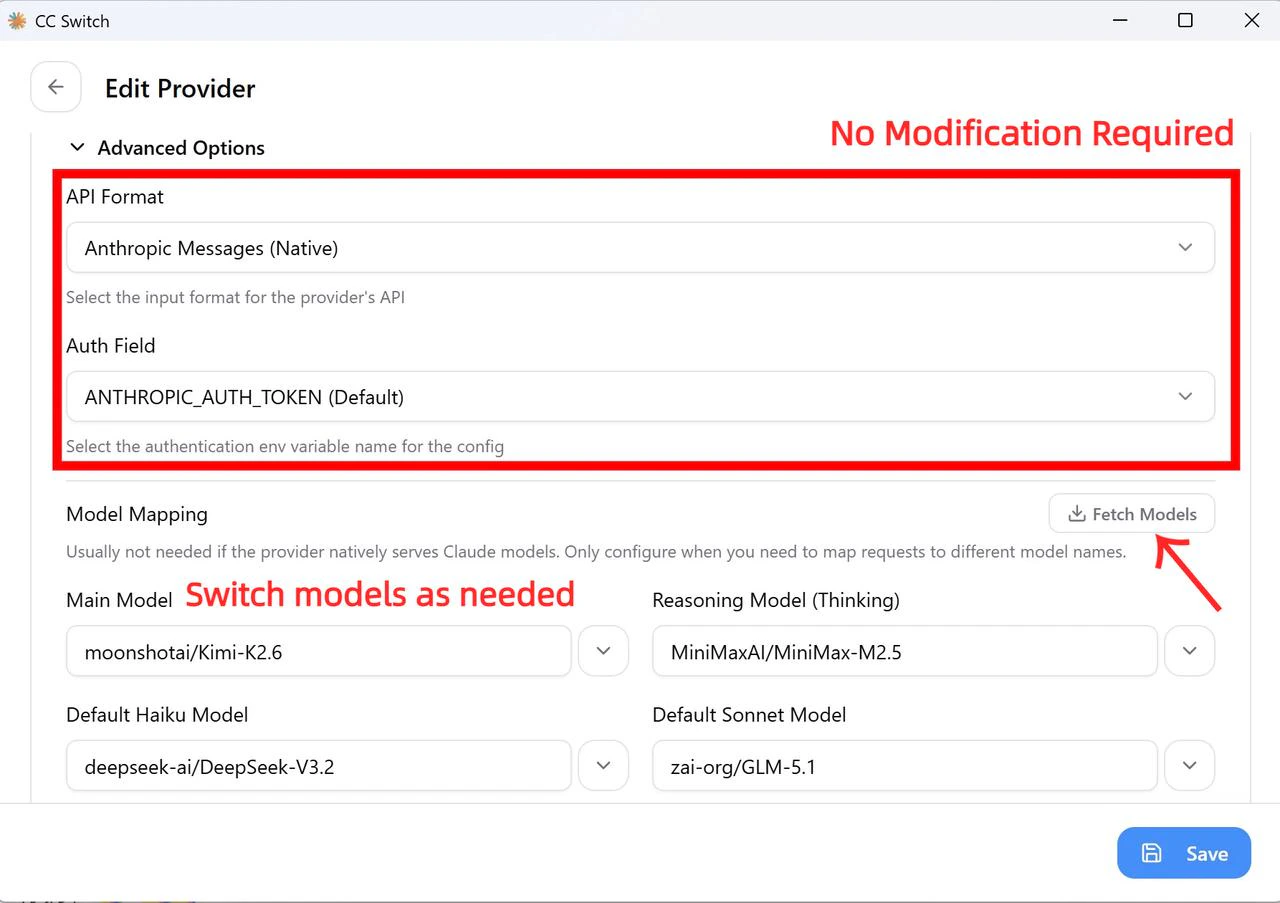
Click **Fetch Models** to load the current SiliconFlow model library.
> By default, CC Switch maps all model slots (Haiku, Sonnet, and Opus) to a single model. After adding SiliconFlow, you can manually edit the configuration to assign specific models to each slot based on your use case. See `Choose the Right Model` for recommendations.
4. Fetch the latest models
Click **Fetch Models** to load the current SiliconFlow model library.
> By default, CC Switch maps all model slots (Haiku, Sonnet, and Opus) to a single model. After adding SiliconFlow, you can manually edit the configuration to assign specific models to each slot based on your use case. See `Choose the Right Model` for recommendations.
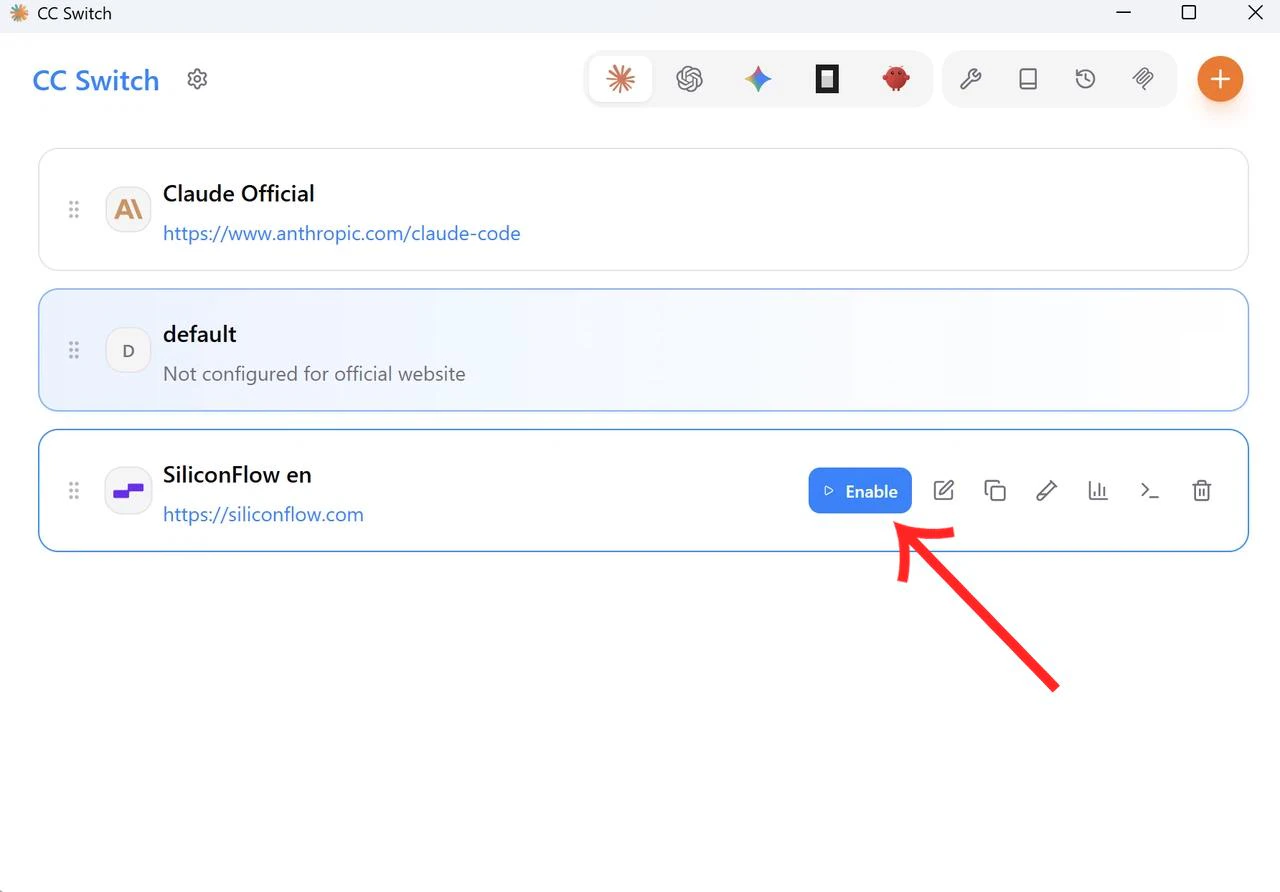
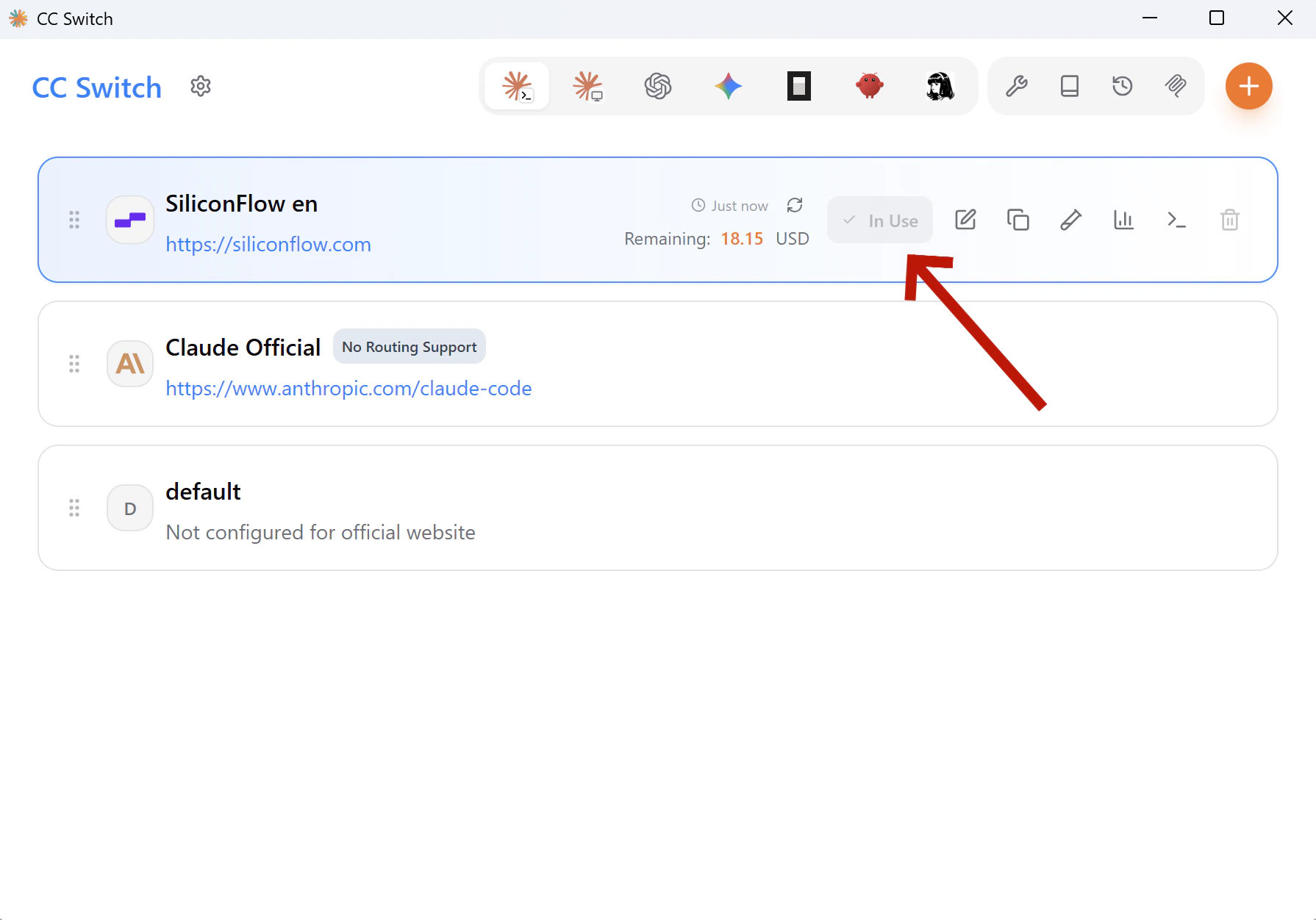
 5. Save and enable
Click **Save**, then return to the main page and toggle SiliconFlow on as your active provider.
Once enabled, you can see your remaining SiliconFlow balance directly in CC Switch.
5. Save and enable
Click **Save**, then return to the main page and toggle SiliconFlow on as your active provider.
Once enabled, you can see your remaining SiliconFlow balance directly in CC Switch.
 # Step 4: Verify Your Setup
CC Switch supports **hot reload** — no terminal restart required after switching providers. Changes take effect immediately. Open your terminal, run `claude`, and enter a test prompt:
```Plain theme={null}
claude
> Hello, give me a brief introduction about yourself
```
# Step 4: Verify Your Setup
CC Switch supports **hot reload** — no terminal restart required after switching providers. Changes take effect immediately. Open your terminal, run `claude`, and enter a test prompt:
```Plain theme={null}
claude
> Hello, give me a brief introduction about yourself
```
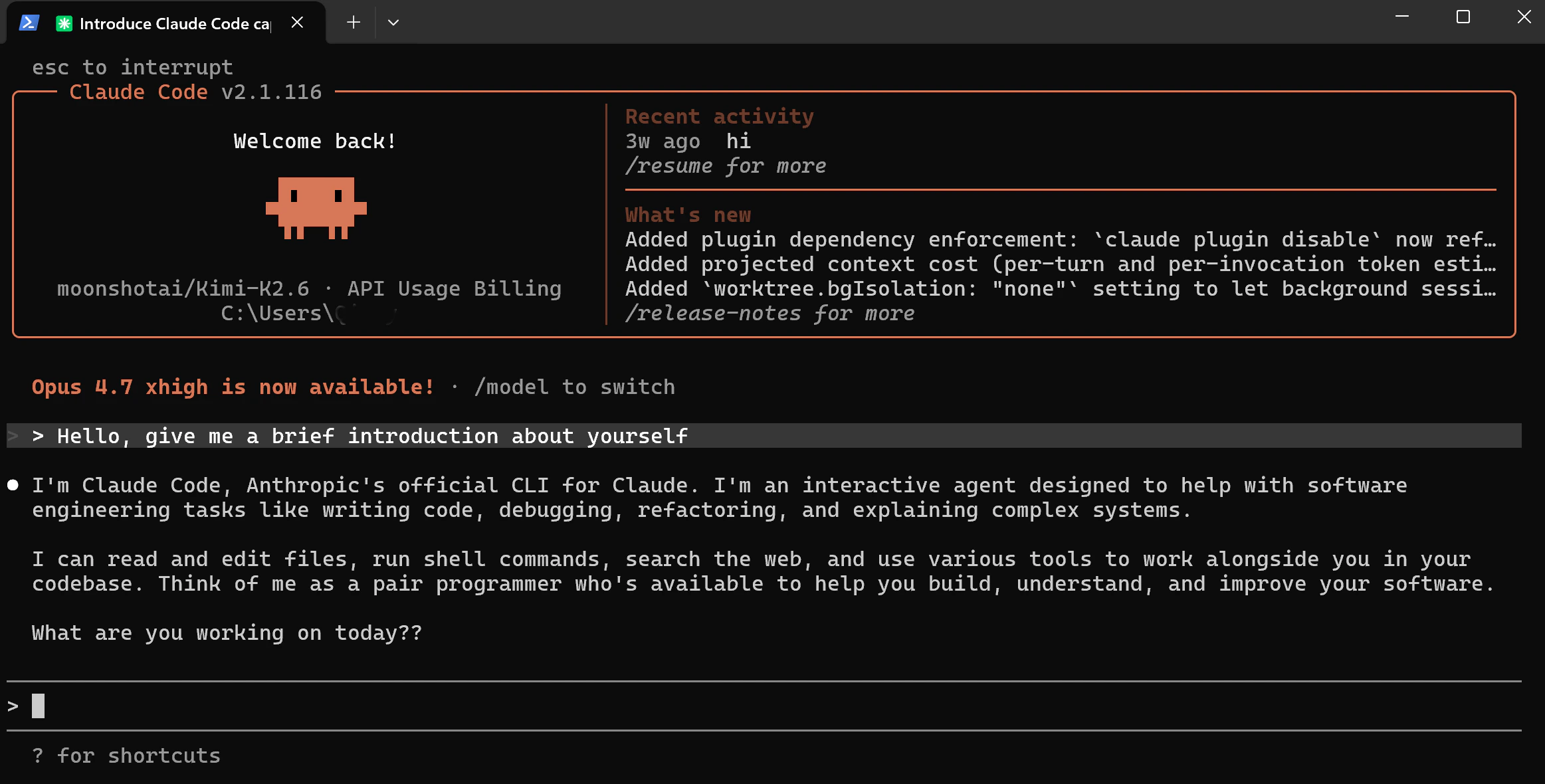 A successful response confirms your setup is working.
> **📌 Note:** If Claude Code prompts you to log in or displays an onboarding flow on first launch, go to **CC Switch → Settings → General** and enable **"Skip Claude Code initial setup confirmation"**, then restart Claude Code.
# Choose the Right Model
Not sure which model to use? Here's a quick reference by use case.
| **Model** | **Best for** | **Key highlights** |
| :-----------------------------------------------------------------------: | :----------------------------------------------------: | :---------------------------------------------------------------------------------------: |
| [DeepSeek-V4-Flash](https://www.siliconflow.com/models/deepseek-v4-flash) | Fast, cost-effective coding chat / large codebase | 1M context · 3 reasoning modes · best value in the V4 series |
| [DeepSeek-V4-Pro](https://www.siliconflow.com/models/deepseek-v4-pro) | Complex reasoning / large codebase | 1M context · #1 open-source on math, STEM & competitive coding · approaches Opus 4.6 |
| [GLM-5.1](https://www.siliconflow.com/models/glm-5-1) | Long-horizon agentic tasks | 58.4 on SWE-Bench Pro · long-horizon execution · iterative self-improvement |
| [Kimi-K2.6](https://www.siliconflow.com/models/kimi-k2-6) | Long-horizon tasks / Frontend generation / multi-agent | Agent swarm architecture · long-horizon coding · prompt-to-frontend generation |
| [MiniMax M2.5](https://www.siliconflow.com/models/minimax-m2-5) | Coding / agentic workflow / office work | SOTA Coding Tied Claude & agentic tool use · trained across 200k+ real-world environments |
| [Qwen3.6-27B](https://www.siliconflow.com/models/qwen3-6-27b) | efficient, context-aware coding experiences. | Flagship-level agentic coding performance |
Browse the full model library: [siliconflow.com/models](https://siliconflow.com/models)
# **Already Using OpenRouter?**
## Bring Your Own Key
If you already have an OpenRouter account, you can connect your SiliconFlow API key via BYOK.
Once connected:
* Requests draw from your SiliconFlow balance first
* Billing and rate limits stay in your SiliconFlow account
* OpenRouter's fallback routing still works to improve reliability
**Bonus:** OpenRouter waives platform fees on your first 1M BYOK requests per month.
A successful response confirms your setup is working.
> **📌 Note:** If Claude Code prompts you to log in or displays an onboarding flow on first launch, go to **CC Switch → Settings → General** and enable **"Skip Claude Code initial setup confirmation"**, then restart Claude Code.
# Choose the Right Model
Not sure which model to use? Here's a quick reference by use case.
| **Model** | **Best for** | **Key highlights** |
| :-----------------------------------------------------------------------: | :----------------------------------------------------: | :---------------------------------------------------------------------------------------: |
| [DeepSeek-V4-Flash](https://www.siliconflow.com/models/deepseek-v4-flash) | Fast, cost-effective coding chat / large codebase | 1M context · 3 reasoning modes · best value in the V4 series |
| [DeepSeek-V4-Pro](https://www.siliconflow.com/models/deepseek-v4-pro) | Complex reasoning / large codebase | 1M context · #1 open-source on math, STEM & competitive coding · approaches Opus 4.6 |
| [GLM-5.1](https://www.siliconflow.com/models/glm-5-1) | Long-horizon agentic tasks | 58.4 on SWE-Bench Pro · long-horizon execution · iterative self-improvement |
| [Kimi-K2.6](https://www.siliconflow.com/models/kimi-k2-6) | Long-horizon tasks / Frontend generation / multi-agent | Agent swarm architecture · long-horizon coding · prompt-to-frontend generation |
| [MiniMax M2.5](https://www.siliconflow.com/models/minimax-m2-5) | Coding / agentic workflow / office work | SOTA Coding Tied Claude & agentic tool use · trained across 200k+ real-world environments |
| [Qwen3.6-27B](https://www.siliconflow.com/models/qwen3-6-27b) | efficient, context-aware coding experiences. | Flagship-level agentic coding performance |
Browse the full model library: [siliconflow.com/models](https://siliconflow.com/models)
# **Already Using OpenRouter?**
## Bring Your Own Key
If you already have an OpenRouter account, you can connect your SiliconFlow API key via BYOK.
Once connected:
* Requests draw from your SiliconFlow balance first
* Billing and rate limits stay in your SiliconFlow account
* OpenRouter's fallback routing still works to improve reliability
**Bonus:** OpenRouter waives platform fees on your first 1M BYOK requests per month.
 ## Cache More, Spend Less
SiliconFlow consistently delivers high cache hit rates across models — for example, according to [OpenRouter](https://openrouter.ai/)'s provider performance data, SiliconFlow achieves the highest cache hit rate among all GLM-5.1 providers at **88.6%**, significantly ahead of the competition. For you as a developer, this translates directly to faster response times and lower inference costs on repeated contexts.
Looking for more models? Browse the full model library at [SiliconFlow Models](https://siliconflow.com/models) or stay up to date with the latest releases on the [SiliconFlow Blog](https://siliconflow.com/blog).
## Cache More, Spend Less
SiliconFlow consistently delivers high cache hit rates across models — for example, according to [OpenRouter](https://openrouter.ai/)'s provider performance data, SiliconFlow achieves the highest cache hit rate among all GLM-5.1 providers at **88.6%**, significantly ahead of the competition. For you as a developer, this translates directly to faster response times and lower inference costs on repeated contexts.
Looking for more models? Browse the full model library at [SiliconFlow Models](https://siliconflow.com/models) or stay up to date with the latest releases on the [SiliconFlow Blog](https://siliconflow.com/blog).
 # Resources
## **CC Switch**
* GitHub: [github.com/farion1231/cc-switch](https://github.com/farion1231/cc-switch)
* Docs: [User Manual](https://github.com/farion1231/cc-switch/blob/main/docs/user-manual/en/README.md)
## **OpenRouter**
* BYOK Setting: [openrouter.ai/workspaces/default/byok](https://openrouter.ai/workspaces/default/byok)
* SiliconFlow on OpenRouter: [openrouter.ai/provider/siliconflow](https://openrouter.ai/provider/siliconflow)
## **SiliconFlow**
* Website: [siliconflow.com](http://siliconflow.com)
* API Docs: [docs.siliconflow.com](http://docs.siliconflow.com)
* Model Library: [siliconflow.com/models](https://siliconflow.com/models)
* Discord: [Join our community](https://discord.com/invite/7Ey3dVNFpT)
* X: [@SiliconFlowAI](https://x.com/SiliconFlowAI)
# Resources
## **CC Switch**
* GitHub: [github.com/farion1231/cc-switch](https://github.com/farion1231/cc-switch)
* Docs: [User Manual](https://github.com/farion1231/cc-switch/blob/main/docs/user-manual/en/README.md)
## **OpenRouter**
* BYOK Setting: [openrouter.ai/workspaces/default/byok](https://openrouter.ai/workspaces/default/byok)
* SiliconFlow on OpenRouter: [openrouter.ai/provider/siliconflow](https://openrouter.ai/provider/siliconflow)
## **SiliconFlow**
* Website: [siliconflow.com](http://siliconflow.com)
* API Docs: [docs.siliconflow.com](http://docs.siliconflow.com)
* Model Library: [siliconflow.com/models](https://siliconflow.com/models)
* Discord: [Join our community](https://discord.com/invite/7Ey3dVNFpT)
* X: [@SiliconFlowAI](https://x.com/SiliconFlowAI)