> ## Documentation Index
> Fetch the complete documentation index at: https://docs.siliconflow.com/llms.txt
> Use this file to discover all available pages before exploring further.
# How to Deploy an AI Assistant on Discord Using Hermes Agent
> Already connected SiliconFlow to Hermes Agent? This guide takes you further, from choosing the right model on SiliconFlow to building your daily assistant on Discord. Plus, a set of practical tips and best practices to help you get more out of every session.
>
> New to the setup? Start with the [v1 guide](https://docs.siliconflow.com/en/usercases/how-to-use-hermes-agent-with-siliconflow-apis) first to connect your Hermes Agent with SiliconFlow.
# What's New
The v1 guide covered the step-by-step process of integrating SiliconFlow APIs to Hermes Agent. Since then, Hermes Agent has grown significantly — now ranked **#1** in[ OpenRouter's Coding Agents Rankings](https://openrouter.ai/apps/category/coding) — and introduced more powerful new features worth exploring.
This guide will further focus on:
* Connecting Hermes Agent to Discord as a daily assistant
* Tips & best practices for getting the most out of your Hermes Agent
* Choosing the right SiliconFlow model for your use case
# Connect Hermes Agent to Discord
With SiliconFlow configured in Hermes Agent, you can deploy it as a Discord bot and start chatting with your AI assistant directly in Discord via DMs or server channels.
## Step 1: Create a Discord Application
1. Go to the [Discord Developer Portal](https://discord.com/developers/applications) and sign in
2. Click **New Application**
3. Enter a name (e.g., `Hermes Agent (SiliconFlow API)`) and click **Create**
.png?fit=max&auto=format&n=cXB1cWyxJ5AtYafD&q=85&s=c601f3209d52ab74d6bb3e2f981a87ed) ## Step 2: Configure the Bot
1. In the left sidebar, click **Bot**
2. Reset and Copy Bot Token
1. Click `Reset Token`.
2. ⚠️Copy the token and store it securely. You will need it during the onboarding process.
3. Under **Authorization Flow**,
1. Set **Public Bot** to **ON**
2. Leave **Require OAuth2 Code Grant** set to **OFF**
4. Scroll down to **Privileged Gateway Intents** and enable:
1. Server Members Intent
2. Message Content Intent
3. Presence Intent (optional)
5. Click **Save Changes**
## Step 2: Configure the Bot
1. In the left sidebar, click **Bot**
2. Reset and Copy Bot Token
1. Click `Reset Token`.
2. ⚠️Copy the token and store it securely. You will need it during the onboarding process.
3. Under **Authorization Flow**,
1. Set **Public Bot** to **ON**
2. Leave **Require OAuth2 Code Grant** set to **OFF**
4. Scroll down to **Privileged Gateway Intents** and enable:
1. Server Members Intent
2. Message Content Intent
3. Presence Intent (optional)
5. Click **Save Changes**
.png?fit=max&auto=format&n=cXB1cWyxJ5AtYafD&q=85&s=5edc9b4b8ca0005ac96911ec631ff5c5)
_Copy-(2).png?fit=max&auto=format&n=cXB1cWyxJ5AtYafD&q=85&s=80c25d5afbd7e34e43a89a22d656a80c) ## Step 3: Generate the Invite URL
1. In the left sidebar, click **Installation**
2. Under **Installation Contexts**, enable **Guild Install**
3. Set **Install Link** to **Discord Provided Link**
4. Under **Default Install Settings → Guild Install**, select:
1. Scopes: `bot` and `applications.commands`
2. Permissions: `View Channels`, `Send Messages`, `Read Message History`, `Attach Files`, etc.
## Step 3: Generate the Invite URL
1. In the left sidebar, click **Installation**
2. Under **Installation Contexts**, enable **Guild Install**
3. Set **Install Link** to **Discord Provided Link**
4. Under **Default Install Settings → Guild Install**, select:
1. Scopes: `bot` and `applications.commands`
2. Permissions: `View Channels`, `Send Messages`, `Read Message History`, `Attach Files`, etc.
_Copy-(1)_Copy-(2).png?fit=max&auto=format&n=cXB1cWyxJ5AtYafD&q=85&s=b01b288119ab2adb039c63449ad39845)
_Copy-(2).png?fit=max&auto=format&n=cXB1cWyxJ5AtYafD&q=85&s=59fe0e058592fe8ebfb3eb6fb1c3965d) ## Step 4: Invite the Bot to Your Server
1. Open the invite URL in your browser.
2. In the **Add to Server** dropdown, select your server.
3. Click **Continue**, then **Authorize**.
4. Complete the CAPTCHA if prompted.
## Step 4: Invite the Bot to Your Server
1. Open the invite URL in your browser.
2. In the **Add to Server** dropdown, select your server.
3. Click **Continue**, then **Authorize**.
4. Complete the CAPTCHA if prompted.
.png?fit=max&auto=format&n=cXB1cWyxJ5AtYafD&q=85&s=6edae260acd278197bee4ed03e8b1755) ## Step 5: Find Your Discord User ID
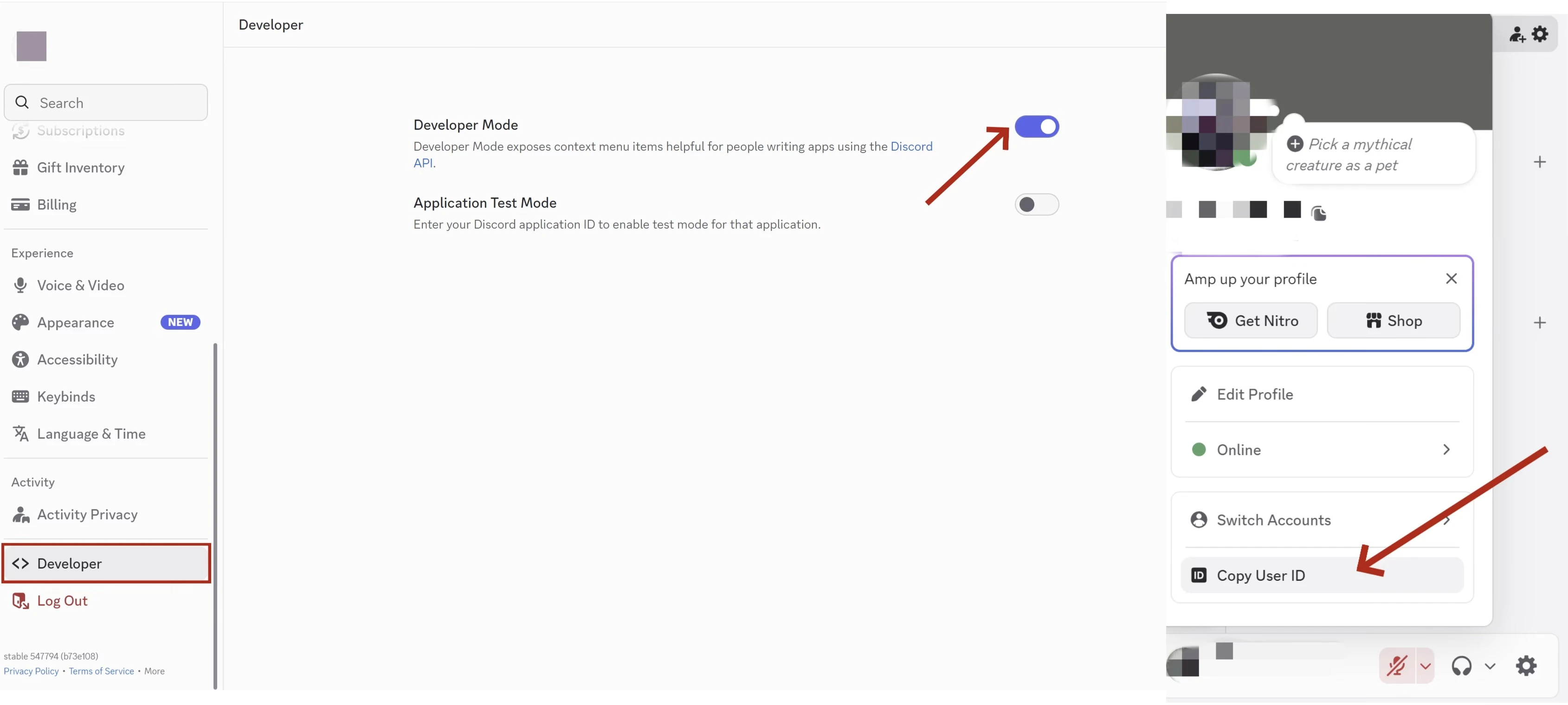
Hermes Agent uses your User ID to control who can interact with the bot.
1. In Discord, go to **Settings** and toggle **Developer Mode ON**
2. Right-click your username → **Copy User ID**
## Step 5: Find Your Discord User ID
Hermes Agent uses your User ID to control who can interact with the bot.
1. In Discord, go to **Settings** and toggle **Developer Mode ON**
2. Right-click your username → **Copy User ID**
 ## Step 6: Start the Gateway
1. Run the setup in your terminal:
```Bash theme={null}
hermes gateway setup
```
2. Select **Discord** when prompted, then paste your Bot Token and User ID.
## Step 6: Start the Gateway
1. Run the setup in your terminal:
```Bash theme={null}
hermes gateway setup
```
2. Select **Discord** when prompted, then paste your Bot Token and User ID.
_Copy-(2).png?fit=max&auto=format&n=cXB1cWyxJ5AtYafD&q=85&s=583af4328e89749843fc01846d056bf4) Once complete, send the bot a message in Discord to verify your SiliconFlow-powered assistant is live.
> For advanced configuration options (free-response channels, session isolation, slash commands, etc.), refer to the [Hermes Agent Discord documentation](https://hermes-agent.nousresearch.com/docs/user-guide/messaging/discord).
## Use case: Daily News Report
Tell Hermes bot which website you don't want to miss, and it'll check them on a schedule and deliver updates right to your Discord channel.
Example:
> "Follow the latest news on [siliconflow.com](http://siliconflow.com) every day and report the updates"
Hermes visits the site daily and posts a summary — no manual checking needed.
Once complete, send the bot a message in Discord to verify your SiliconFlow-powered assistant is live.
> For advanced configuration options (free-response channels, session isolation, slash commands, etc.), refer to the [Hermes Agent Discord documentation](https://hermes-agent.nousresearch.com/docs/user-guide/messaging/discord).
## Use case: Daily News Report
Tell Hermes bot which website you don't want to miss, and it'll check them on a schedule and deliver updates right to your Discord channel.
Example:
> "Follow the latest news on [siliconflow.com](http://siliconflow.com) every day and report the updates"
Hermes visits the site daily and posts a summary — no manual checking needed.
.jpg?fit=max&auto=format&n=cXB1cWyxJ5AtYafD&q=85&s=5d8e88e7cbd11f124acb7307b6784df5) # Tips & Best Practices
## Starting Out: Be Specific, Not Vague
Tell Hermes exactly what you need — the more detail, the better the result.
> ❌ help me with models selection
>
> ✅ I need to call a text generation API on SiliconFlow with at least 205K context, cache support, and under \$0.5 per million input tokens — what are my options?
When you spell out your requirements — context length, pricing budget, feature needs — Hermes narrows down the options for you in one shot. A vague prompt means back-and-forth clarifications; a specific one means you get what you need right away.
## Leveling Up: Run Tasks in Parallel, Stop Waiting in Line
Most people use Hermes one task at a time. But Hermes can spin up multiple sub-agents that work simultaneously — each with its own context — and only the final summaries come back to you.
For example, instead of looking things up one by one:
> "Check these three things in parallel: (1) which text generation models are available with json mode support on SiliconFlow, (2) how the image generation API request format works for SiliconFlow, (3) what the rate limits are for my SiliconFlow API tier."
One message, three independent lookups, one consolidated answer. It's faster and saves tokens because only the key findings are returned to your main conversation.
## Going Pro: Keep Your Cache Warm
Here's something most users don't realize: LLM providers cache your system prompt prefix. If your context stays stable (same`AGENTS.md`, same `SOUL.md`, same memory), every follow-up message in the session hits the cache — making it significantly cheaper and faster.
This matters even more on SiliconFlow. SiliconFlow consistently delivers high cache hit rates — for example, according to [OpenRouter's provider performance data](https://openrouter.ai/provider/siliconflow), SiliconFlow achieves the highest cache hit rate among all GLM-5.1 providers at 88.6%, significantly ahead of the competition. For developers, this translates directly to faster response times and lower inference costs on repeated contexts.
# Tips & Best Practices
## Starting Out: Be Specific, Not Vague
Tell Hermes exactly what you need — the more detail, the better the result.
> ❌ help me with models selection
>
> ✅ I need to call a text generation API on SiliconFlow with at least 205K context, cache support, and under \$0.5 per million input tokens — what are my options?
When you spell out your requirements — context length, pricing budget, feature needs — Hermes narrows down the options for you in one shot. A vague prompt means back-and-forth clarifications; a specific one means you get what you need right away.
## Leveling Up: Run Tasks in Parallel, Stop Waiting in Line
Most people use Hermes one task at a time. But Hermes can spin up multiple sub-agents that work simultaneously — each with its own context — and only the final summaries come back to you.
For example, instead of looking things up one by one:
> "Check these three things in parallel: (1) which text generation models are available with json mode support on SiliconFlow, (2) how the image generation API request format works for SiliconFlow, (3) what the rate limits are for my SiliconFlow API tier."
One message, three independent lookups, one consolidated answer. It's faster and saves tokens because only the key findings are returned to your main conversation.
## Going Pro: Keep Your Cache Warm
Here's something most users don't realize: LLM providers cache your system prompt prefix. If your context stays stable (same`AGENTS.md`, same `SOUL.md`, same memory), every follow-up message in the session hits the cache — making it significantly cheaper and faster.
This matters even more on SiliconFlow. SiliconFlow consistently delivers high cache hit rates — for example, according to [OpenRouter's provider performance data](https://openrouter.ai/provider/siliconflow), SiliconFlow achieves the highest cache hit rate among all GLM-5.1 providers at 88.6%, significantly ahead of the competition. For developers, this translates directly to faster response times and lower inference costs on repeated contexts.
.jpg?fit=max&auto=format&n=cXB1cWyxJ5AtYafD&q=85&s=2bf7123ca602bd1e532415bee5e088bf) **What this means in practice:**
* Don't change models or rewrite your system prompt mid-session
* Use `/compress` when conversations get long, it trims the token count without losing key context
* Pick the right model upfront: use a larger model for complex reasoning and architecture decisions, switch to a lighter one for formatting and boilerplate generation
Run `/usage` periodically to see where your tokens are going. Small habits, real savings.
## Want More Tips?
This covers the essentials to get you productive quickly. Hermes Agent has a rich set of best practices beyond what's listed here — including CLI power-user shortcuts, context file patterns (`AGENTS.md`, `SOUL.md`, `.cursorrules`), memory management, security best practices, and more.
Check out the official documentation: [https://hermes-agent.nousresearch.com/docs/guides/tips](https://hermes-agent.nousresearch.com/docs/guides/tips)
# Choose the Right Model
Not sure which model to use? Here's a quick reference by use case.
| **Model** | **Best for** | **Key highlights** |
| :-----------------------------------------------------------------------: | :----------------------------------------------------: | :---------------------------------------------------------------------------------------: |
| [DeepSeek-V4-Flash](https://www.siliconflow.com/models/deepseek-v4-flash) | Fast, cost-effective coding chat / large codebase | 1M context · 3 reasoning modes · best value in the V4 series |
| [DeepSeek-V4-Pro](https://www.siliconflow.com/models/deepseek-v4-pro) | Complex reasoning / large codebase | 1M context · #1 open-source on math, STEM & competitive coding · approaches Opus 4.6 |
| [GLM-5.1](https://www.siliconflow.com/models/glm-5-1) | Long-horizon agentic tasks | 58.4 on SWE-Bench Pro · long-horizon execution · iterative self-improvement |
| [Kimi-K2.6](https://www.siliconflow.com/models/kimi-k2-6) | Long-horizon tasks / Frontend generation / multi-agent | Agent swarm architecture · long-horizon coding · prompt-to-frontend generation |
| [MiniMax M2.5](https://www.siliconflow.com/models/minimax-m2-5) | Coding / agentic workflow / office work | SOTA Coding Tied Claude & agentic tool use · trained across 200k+ real-world environments |
| [Qwen3.6-27B](https://www.siliconflow.com/models/qwen3-6-27b) | efficient, context-aware coding experiences. | Flagship-level agentic coding performance |
Browse the full model library: [siliconflow.com/models](https://siliconflow.com/models)
# **Already Using OpenRouter?**
## Bring Your Own Key
Supports **BYOK (Bring Your Own Key)** on OpenRouter — your requests draw from your SiliconFlow balance, with OpenRouter waiving platform fees on your first 1M BYOK requests/month
Browse the full model library → [siliconflow.com/models](http://siliconflow.com/models)
**What this means in practice:**
* Don't change models or rewrite your system prompt mid-session
* Use `/compress` when conversations get long, it trims the token count without losing key context
* Pick the right model upfront: use a larger model for complex reasoning and architecture decisions, switch to a lighter one for formatting and boilerplate generation
Run `/usage` periodically to see where your tokens are going. Small habits, real savings.
## Want More Tips?
This covers the essentials to get you productive quickly. Hermes Agent has a rich set of best practices beyond what's listed here — including CLI power-user shortcuts, context file patterns (`AGENTS.md`, `SOUL.md`, `.cursorrules`), memory management, security best practices, and more.
Check out the official documentation: [https://hermes-agent.nousresearch.com/docs/guides/tips](https://hermes-agent.nousresearch.com/docs/guides/tips)
# Choose the Right Model
Not sure which model to use? Here's a quick reference by use case.
| **Model** | **Best for** | **Key highlights** |
| :-----------------------------------------------------------------------: | :----------------------------------------------------: | :---------------------------------------------------------------------------------------: |
| [DeepSeek-V4-Flash](https://www.siliconflow.com/models/deepseek-v4-flash) | Fast, cost-effective coding chat / large codebase | 1M context · 3 reasoning modes · best value in the V4 series |
| [DeepSeek-V4-Pro](https://www.siliconflow.com/models/deepseek-v4-pro) | Complex reasoning / large codebase | 1M context · #1 open-source on math, STEM & competitive coding · approaches Opus 4.6 |
| [GLM-5.1](https://www.siliconflow.com/models/glm-5-1) | Long-horizon agentic tasks | 58.4 on SWE-Bench Pro · long-horizon execution · iterative self-improvement |
| [Kimi-K2.6](https://www.siliconflow.com/models/kimi-k2-6) | Long-horizon tasks / Frontend generation / multi-agent | Agent swarm architecture · long-horizon coding · prompt-to-frontend generation |
| [MiniMax M2.5](https://www.siliconflow.com/models/minimax-m2-5) | Coding / agentic workflow / office work | SOTA Coding Tied Claude & agentic tool use · trained across 200k+ real-world environments |
| [Qwen3.6-27B](https://www.siliconflow.com/models/qwen3-6-27b) | efficient, context-aware coding experiences. | Flagship-level agentic coding performance |
Browse the full model library: [siliconflow.com/models](https://siliconflow.com/models)
# **Already Using OpenRouter?**
## Bring Your Own Key
Supports **BYOK (Bring Your Own Key)** on OpenRouter — your requests draw from your SiliconFlow balance, with OpenRouter waiving platform fees on your first 1M BYOK requests/month
Browse the full model library → [siliconflow.com/models](http://siliconflow.com/models)
 # **Resources**
## **Hermes Agent**
* Website: [https://hermes-agent.nousresearch.com/](https://hermes-agent.nousresearch.com/)
* Docs: [https://hermes-agent.nousresearch.com/docs](https://hermes-agent.nousresearch.com/docs)
* Discord: [https://discord.gg/NousResearch](https://discord.gg/NousResearch)
* Github: [https://github.com/NousResearch/hermes-agent](https://github.com/NousResearch/hermes-agent)
## **OpenRouter**
* BYOK Setting: [https://openrouter.ai/workspaces/default/byok](https://openrouter.ai/workspaces/default/byok)
* SiliconFlow on OpenRouter: [https://openrouter.ai/provider/siliconflow](https://openrouter.ai/provider/siliconflow)
## **SiliconFlow**
* Website: [https://siliconflow.com](https://siliconflow.com)
* API Documentation: [https://docs.siliconflow.com](https://docs.siliconflow.com)
* Model Library: [https://siliconflow.com/models](https://siliconflow.com/models)
* Discord: [https://discord.com/invite/7Ey3dVNFpT](https://discord.com/invite/7Ey3dVNFpT)
* X: [https://x.com/SiliconFlowAI](https://x.com/SiliconFlowAI)
# **Resources**
## **Hermes Agent**
* Website: [https://hermes-agent.nousresearch.com/](https://hermes-agent.nousresearch.com/)
* Docs: [https://hermes-agent.nousresearch.com/docs](https://hermes-agent.nousresearch.com/docs)
* Discord: [https://discord.gg/NousResearch](https://discord.gg/NousResearch)
* Github: [https://github.com/NousResearch/hermes-agent](https://github.com/NousResearch/hermes-agent)
## **OpenRouter**
* BYOK Setting: [https://openrouter.ai/workspaces/default/byok](https://openrouter.ai/workspaces/default/byok)
* SiliconFlow on OpenRouter: [https://openrouter.ai/provider/siliconflow](https://openrouter.ai/provider/siliconflow)
## **SiliconFlow**
* Website: [https://siliconflow.com](https://siliconflow.com)
* API Documentation: [https://docs.siliconflow.com](https://docs.siliconflow.com)
* Model Library: [https://siliconflow.com/models](https://siliconflow.com/models)
* Discord: [https://discord.com/invite/7Ey3dVNFpT](https://discord.com/invite/7Ey3dVNFpT)
* X: [https://x.com/SiliconFlowAI](https://x.com/SiliconFlowAI)