> ## Documentation Index
> Fetch the complete documentation index at: https://docs.siliconflow.com/llms.txt
> Use this file to discover all available pages before exploring further.
# 在 Claude Code 中使用
> 将 SiliconFlow 的 AI 模型与 Claude Code 集成,提升开发体验
本集成指南兼容 macOS 和 Linux 系统。Windows 用户请使用 WSL(Windows 子系统 Linux)。
## 概述
Claude Code 是一个命令行 AI 助手,可帮助完成编码任务。通过与 SiliconFlow 集成,您可以直接从终端访问强大的 AI 模型进行代码生成、调试和分析。
## 前置条件
* macOS 或 Linux 操作系统(或 Windows 上的 WSL)
* 具有 bash shell 的终端访问权限
* 有效的 SiliconFlow API 密钥([获取您的 API 密钥](https://cloud.siliconflow.com/account/ak))
* 用于下载安装脚本的互联网连接
## 方法一:自动化安装(推荐)
### 步骤 1:运行安装脚本
在终端中执行自动化安装脚本:
```bash theme={null}
bash -c "$(curl -fsSL https://sf-maas.s3.us-east-1.amazonaws.com/sample/ccsf_v251226.sh)"
```
执行前请务必检查来自外部来源的脚本。此脚本将配置您的环境变量和 Claude Code 设置。
### 步骤 2:配置 API 认证
根据提示输入您的 SiliconFlow API 密钥:
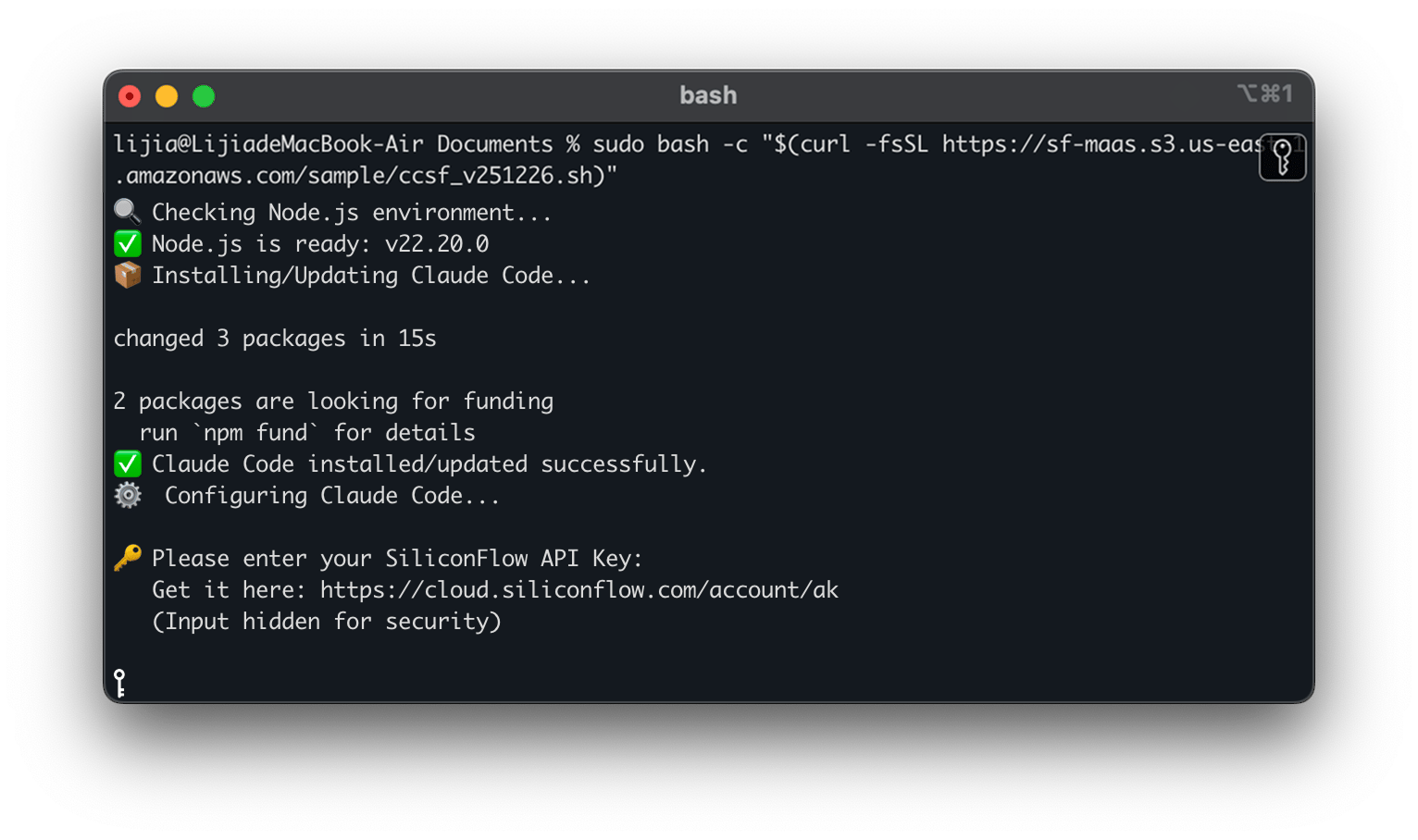 您可以在 [SiliconFlow 控制台](https://cloud.siliconflow.com/account/ak) 中找到您的 API 密钥。请妥善保管,切勿公开分享。
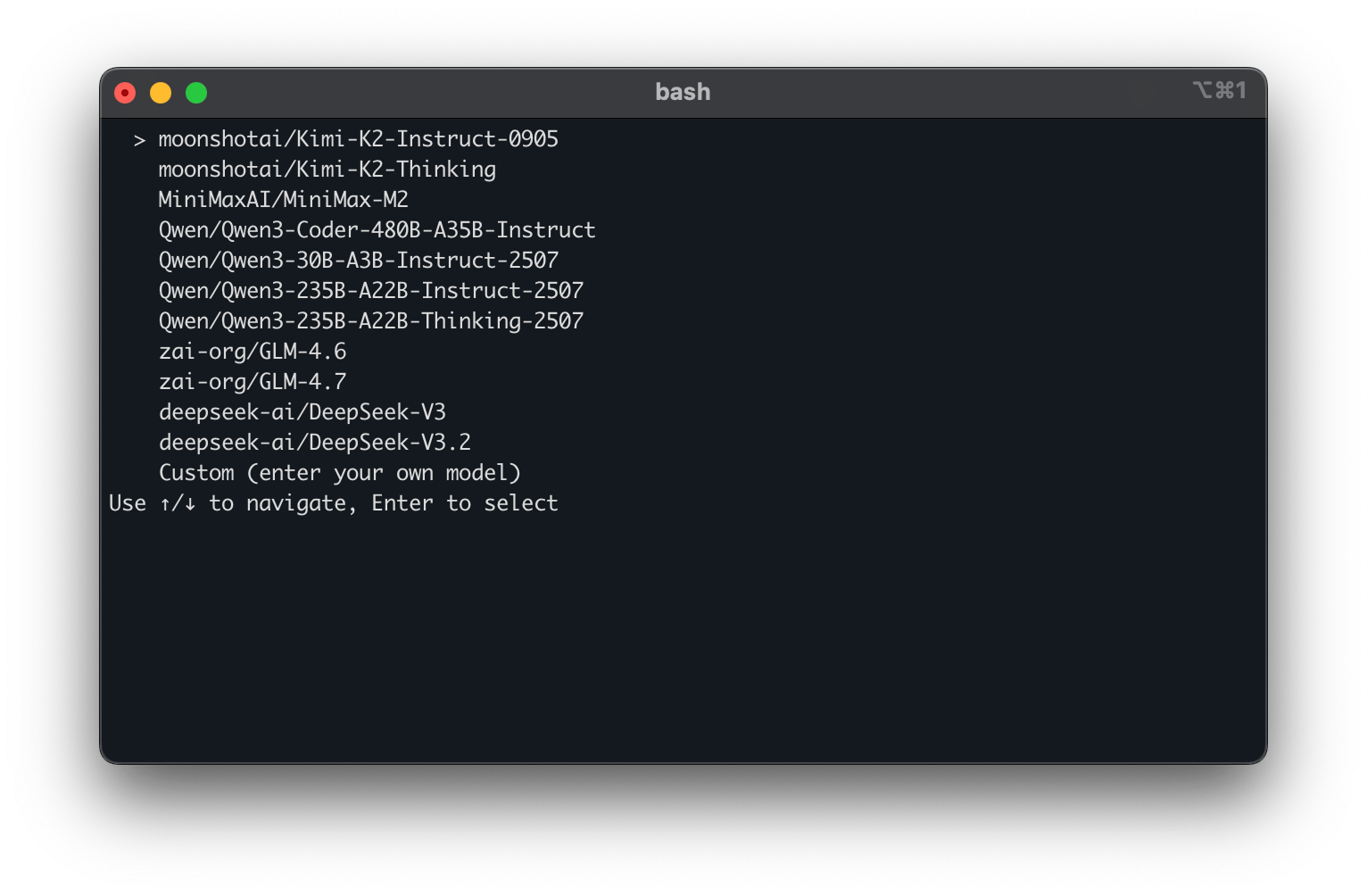
### 步骤 3:选择 AI 模型
使用方向键选择您偏好的模型,或选择 **Custom** 指定自定义模型:
您可以在 [SiliconFlow 控制台](https://cloud.siliconflow.com/account/ak) 中找到您的 API 密钥。请妥善保管,切勿公开分享。
### 步骤 3:选择 AI 模型
使用方向键选择您偏好的模型,或选择 **Custom** 指定自定义模型:
 ### 步骤 4:应用配置
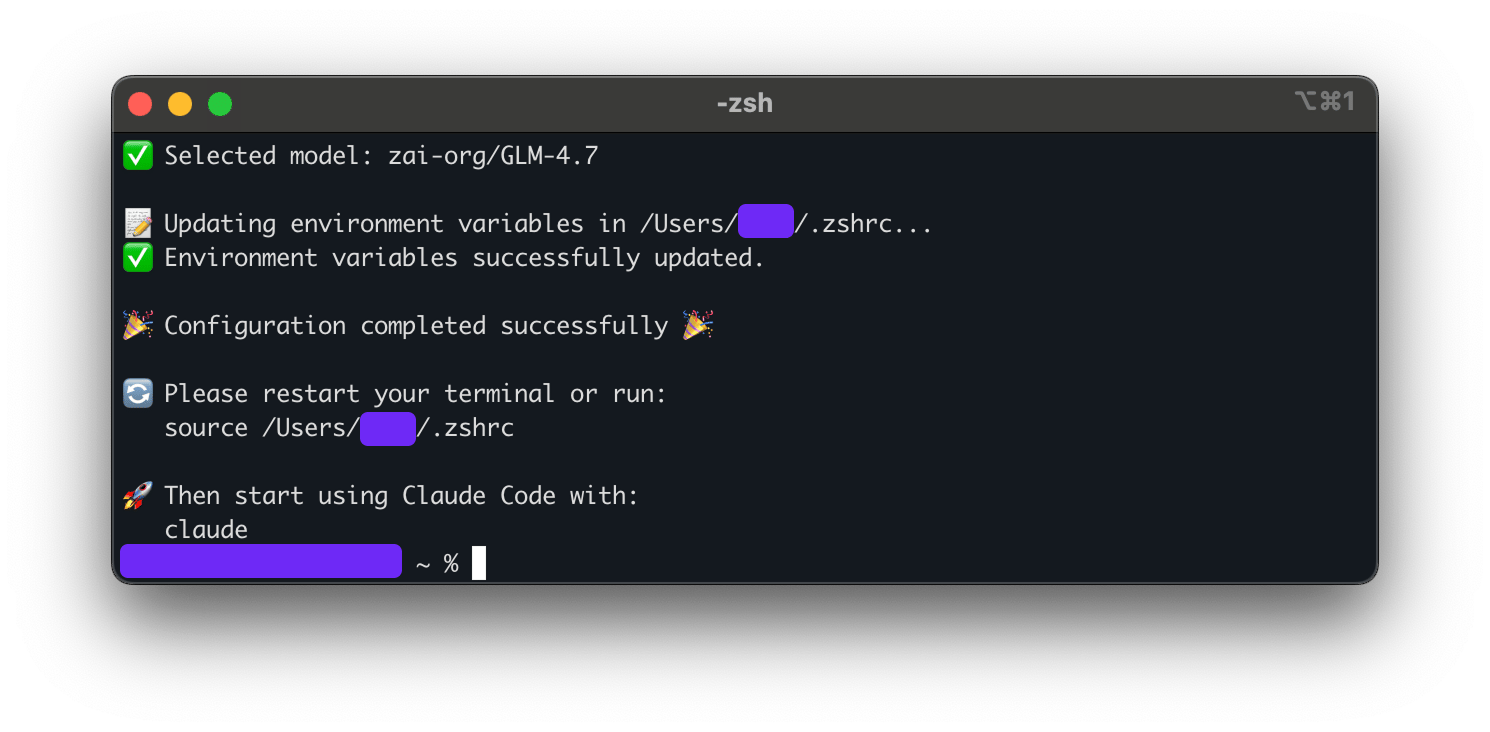
按照屏幕上的说明完成设置:
1. 复制提供的命令
2. 重启您的终端会话
3. 运行复制的命令以应用配置
### 步骤 4:应用配置
按照屏幕上的说明完成设置:
1. 复制提供的命令
2. 重启您的终端会话
3. 运行复制的命令以应用配置
 ### 步骤 5:开始使用 Claude Code
使用以下命令启动 Claude Code:
```bash theme={null}
claude
```
现在您可以直接从终端与选定的 AI 模型交互,获得编码协助。
## 方法二:手动配置
适用于偏好手动设置或需要自定义配置的高级用户:
### 环境变量设置
在您的 shell 配置文件(`.bashrc`、`.zshrc` 或 `.profile`)中配置所需的环境变量:
```bash theme={null}
# SiliconFlow API 配置
export ANTHROPIC_BASE_URL="https://api.siliconflow.com/"
export ANTHROPIC_MODEL="your-preferred-model" # 替换为您偏好的模型
export ANTHROPIC_API_KEY="sk-your-api-key-here" # 替换为您的实际 API 密钥
```
### 应用配置
重新加载您的 shell 配置:
```bash theme={null}
# bash 用户
source ~/.bashrc
# zsh 用户
source ~/.zshrc
```
## 模型管理
### 切换模型
Claude Code 目前一次只支持一个活跃模型。要更改模型:
**选项 A:重新运行自动化安装**
```bash theme={null}
bash -c "$(curl -fsSL https://sf-maas.s3.us-east-1.amazonaws.com/sample/ccsf_v251226.sh)"
```
**选项 B:手动更新环境变量**
```bash theme={null}
export ANTHROPIC_MODEL="new-model-name"
```
### 可用模型
在 [cloud.siliconflow.com/models](https://cloud.siliconflow.com/models) 探索可用模型,选择最适合您需求的模型。
## 使用技巧
**最佳实践:**
* 使用具体、详细的提示以获得更好的代码建议
* 将复杂任务分解为较小的、可管理的请求
* 在实施前审查生成的代码
* 在 [SiliconFlow 控制台](https://cloud.siliconflow.com/console) 中监控您的使用情况
## 故障排除
### 常见问题
**认证错误:**
```bash theme={null}
# 验证您的 API 密钥是否正确设置
echo $ANTHROPIC_API_KEY
```
**模型未找到:**
```bash theme={null}
# 检查模型名称是否正确
echo $ANTHROPIC_MODEL
```
**连接问题:**
```bash theme={null}
# 测试 API 连接性
curl -H "Authorization: Bearer $ANTHROPIC_API_KEY" https://api.siliconflow.com/v1/models
```
### 步骤 5:开始使用 Claude Code
使用以下命令启动 Claude Code:
```bash theme={null}
claude
```
现在您可以直接从终端与选定的 AI 模型交互,获得编码协助。
## 方法二:手动配置
适用于偏好手动设置或需要自定义配置的高级用户:
### 环境变量设置
在您的 shell 配置文件(`.bashrc`、`.zshrc` 或 `.profile`)中配置所需的环境变量:
```bash theme={null}
# SiliconFlow API 配置
export ANTHROPIC_BASE_URL="https://api.siliconflow.com/"
export ANTHROPIC_MODEL="your-preferred-model" # 替换为您偏好的模型
export ANTHROPIC_API_KEY="sk-your-api-key-here" # 替换为您的实际 API 密钥
```
### 应用配置
重新加载您的 shell 配置:
```bash theme={null}
# bash 用户
source ~/.bashrc
# zsh 用户
source ~/.zshrc
```
## 模型管理
### 切换模型
Claude Code 目前一次只支持一个活跃模型。要更改模型:
**选项 A:重新运行自动化安装**
```bash theme={null}
bash -c "$(curl -fsSL https://sf-maas.s3.us-east-1.amazonaws.com/sample/ccsf_v251226.sh)"
```
**选项 B:手动更新环境变量**
```bash theme={null}
export ANTHROPIC_MODEL="new-model-name"
```
### 可用模型
在 [cloud.siliconflow.com/models](https://cloud.siliconflow.com/models) 探索可用模型,选择最适合您需求的模型。
## 使用技巧
**最佳实践:**
* 使用具体、详细的提示以获得更好的代码建议
* 将复杂任务分解为较小的、可管理的请求
* 在实施前审查生成的代码
* 在 [SiliconFlow 控制台](https://cloud.siliconflow.com/console) 中监控您的使用情况
## 故障排除
### 常见问题
**认证错误:**
```bash theme={null}
# 验证您的 API 密钥是否正确设置
echo $ANTHROPIC_API_KEY
```
**模型未找到:**
```bash theme={null}
# 检查模型名称是否正确
echo $ANTHROPIC_MODEL
```
**连接问题:**
```bash theme={null}
# 测试 API 连接性
curl -H "Authorization: Bearer $ANTHROPIC_API_KEY" https://api.siliconflow.com/v1/models
```